
Log in to SiteLock
- Log in to the Client Area and go to Services > My Services.
- Open the service SiteLock is attached to (usually your hosting).
- Click Log in to SiteLock. It's under Actions on the left, and on the SiteLock panel under Licenses and Addons.
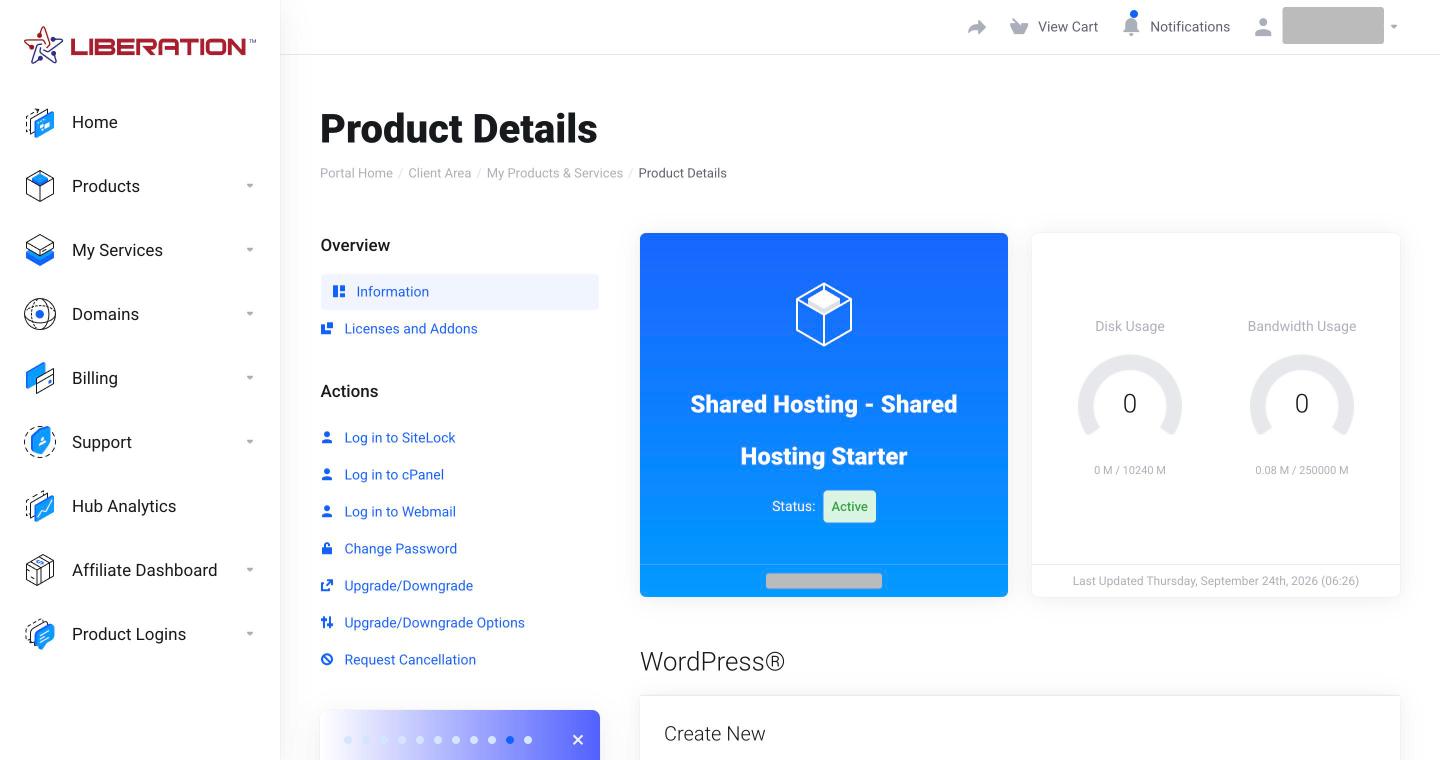
SiteLock opens in a new tab and signs you in automatically. There's no separate password to remember.
Read your Security Report
You land on the Security Report for your site.
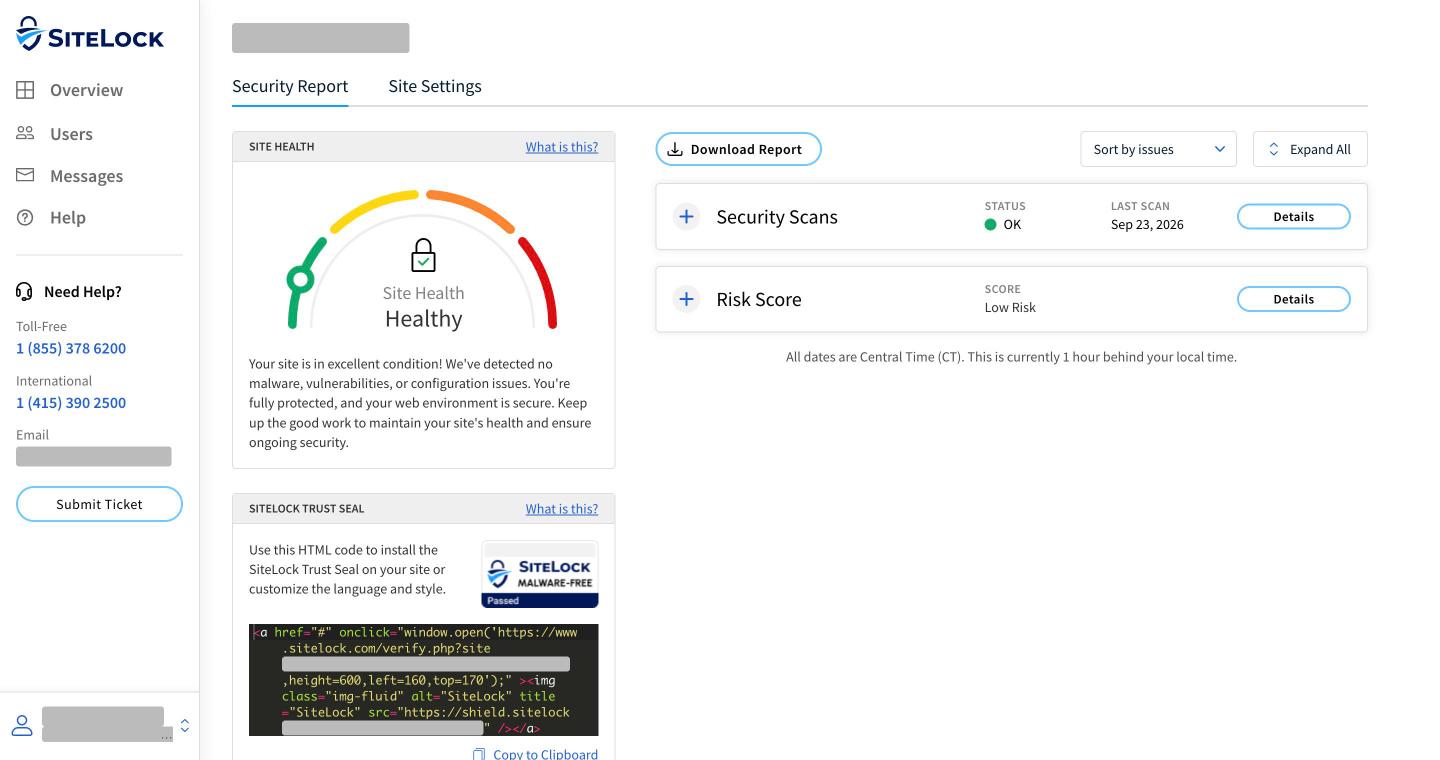
- Site Health: the gauge shows your overall status. "Healthy" means no malware, vulnerabilities or configuration issues were found.
- Security Scans: the status (OK or a problem) and the date of the last scan. Click Expand All or the + to see each scan.
- Risk Score: SiteLock's estimate of how likely your site is to be attacked (for example "Low Risk"), based on things like its size, software and popularity. Click Details to see why.
- Download Report: saves the report as a file, handy for your records or your web designer.
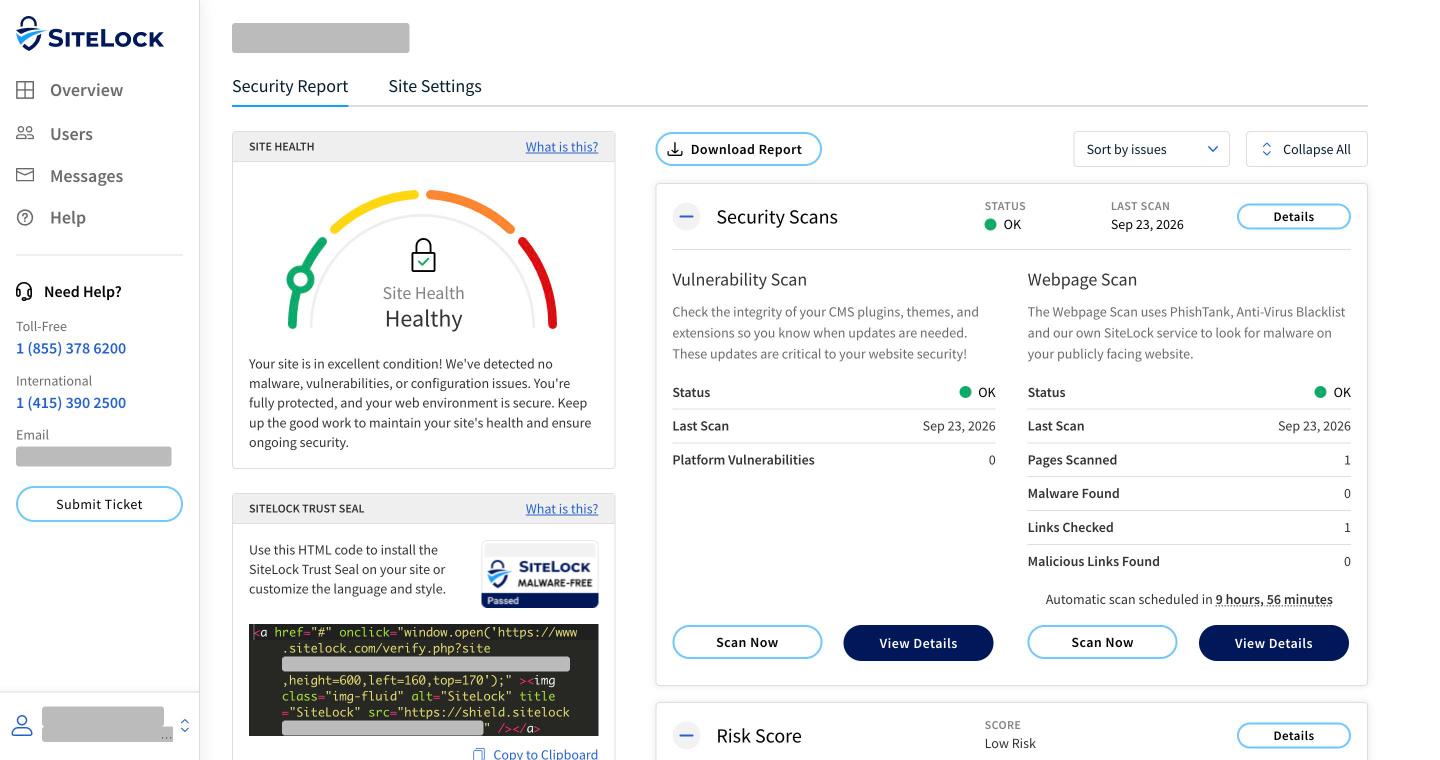
Vulnerability Scan checks your site's software (like WordPress plugins and themes) for known security holes. Webpage Scan checks your public pages for malware and dangerous links. Each shows when the next automatic scan is due. Click Scan Now to run one right away, or View Details to see exactly what was checked.
All dates are shown in US Central Time.
Add the Trust Seal to your site
The SiteLock Trust Seal box on the Security Report has a snippet of HTML code for your site.
- Click Customize if you want to change the seal's style or language.
- Click Copy to Clipboard.
- Paste the code into your site where you want the seal to appear, usually the footer. In WordPress, use a Custom HTML block or widget. In our Site Builder, use an HTML/embed element.
The seal updates itself. If SiteLock finds a problem, it stops showing the "passed" status until it's fixed.
Other menus
- Site Settings > Subscriptions: shows your SiteLock plan and renewal date. Subscriptions from us are managed in our Client Area, not in SiteLock.
- Messages: alerts and notices from SiteLock about your site.
- Help and Submit Ticket: SiteLock's own help center and support.
