
Add a website manually
You only need this if your site is hosted somewhere else, or if automatic setup didn't add your site.
- Log in to the Client Area and go to Services > My Services.
- Click your CodeGuard service. If you ordered it as an add-on, open your hosting service instead and find CodeGuard under its add-ons.
- Click Log in to CodeGuard Control Panel. It's under Actions on the left, and under the CodeGuard logo on the page. CodeGuard opens and signs you in automatically, so you don't need a separate password.
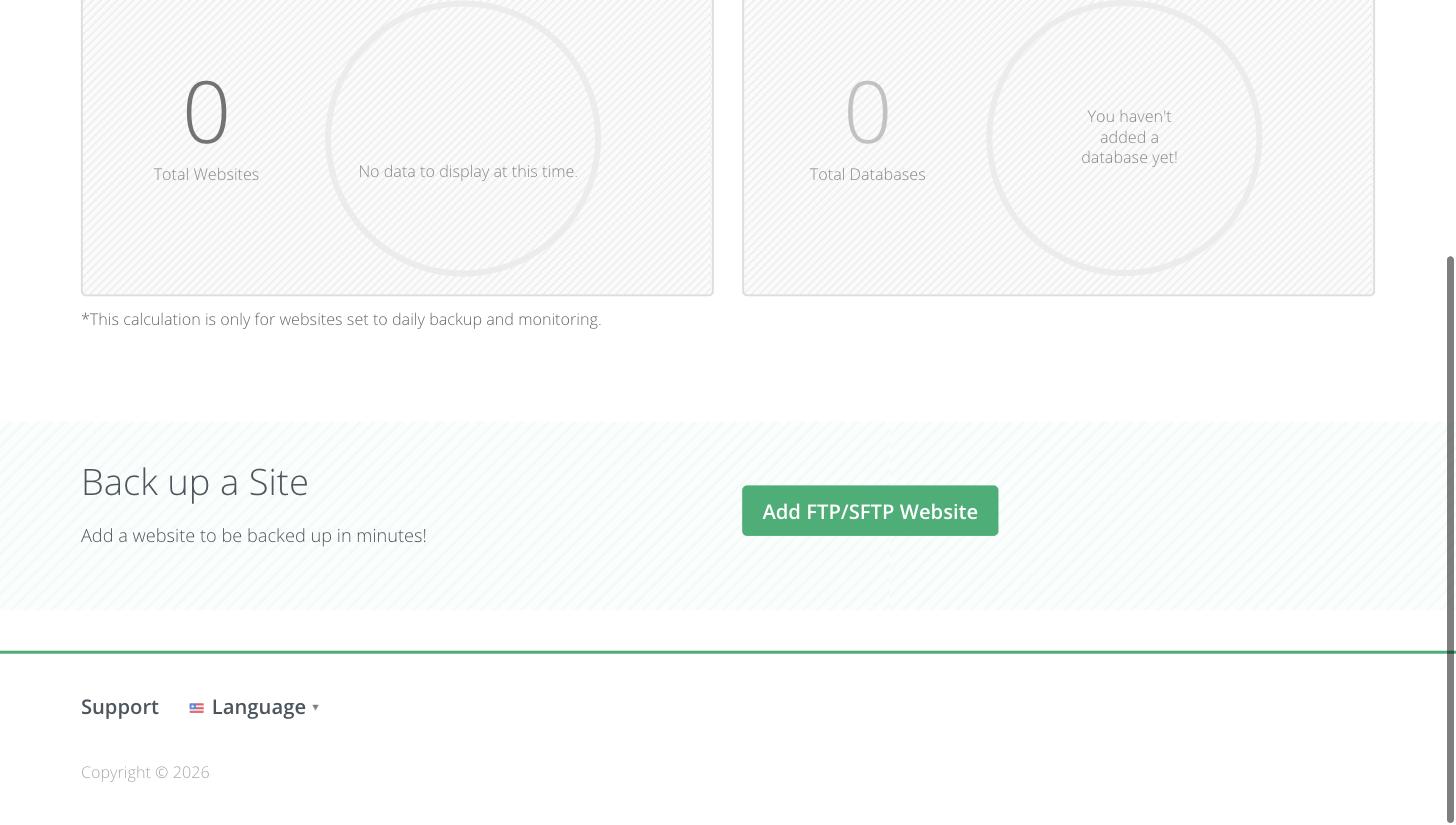
- On the dashboard, scroll to Back up a Site and click Add FTP/SFTP Website.
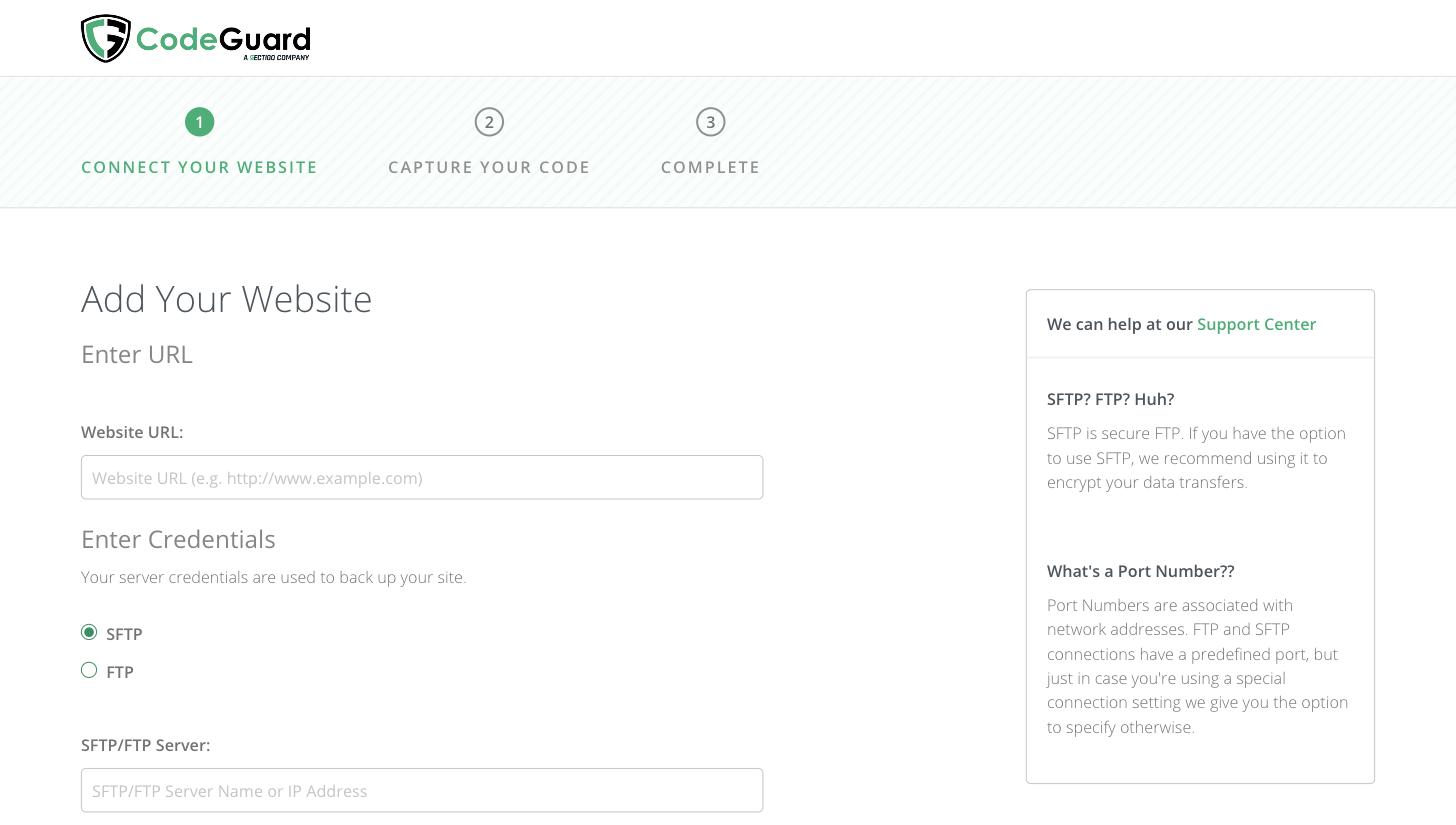
- On the Add Your Website page, enter your Website URL.
- Under Enter Credentials, choose SFTP if your host supports it (otherwise FTP), then enter the SFTP/FTP Server, Username and Password. Use Using a different port? only if your host gave you a special port.
- Click Test Website Connection. Once it connects, CodeGuard asks you to choose the folder that holds your website (on our hosting, usually
public_html). - Finish the wizard (Connect Your Website > Capture Your Code > Complete). The first backup starts automatically.
To back up a database as well, add it from the Databases tab with your database name, user and password. The database must accept connections from CodeGuard, so hosts that only allow local database connections may need to allow it first.
Tip: On our hosting, create a separate FTP account for CodeGuard (cPanel > FTP Accounts) rather than using your main cPanel password. If you change the password later, update it in CodeGuard too. See Getting Started with Shared Hosting for your hosting tools.
Common problems
| Problem | What to do |
|---|---|
| Backups stopped, or the Issues tab shows a connection error | The FTP/SFTP or database password probably changed, or the account was deleted. Update the details in the site's Settings tab, then click Run Backup Now. |
| "Storage full" or backups are skipped | Upgrade to a larger storage plan (see Getting Started), or exclude big folders you don't need backed up, such as old backup zips or cache folders, in the site's settings. |
| The first backup is taking a long time | That's normal for large sites. Later backups only copy what changed, so they're much faster. |
| You get lots of "files changed" emails | Caching and statistics plugins change files every day. Exclude their folders, or turn down the alerts in Settings. |
| The login button doesn't open CodeGuard | Allow pop-ups for our site and try again from the Client Area. |
| You moved the site to a new server | Update the server address and login details in CodeGuard, or remove the old site and add it again. |
| A red Website Setup Incomplete alert shows at the top of CodeGuard | CodeGuard is telling you a site has not been fully added to the backup schedule. Open the site in CodeGuard and check that the website files are being backed up. If your site was built with our Site Builder, it does not use a database, so there is no database to add. If it is a WordPress or other database-driven site, add the database too (see Add a website manually above). If the alert stays after you finish setup, open a support ticket with your domain name and we will check the backup schedule. |
The CodeGuard WordPress plugin
The free plugin lets you see backups, restore and run safe updates from inside WordPress. Install it from the CodeGuard dashboard, where you'll find the setup steps for your site.
Still stuck? Open a support ticket with your domain name and a screenshot of the error.
