
Page Rules apply Cloudflare settings to specific addresses on your site, for example forwarding an old page to a new one, or caching a folder differently.
Important: Cloudflare is retiring Page Rules in favour of newer rule types, so new Page Rules may not save on some accounts. For redirects, use one of the options below first. If you need a Page Rule that won't save, open a support ticket.
Redirects: the easier options
- Website hosted with us: use cPanel's Redirects tool. See Redirect a Domain or Page.
- Send everyone to HTTPS: turn on Always Use HTTPS in Crypto. You don't need a Page Rule for this.
Create a Page Rule
- Log in to the Client Area and go to Services > My Services.
- Open your CDN - Cloudflare service for the domain.
- Click Manage Cloudflare.
- Click Page Rules in the menu, then Create Page Rule.
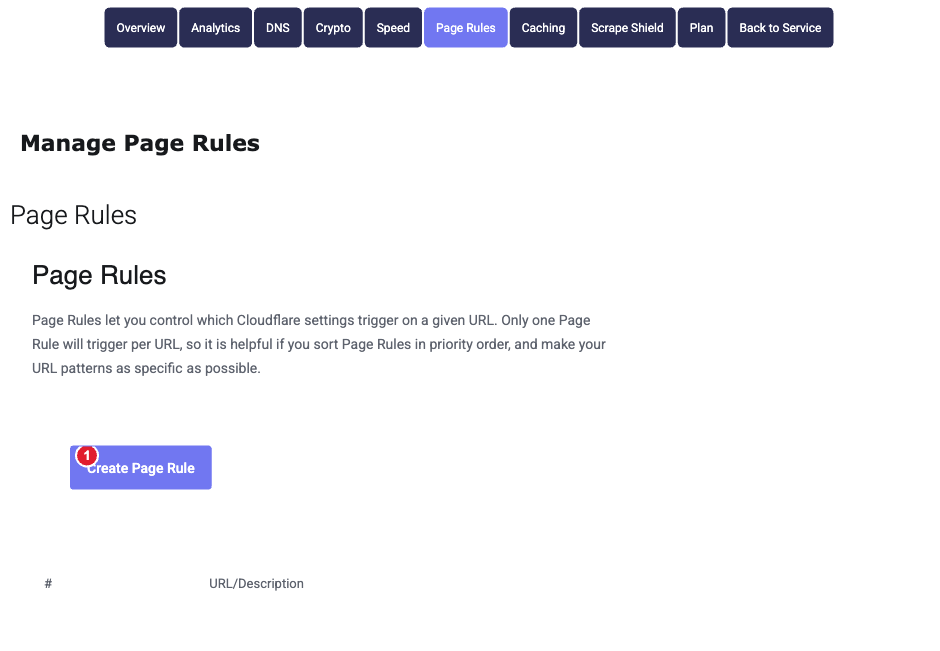
- In If the URL matches, enter the address pattern. Use
*as a wildcard, for exampleyourdomain.com/old-blog/*. - Click Pick a Setting and choose what should happen, for example Forwarding URL (then pick 301 for a permanent move and enter the new address), Cache Level or Security Level. Click + Add a Setting to add more than one.
- Click Save and Deploy.
Only one Page Rule applies to each address, the first one that matches, so put the most specific rules first. The Free plan allows 3 Page Rules; Pro and Business allow more.
To change or remove a rule, use the edit and delete icons next to it in the list.
