
Cloudflare gives your site a free SSL certificate for the connection between your visitors and Cloudflare. The Crypto page controls how Cloudflare then connects to your hosting server, and whether visitors are forced onto HTTPS.
- Log in to the Client Area and go to Services > My Services.
- Open your CDN - Cloudflare service for the domain.
- Click Manage Cloudflare.
- Click Crypto in the menu.
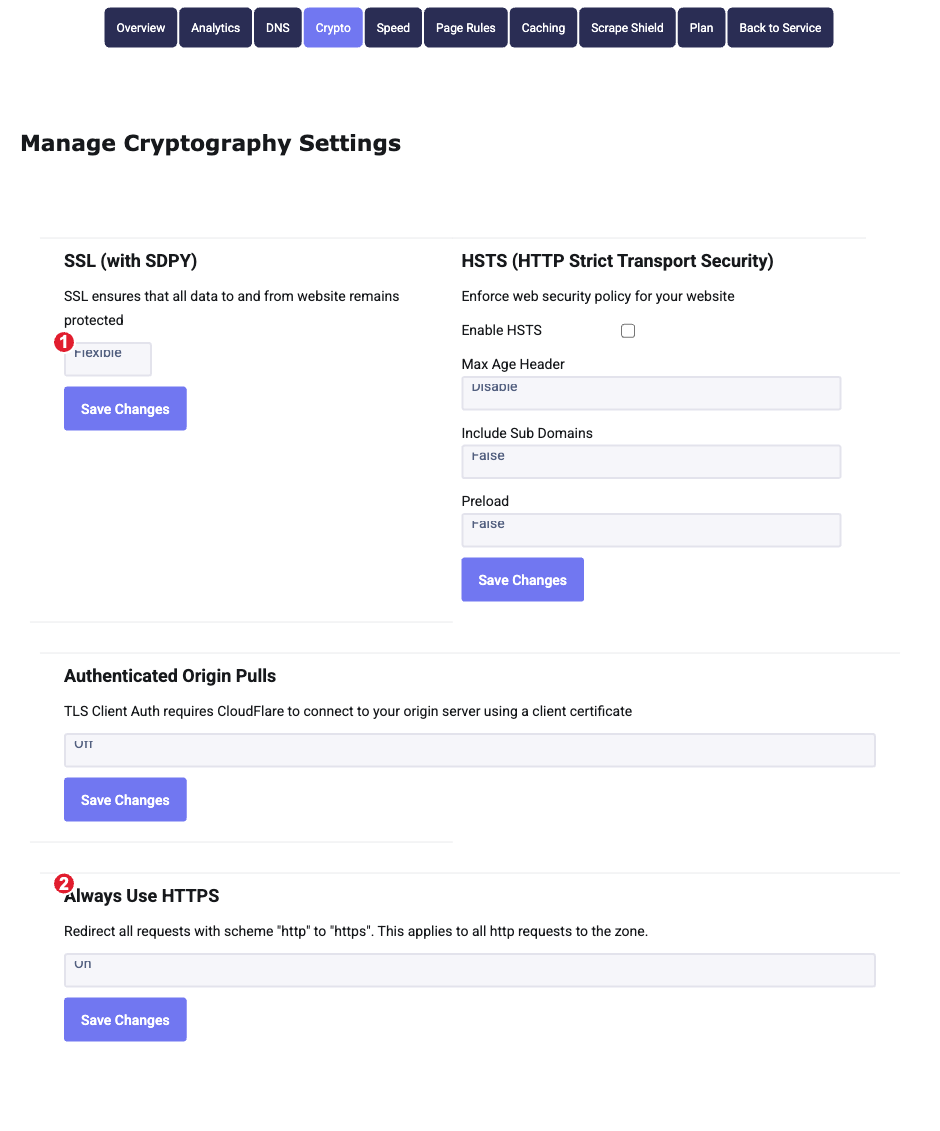
(1) SSL mode (2) Always Use HTTPS
Choose the SSL mode
| Mode | What it does | Use it when |
|---|---|---|
| Strict | Encrypts all the way to your server and checks your server's certificate is valid. | Your hosting has a valid certificate. This is the most secure choice. |
| Full | Encrypts all the way to your server but accepts any certificate, even an expired or self-signed one. | Your server has HTTPS but the certificate isn't valid yet. |
| Flexible | Encrypts only between visitors and Cloudflare. Cloudflare talks to your server over plain HTTP. | Only if your server has no SSL at all. Not recommended. |
| Off | No HTTPS. | Don't use. |
Select the mode and click Save Changes under it.
Always Use HTTPS
Set Always Use HTTPS to On and click Save Changes to send every http:// visitor to https://. With this on, you don't need a separate HTTPS redirect on your site.
HSTS
HSTS tells browsers to only ever use HTTPS for your site, for the Max Age you choose. Only turn it on once HTTPS works everywhere on your site and subdomains: while it's active, browsers refuse to load your site over HTTP even if you later turn HTTPS off. If you're not sure, leave it off.
Authenticated Origin Pulls
Leave this Off unless we've set it up with you. It only helps when your server is configured to accept connections from Cloudflare alone.
