
Every shared hosting account includes Imunify360, which scans your files for malware and blocks many attacks automatically. You can check results and run a scan yourself from cPanel.
- Log in to the Client Area, go to Services > My Services and open your hosting service.
- Click Log in to cPanel in the menu on the left.
- In cPanel, click Imunify360. You can also type its name into the Search Tools box at the top.
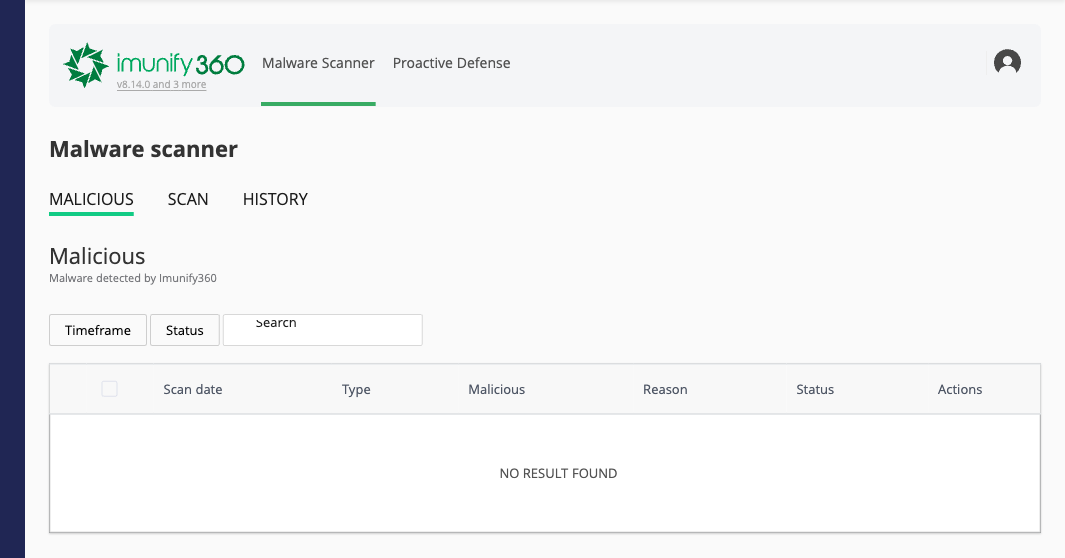
Malware Scanner
- Malicious lists any files Imunify360 has flagged, with the scan date, type, reason and status. Use Timeframe, Status and Search to filter the list. "No result found" means nothing has been flagged.
- Scan starts a new scan of your account. Run one after you upload a site or install a plugin or theme from outside the official WordPress directory.
- History shows past scans and actions.
Proactive Defense
This tab shows scripts that Imunify360 stopped while they were running because they behaved like malware. You don't need to change anything here.
If a file is flagged
- Don't ignore it. Infected sites can send spam or redirect visitors, and search engines may flag them.
- Update WordPress and all plugins and themes (see Install and Manage WordPress with WP Toolkit), and delete plugins and themes you don't use.
- Change your cPanel password and your WordPress admin passwords (see Change or Reset Your cPanel Password).
- If you aren't sure whether the file is safe, or the site keeps getting reinfected, open a support ticket and include the file path.
Tip: To block a specific IP address yourself, use IP Blocker.
