
On an Email Pro plan, you create and manage mailboxes on the service page in the Client Area. Log in to the Client Area, go to Services > My Services, open your Email Pro service and click Manage Email Accounts.
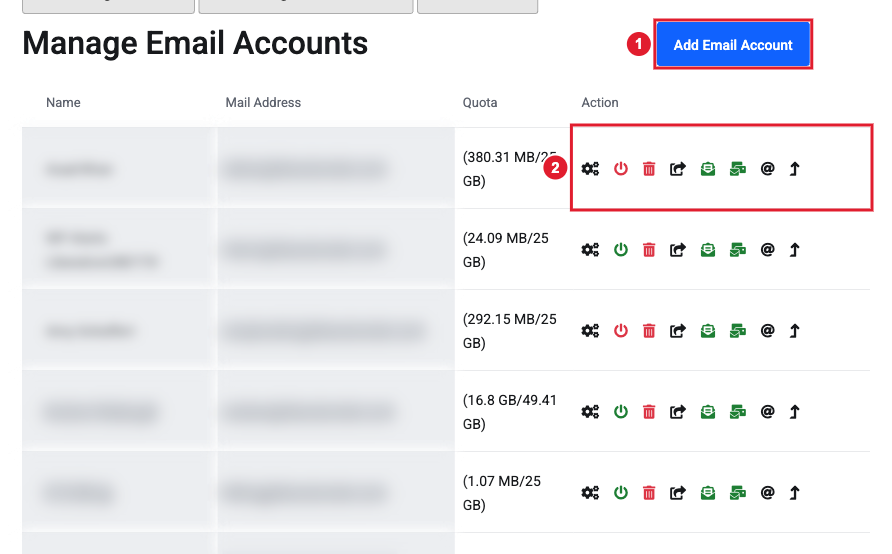
(1) Add Email Account (2) Actions for each mailbox
The list shows each mailbox's name, address and how much of its storage is used.
Create an email account
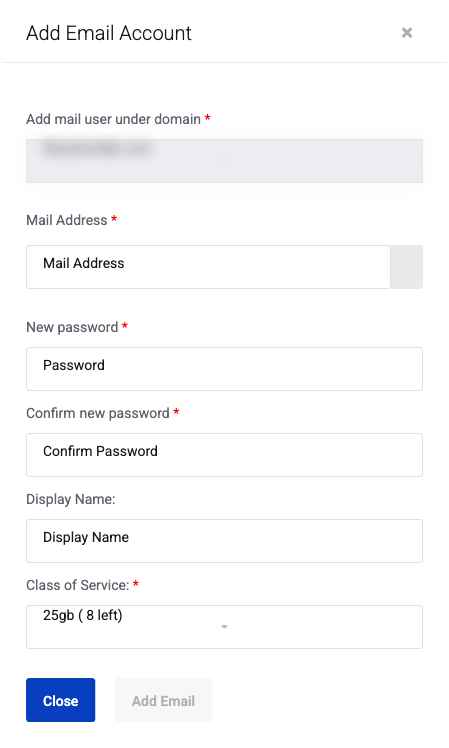
- Click Add Email Account.
- Choose the domain, then type the part of the address before the @ in Mail Address.
- Enter a password twice. Use a strong password that you don't use anywhere else.
- Enter a Display Name. This is the name people see when you email them.
- Choose the Class of Service. This is the mailbox size, for example 25 GB or 15 GB. The number in brackets shows how many mailboxes of that size your plan has left.
- Click Add Email.
The new person can sign in right away at mail.liberation.email with their full email address and password.
Mailbox actions
Each mailbox has a row of icons. Hover over an icon to see its name.
| Icon | What it does |
|---|---|
| Gears (Change password) | Set a new password for the mailbox. See below. |
| Power button (Enable/Disable) | Green means the mailbox is on. Red means it is disabled and can't sign in. Click it to switch. |
| Red trash can (Delete) | Deletes the mailbox and all its mail. This can't be undone. |
| Arrow out of a box (Forward Email) | Forward this mailbox's mail to other addresses. See Email Pro Control Panel: Forwarding, Aliases and Extra Storage. |
| Open envelope (Email POP) | Turns POP access on (green) or off. POP is only needed by older mail apps. |
| Stacked mail (Email IMAP) | Turns IMAP access on (green) or off. Phone and computer mail apps use IMAP, so leave it on. |
| @ (Email Alias) | Add extra addresses that deliver to this mailbox. See Email Pro Control Panel: Forwarding, Aliases and Extra Storage. |
| Up arrow (Upgrade Quota) | Buy more storage for this mailbox. See Email Pro Control Panel: Forwarding, Aliases and Extra Storage. |
Each switch asks you to confirm before it changes anything.
Change a mailbox password
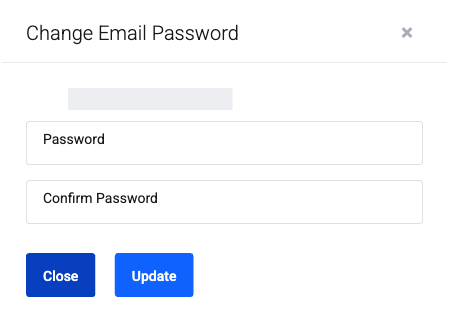
- Click the gears icon next to the mailbox.
- Enter the new password twice and click Update.
- Update the password in the person's phone and computer mail apps too, or they will keep asking for it.
Tip: People can also change their own password in the webmail. See Change Password.
Turn off a mailbox without deleting it
If someone leaves, click the green power button and confirm. The mailbox keeps its mail, but no one can sign in to it. Click it again to turn it back on.
