
If you have an Email Pro plan, you manage your email domains and mailboxes on the service page in the Client Area. This article covers the domain tools. For mailboxes, see Email Pro Control Panel: Creating and Managing Email Accounts.
Open the control panel
- Log in to the Client Area.
- Go to Services > My Services and click your Email Pro service.
- Scroll down to the three buttons under the service details.
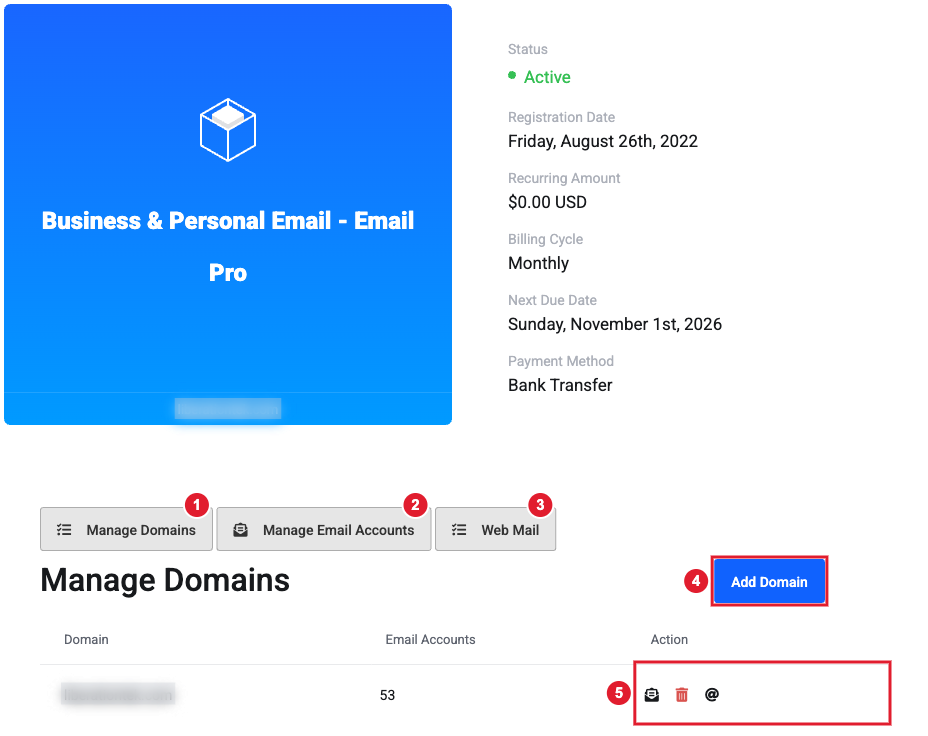
(1) Manage Domains (2) Manage Email Accounts (3) Web Mail opens mail.liberation.email (4) Add Domain (5) Domain actions: Catch-All, Delete and Domain Alias
The Manage Domains list shows each domain and how many email accounts it has.
Add a domain
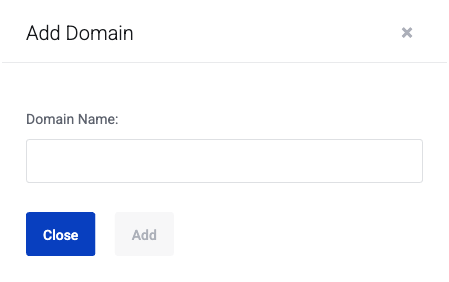
- Click Manage Domains, then Add Domain.
- Type your domain name, for example yourcompany.com (no www).
- Click Add.
To receive mail, the domain's DNS must point to us. Add these records where your domain's DNS is hosted, and remove any old MX records:
| Type | Hostname | Value | Priority | TTL |
|---|---|---|---|---|
| MX | @ | mx1.liberation.email | 10 | 3600 |
| MX | @ | mx2.liberation.email | 10 | 3600 |
| TXT | @ | v=spf1 include:_spf.liberation.email -all | 3600 | |
| CNAME | autoconfig | mail.liberation.email | 3600 | |
| CNAME | autodiscover | mail.liberation.email | 3600 | |
| SRV | _autodiscover._tcp | 10 443 mail.liberation.email (weight 10, port 443) | 10 | 3600 |
@ means your domain itself (for example yourdomain.com). The MX and SPF records make email arrive and keep it out of spam. The autoconfig, autodiscover and SRV records let Outlook, Apple Mail and phones set up accounts automatically. Some DNS providers show the SRV value as one line: 10 10 443 mail.liberation.email (priority, weight, port, target).
Only one SPF record can exist per domain. If you already have one, add include:_spf.liberation.email to it instead of adding a second record. DNS changes can take a few hours to take effect. Step-by-step help: MX records, SPF records and Managing Your DNS Records.
Set up a catch-all address
A catch-all receives mail sent to any address at your domain that doesn't exist, for example a typo like sales@ when you only have sale@.
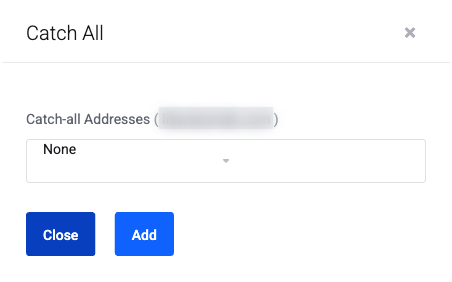
- In the domain list, click the envelope icon (Manage Catch-All).
- Choose the mailbox that should receive the mail, or None to turn the catch-all off.
- Click Add.
Add a domain alias
A domain alias makes a second domain deliver to the same mailboxes. For example, if yourcompany.net is an alias of yourcompany.com, mail to [email protected] arrives in [email protected].
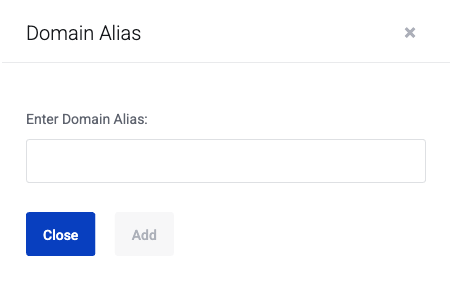
- In the domain list, click the @ icon (Domain Alias).
- Type the alias domain and click Add.
- Add our MX and SPF records to the alias domain too (see Add a domain above).
Delete a domain
Click the red trash icon next to the domain and confirm twice.
