
The Liberation Mail webmail at mail.liberation.email lets you read and send your Liberation Email in any web browser. Who uses it:
- Email Pro customers (mailboxes managed on the Email Pro service page in the Client Area): this is your webmail. The Web Mail button on your service page opens it.
- Hub for Teams and Hub email plan users: use Hub Email first. This webmail is your backup if the Hub is ever unavailable. It shows the same mailbox.
Sign in
- Go to mail.liberation.email.
- Enter your full email address and your email password, then sign in.
It is the same mailbox you see on your phone, your computer and (for Hub users) in the Hub. Anything you read, move or delete here shows up that way everywhere.
Find your way around
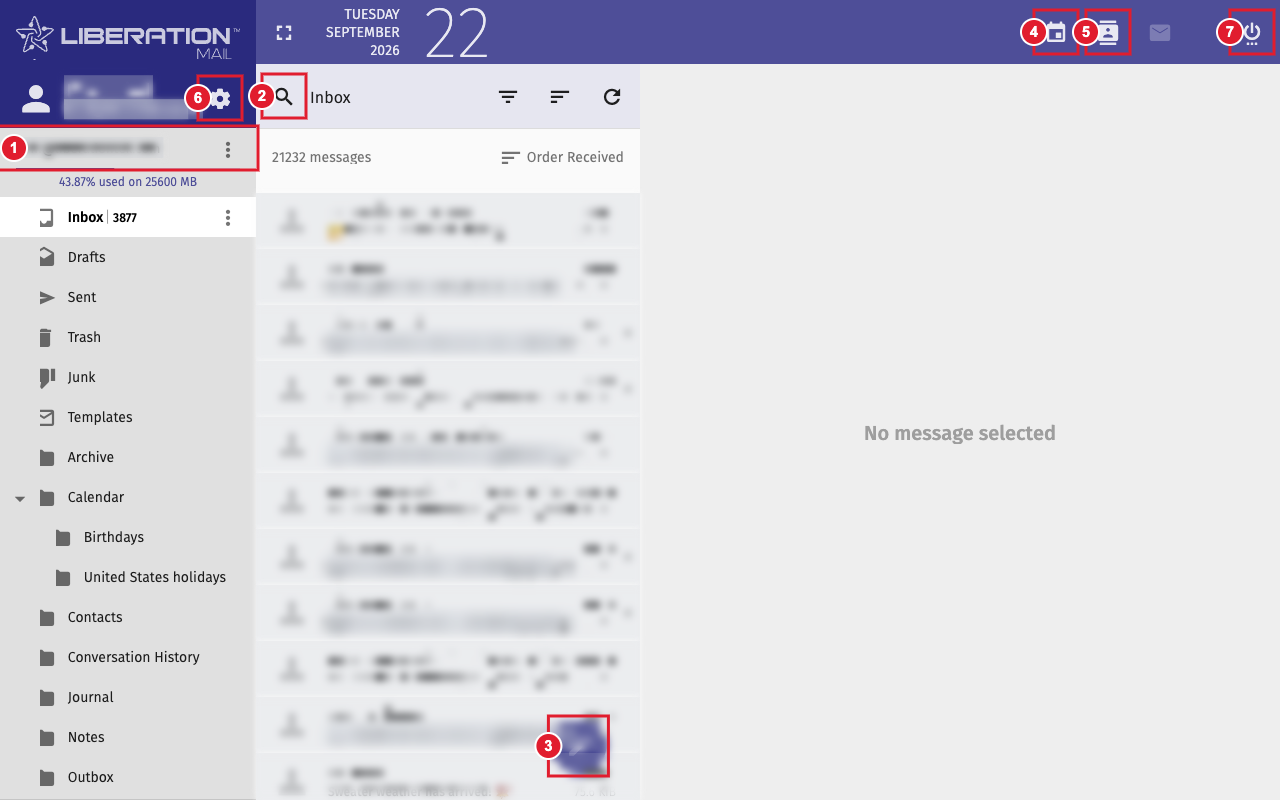
(1) Your mailbox and how much storage you are using (2) Search (3) Write a new message (4) Calendar (5) Address Book (6) Preferences (7) Sign out
- Folders are listed on the left, under your name.
- Messages are in the middle. Use the search, filter and sort buttons above the list.
- Click a message to read it on the right.
- Click the round pencil button at the bottom of the list to write a new message.
- The icons at the top right open Calendar, Address Book and Mail. The power icon signs you out.
- Click the gear next to your name to open Preferences.
Common tasks
- Signatures
- Send from another address (identities)
- Email filters
- Out-of-office reply
- Change your password
- Two-factor authentication (2FA)
- Select several messages
- Save an email to your computer
- Tags, flags and labels
- View the full headers of a message
- Import contacts
- Sync your calendar and contacts to your devices
Hub users: set your out-of-office reply in only one place. If you turn it on here while the Hub is down, turn it off here when you go back to the Hub, and use the Hub vacation filter instead.
Can't sign in? Email Pro customers can reset a mailbox password in the Client Area (see Email Pro Control Panel: Creating and Managing Email Accounts). Otherwise, open a support ticket and we'll help.
