
You can move a service to a bigger or smaller plan yourself from the Client Area. You only pay the difference for the time left in your current billing period.
Change your plan
- Log in to the Client Area, go to My Services and open the service.
- Under Actions, click Upgrade/Downgrade.
- You'll see your Current Configuration and the plans you can move to, with each plan's price for every billing cycle and what's included.
- Choose the new plan and billing cycle and continue.
- Review the amount due, then complete checkout.
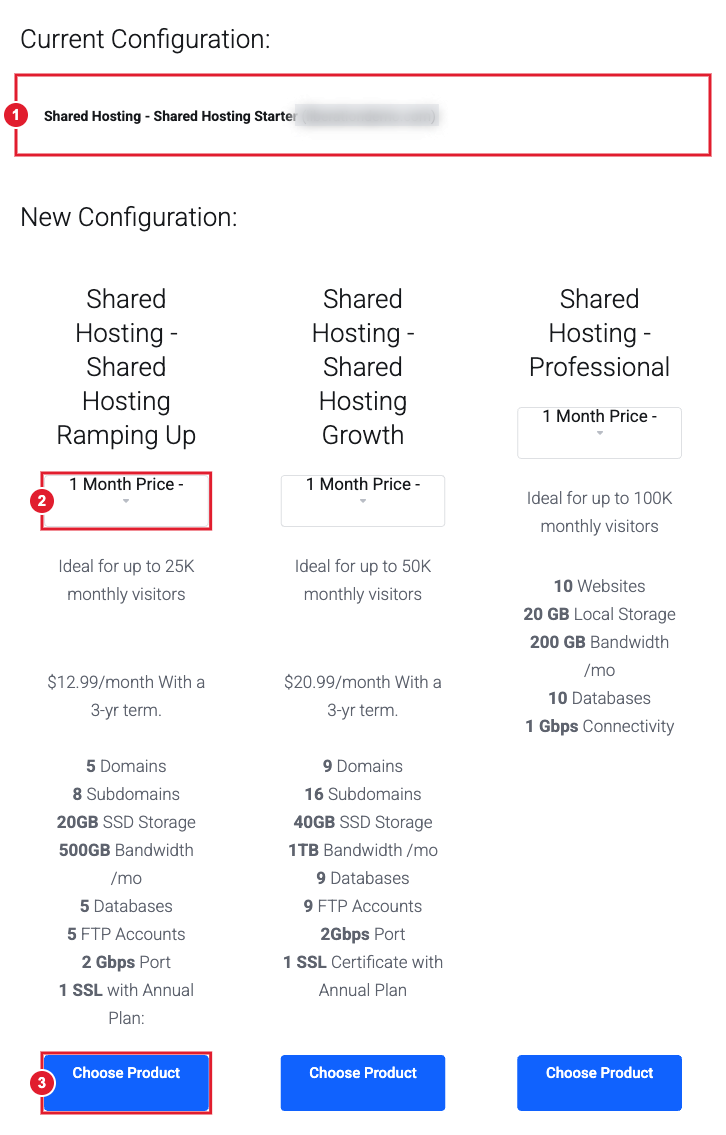
(1) Your current plan (2) Pick the billing cycle for the new plan (3) Choose Product
Upgrades are applied once the upgrade invoice is paid. If you have a card on file this happens automatically.
How the price is worked out
The price is prorated. You're charged (or credited) only for the difference between the two plans from today until your next due date. After that, the new plan's normal price applies.
"Upgrade/Downgrade Options" is different
Some services have a second link, Upgrade/Downgrade Options. It changes the extras inside your current plan (for example extra storage or users), not the plan itself. If the page says there's nothing to change, that service has no adjustable options. Use Upgrade/Downgrade instead.
Adding users or licenses
For Hub for Teams and Liberation Email, adding a mailbox or license is done under Licenses and Addons on the service page. See How to add a new email user or upgrade a license.
Still need help?
Not sure which plan you need? Choose the Sales department. Open a support ticket and include the details listed above so we can resolve it on the first reply.
