
Your Client Area controls your website, email, domains and billing, so it's worth protecting with more than a password. This guide shows how to turn on two-factor authentication, set a security question and change your password.
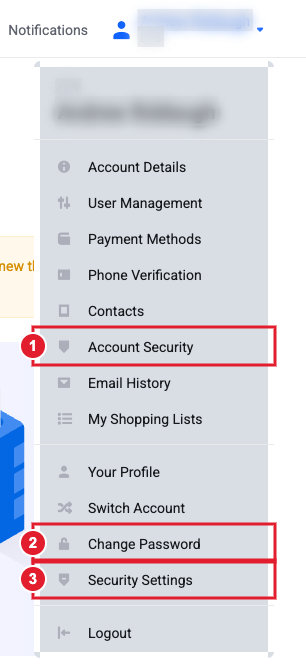
Everything in this guide is in the menu under your name: (1) Account Security (2) Change Password (3) Security Settings
Turn on two-factor authentication (recommended)
Two-factor authentication (2FA) asks for a 6-digit code from your phone each time you log in. Someone who steals your password still can't get in without your phone.
- Install an authenticator app on your phone, such as Google Authenticator, Microsoft Authenticator or Authy.
- Log in to the Client Area. Click your name (top right) > Security Settings.
- Open the Two Factor Authentication tab and click Click here to Enable.
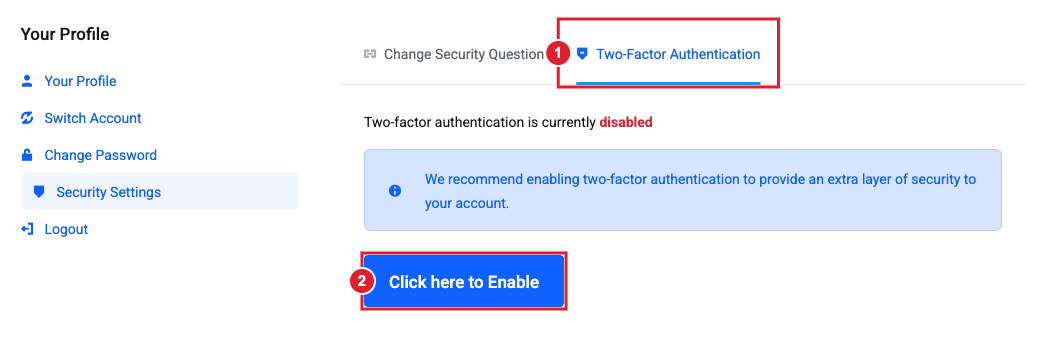
(1) The Two-Factor Authentication tab (2) Click here to Enable
- Scan the QR code with your authenticator app, then enter the 6-digit code the app shows to confirm.
- Save the backup code you're shown. Store it somewhere safe, such as a password manager. It's the only way back in if you lose your phone.
Set a security question
We may ask for this answer to confirm it's you when you contact us.
- Go to your name > Security Settings > Change Security Question.
- Pick a question, enter your answer twice and click Save Changes.
Change your password
- Go to your name > Change Password.
- Enter your Existing Password, then your New Password twice. You can click Generate Password to create a strong one.
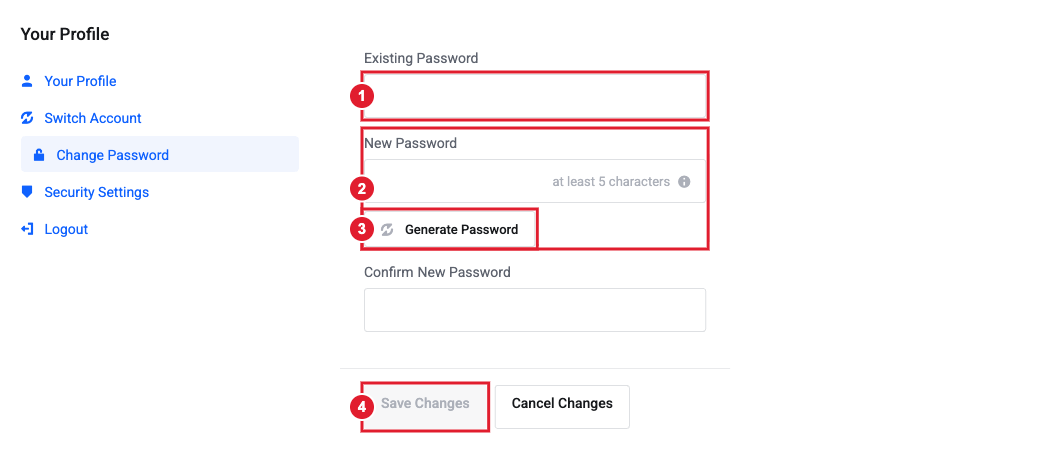
(1) Existing Password (2) New Password (3) Generate Password (4) Save Changes
- Click Save Changes.
Your new password must include at least one uppercase letter, one number and one symbol (such as ! # $ %). We recommend 12 or more characters. If the strength bar stays red, the password will be rejected.
What is "Account Security" (Single Sign-On)?
Your name > Account Security has one setting: Single Sign-On. It lets the one-click buttons in your Client Area (such as Log in to cPanel or Log in to Webmail) sign you straight in. Leave it on unless someone you've given access to one of those tools shouldn't be able to get into your billing account.
Other good habits
- Invite team members as users rather than sharing your login. See Your login vs. your account.
- Remove users who no longer need access, such as a developer who has finished a project.
- Never email or ticket us a password. We'll never ask for it.
Still need help?
Open a support ticket and include the details listed above so we can resolve it on the first reply.
