
This guide covers the most common problems with the Site Builder (Sitejet Builder in cPanel): getting in, changes that don't show on your site, photos that won't upload, forms that don't send, and moving a site. For a full walkthrough, start with Site Builder: Getting Started.
Still using the older Liberation Site Builder? Log in to the Client Area and see Liberation Site Builder (Old Builder): Troubleshooting.
How to open the builder
- Log in to the Client Area and go to Services > My Services.
- Open your Site Builder (or hosting) service and click Log in to cPanel.
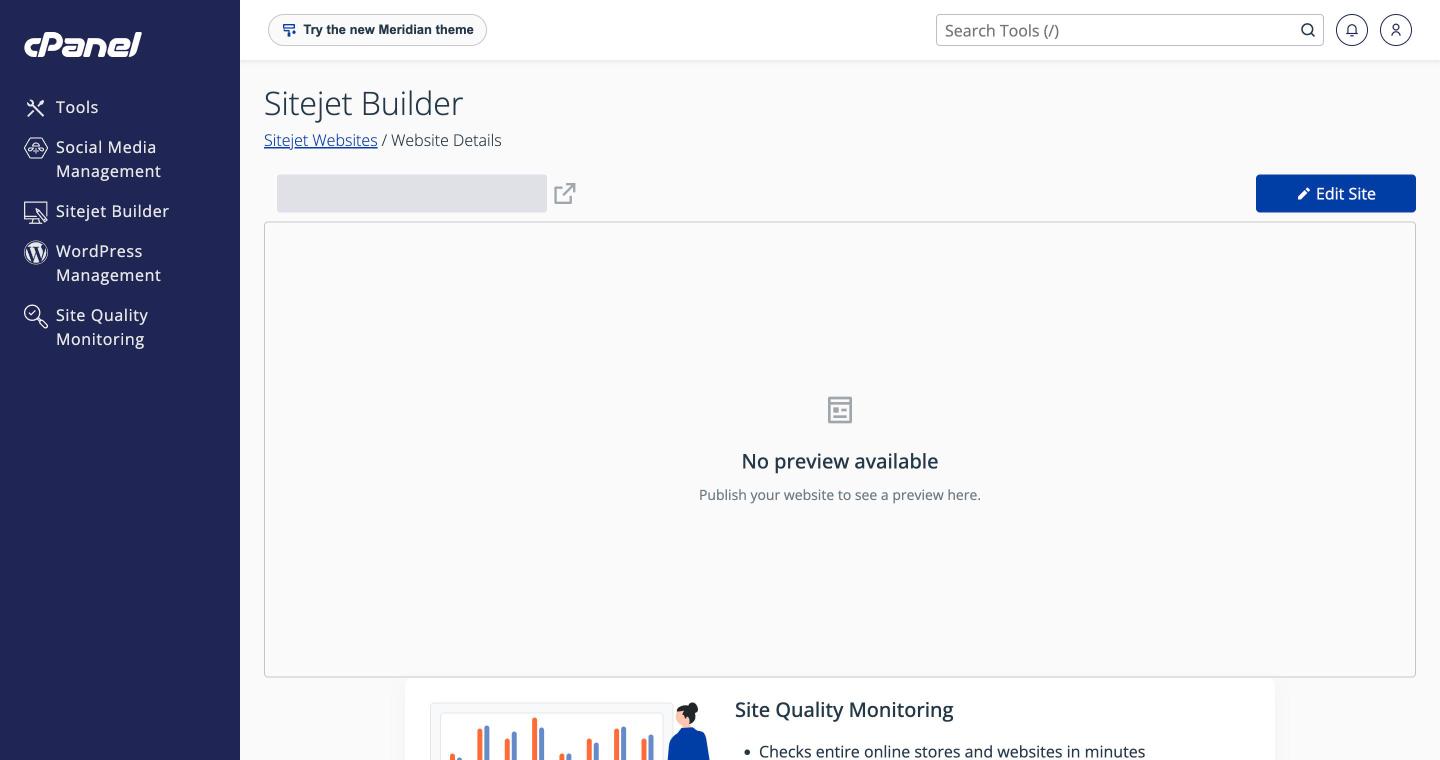
- Click Sitejet Builder, then Edit Site.
The builder won't open, or shows an error
- Allow pop-ups for our site. The builder and cPanel open in new tabs.
- Clear your browser cache and cookies, or try a private/incognito window.
- Try another browser (Chrome, Edge, Firefox or Safari). Privacy extensions and strict "shields" settings (e.g. Brave) can block the builder, so allow cookies for the site.
- Check the service isn’t Suspended in My Services. An unpaid invoice (even a few dollars of tax or fees left over from a PayPal payment) suspends the service until it’s paid.
My changes don't show on my website
- The editor saves your work automatically, but visitors only see it after you publish (the rocket button). See Publish Your Website to Your Domain.
- Do a hard refresh on the live site: Ctrl+F5 on Windows, Cmd+Shift+R on a Mac. If your domain uses Cloudflare, clear its cache too: Clear the Cache and Use Development Mode.
The site is published but won't load, or shows "Preview not available"
Your domain must point to your hosting and have an SSL certificate. See Publish Your Website to Your Domain for both checks.
I made a mistake or lost a page
Use Undo for recent changes, or restore an earlier version from ☰ > Backups. See Backups. Save a backup before big changes, like trying a new template.
Photos won't upload
- Use JPG, PNG or WebP files, and keep them to a few megabytes each. Resize very large phone photos before uploading (on a Mac use Preview > Tools > Adjust Size; on Windows use Photos > Resize).
- Refresh the builder and try again. If one photo still fails, rename it without spaces or special characters (e.g.
church-picnic.jpg).
My contact form doesn't send emails
Make sure the form's Recipient box is filled in and use a Sender address at your own domain. If your domain's email is hosted elsewhere, your SPF record must allow your hosting server. Full steps: Contact Forms.
The site looks wrong on phones
See Check Your Site on Mobile and Tablet.
Moving a site to or from the builder
- Coming from another builder (GoDaddy, Wix and so on): sites can't be transferred automatically. Start from a template or the AI generator and copy your text and images across.
- Converting to WordPress: builder sites can't be imported into WordPress. The pages have to be rebuilt, though you can reuse your text and images.
- Moving your whole hosting account: see How to move your website to Liberation.
Still need help?
Open a support ticket. Include your website address and a screenshot or screen recording of the problem so we can resolve it on the first reply.
