
A recent backup turns almost any website problem (a bad update, a broken plugin, a hacked site, an accidental delete) into a quick undo. There are two ways to back up a Liberation-hosted website.
Option 1: cPanel Backup (included with hosting)
- In the Client Area, open My Services and click your hosting plan.
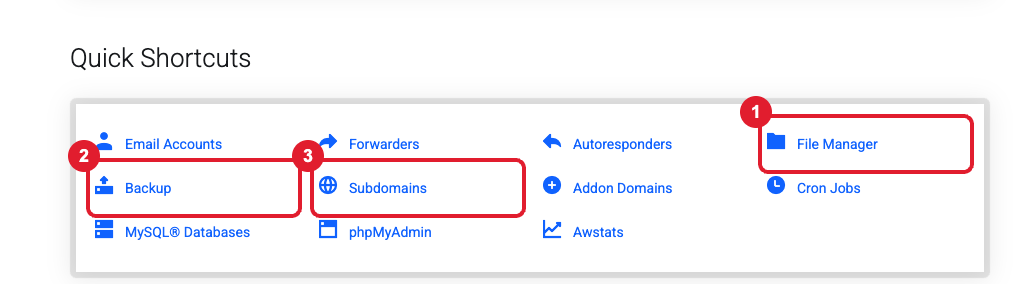
- Under Quick Shortcuts, click (2) Backup. cPanel opens on the Backup page.
- To download a backup: under Partial Backups, click Home Directory to download your website files, and click each database name under Download a MySQL Database Backup. (A Full Account Backup is useful when moving hosts, but it can't be restored by you directly.)
- Save the files somewhere safe, like your computer or Hub Files.
- To restore: on the same page, use Restore a Home Directory Backup and Restore a MySQL Database Backup to upload the files you saved.
Detailed guides: Generate and download a full backup · How to restore a cPanel backup
Option 2: CodeGuard (automatic daily backups)
CodeGuard backs up your website and database every day, keeps a history of changes, and restores with one click. It’s the easiest option if you don’t want to think about backups.
- Open your CodeGuard service under My Services and click Log in / Manage to open the CodeGuard dashboard.
- Choose the website, pick a backup date from the history, and click Restore (whole site, database only, or selected files).
- A restore can take several minutes to an hour for large sites. If it seems stuck on "Provisioning a private server" for over an hour, open a ticket.
Need us to restore from our server backups?
We also keep server-level backups for disaster recovery. If you’ve lost data and don’t have your own backup, open a ticket as soon as possible with the website address and the date and time the site was last working correctly. See Data Retention and Restoration for how long backups are kept.
