
Liberation Email and Hub for Teams use the same sign-in. This guide covers where to log in, how to reset a forgotten password yourself, and how an account owner can reset a password for someone on their team.
Email Pro plan? If your mailboxes are managed on the Email Pro service page (with Manage Domains and Manage Email Accounts buttons), this guide doesn't apply. See Email Pro plans below.
Where to log in
- Go to https://hubforteams.com and sign in with your full email address (for example
[email protected]) and your email password. - If your organization has its own login page (for example
https://yourcompany.hubforteams.com/login), that works too.
Important: Your email/Hub password is not the same as your Liberation Client Area password. The Client Area (secure.liberationtek.com) is for billing and managing services. Hub for Teams (hubforteams.com) is where you read email, use the calendar, files and chat.
Forgot your password? Reset it yourself
- On the hubforteams.com login page, click Forgot password.
- Enter your email address and choose to receive a code by text or by email to your recovery address.
- Enter the code and choose a new password (at least 8 characters with an uppercase letter, a lowercase letter and a number).
Tip: Self-service reset only works if a recovery email or phone number is saved on your account. Set one up now so you’re never locked out: Adding a Backup / Recovery Email and Phone Number.
Change your password (when you know the current one)
Sign in at hubforteams.com, click your profile picture or initials (top right) > Settings > Security, then enter your current and new password.
Reset a team member's password (account owners)
- Log in to the Client Area and click My Services.
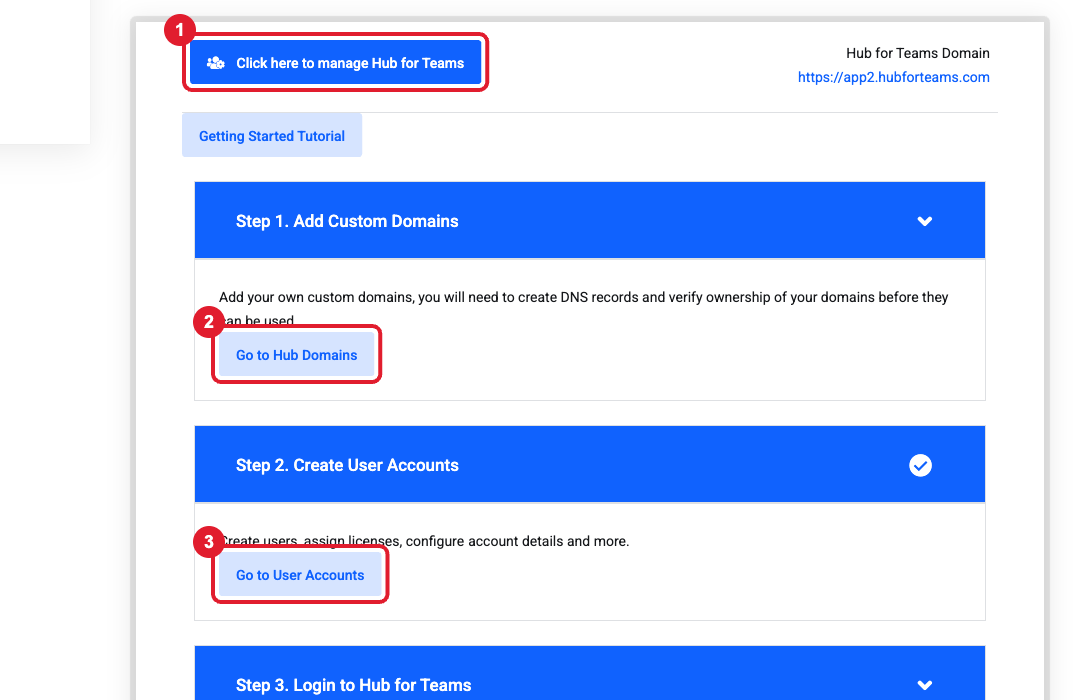
- Open your Hub for Teams or Liberation Email service and click (3) Go to User Accounts (or (1) Click here to manage Hub for Teams, then User Accounts).
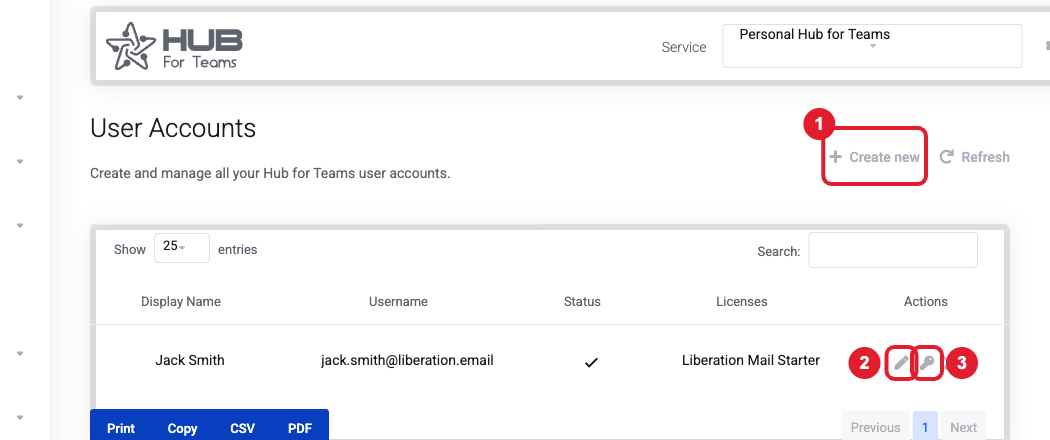
- Find the user and click the (3) key icon (Change password).
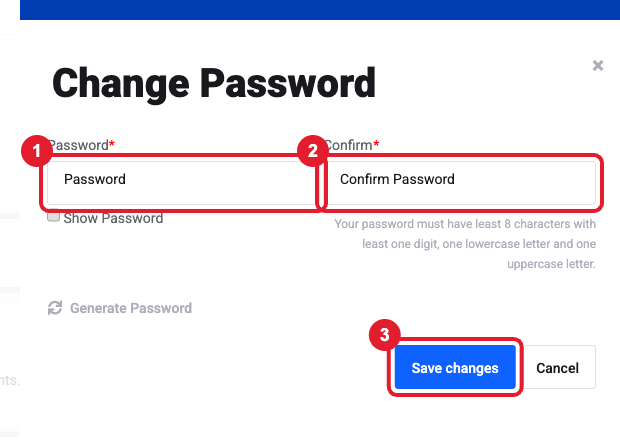
- Enter the new password twice (1, 2), or click Generate Password, then click (3) Save changes.
- Give the new password to the user securely (by phone, not email) and ask them to change it after logging in.
Email Pro plans
- Where to log in: mail.liberation.email, with your full email address and your email password.
- Change your password (when you know it): in the webmail, open Preferences > General > Password. See Change Your Password in the Liberation Mail Webmail.
- Forgot your password? Reset it yourself: on the sign-in page at mail.liberation.email, type your full email address, then click Password lost when it appears. Answer your secret question, or use the reset link sent to your secondary email, and choose a new password. If that option doesn't appear for your mailbox, ask your account owner to reset the password (see below) or open a support ticket.
- Account owners: log in to the Client Area, open the Email Pro service, click Manage Email Accounts, then the gears icon next to the mailbox. Enter the new password twice and click Update. See Email Pro Control Panel: Creating and Managing Email Accounts.
Still can't log in?
- "Wrong username or password": make sure you're typing the full email address and that Caps Lock is off. Try the reset above.
- Works in one browser but not another: open a private/incognito window and try again. If that works, clear your browser’s cookies for hubforteams.com.
- Phone or Outlook keeps asking for the password after a reset: update the saved password in the app. See How to set up Liberation Email on your phone or computer.
- A brand-new user can't log in: check the user has a license assigned (the Licenses column in User Accounts). A user without a license can't sign in.
Still need help?
Tell us the email address that can’t log in. Never send the password. Open a support ticket and include the details listed above so we can resolve it on the first reply.
