The Theme panel changes the look of your whole site at once, so you don't have to restyle each element. Click the palette icon at the top of the editor (or press Ctrl+Alt+Y).
Text
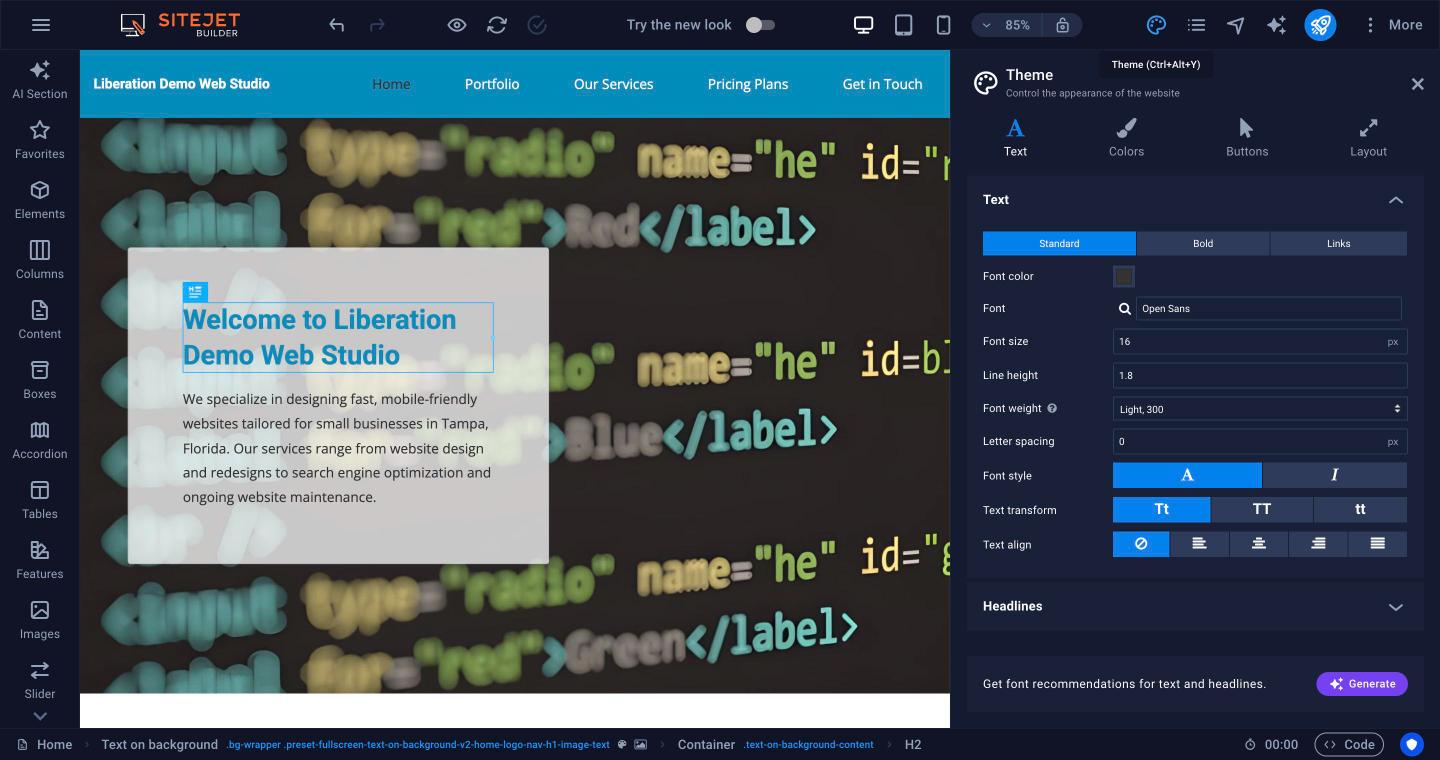
Set the font, size, line height, weight and color for normal text, bold text and links. Open Headlines to do the same for each heading level. Click Generate for AI font suggestions.
Colors
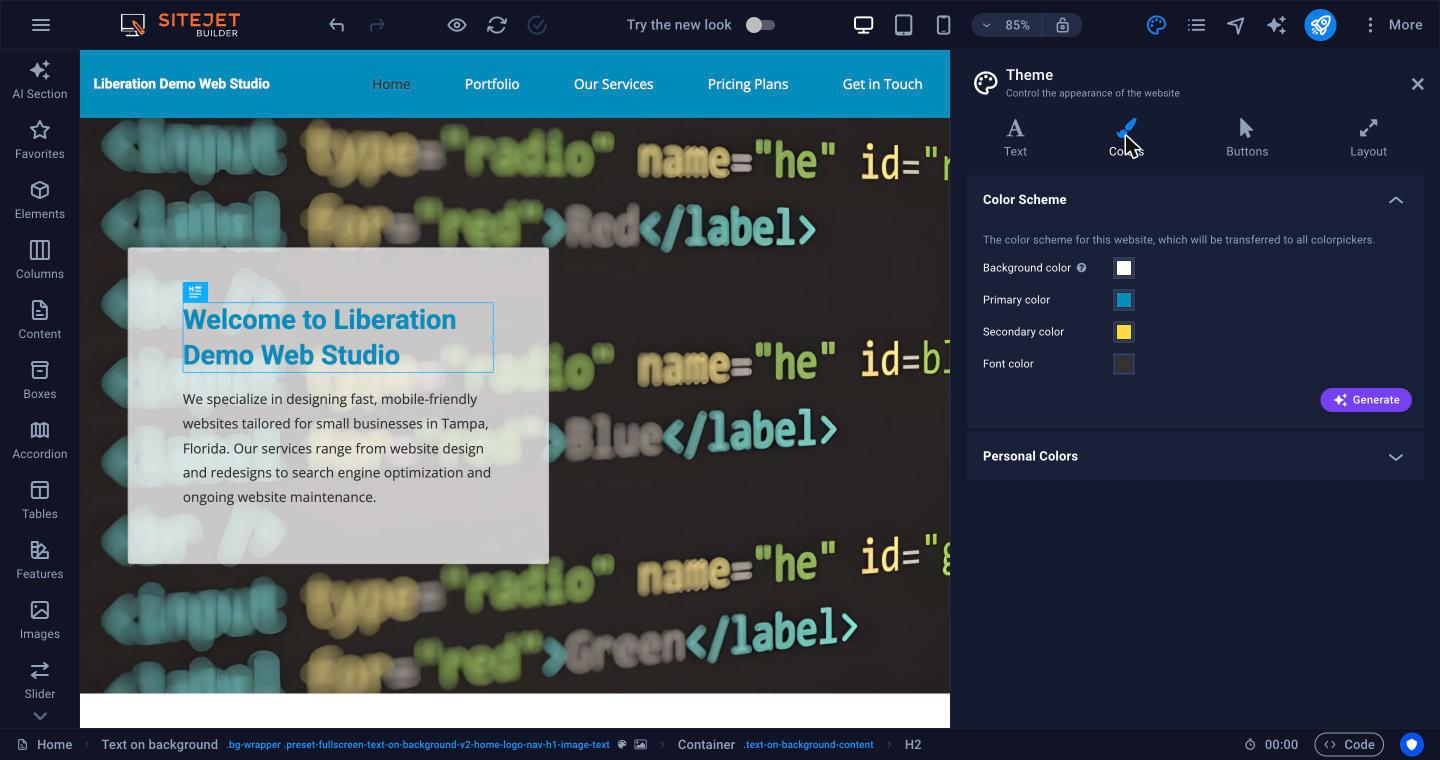
Your site uses four main colors: Background, Primary, Secondary and Font. Change one and every element that uses it updates. Click Generate for new palettes, or add your brand colors under Personal Colors so they're available in every color picker.
Buttons and Layout
Buttons and Layout set the default look of buttons and the site-wide layout in the same way.
Fonts
To use more fonts, open More > Fonts.
Logo and favicon
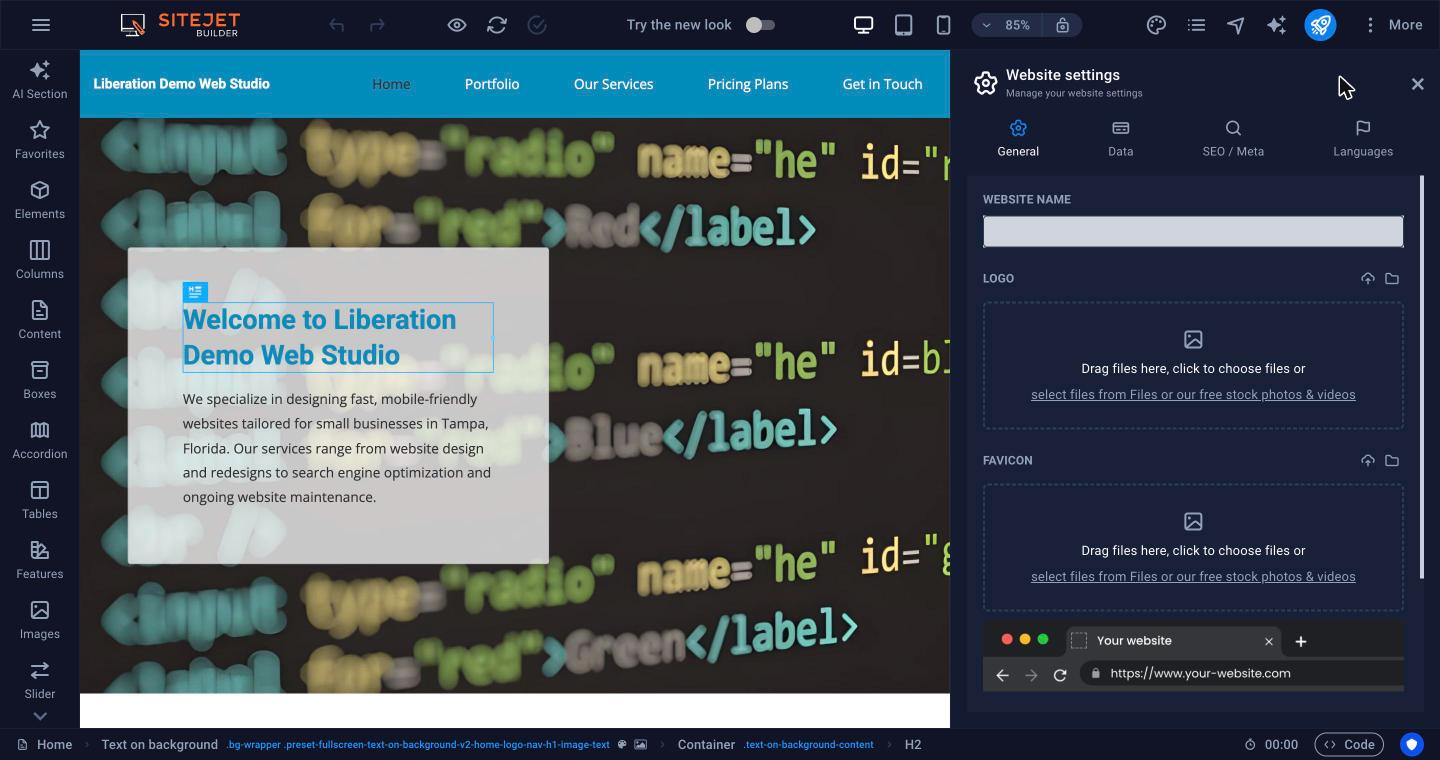
Open More > Website Settings > General and drop your logo and favicon (the small icon in the browser tab) into the boxes, or pick them from your files. The Preview image is the picture shown when someone shares your site on social media.