
Click the Pages icon at the top of the editor (or press Ctrl+Alt+P) to manage your pages.
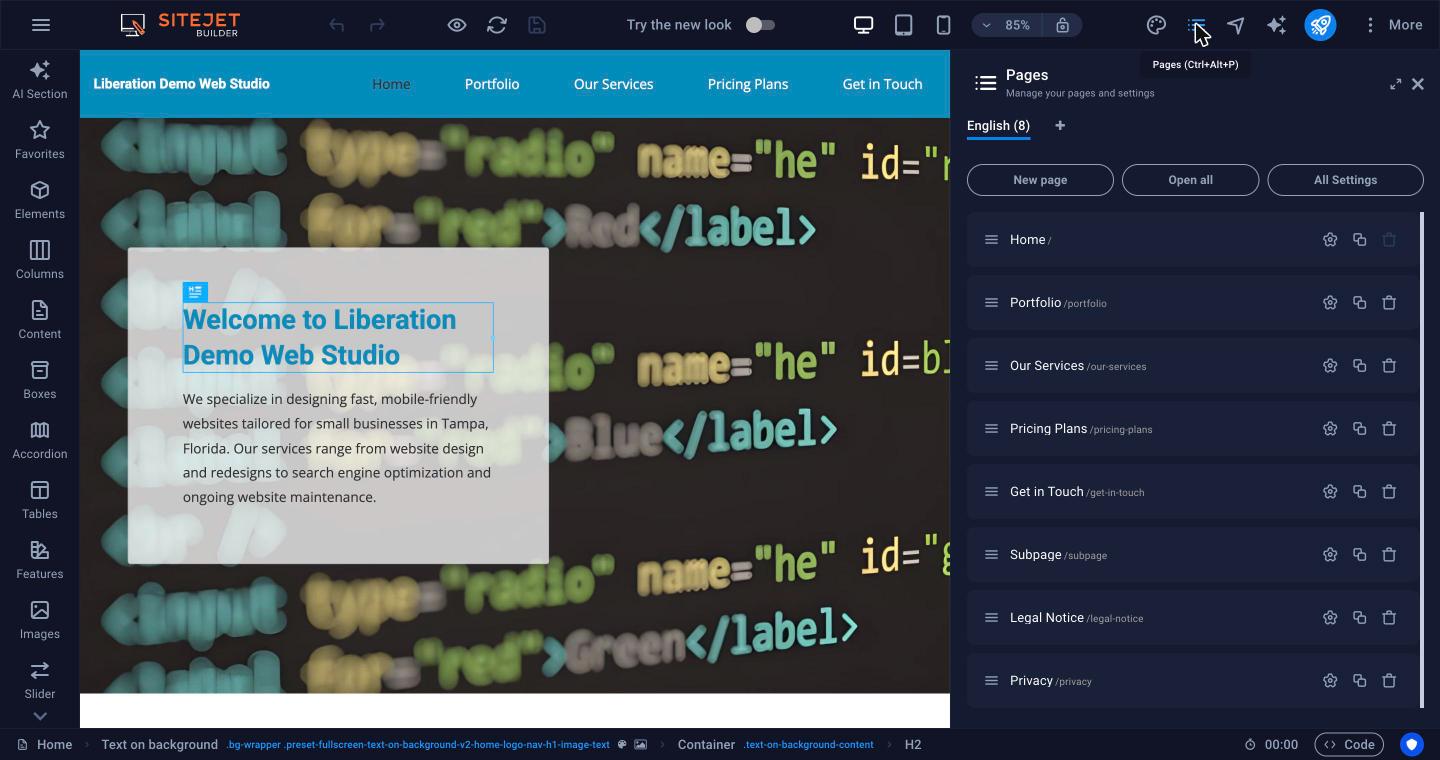
- New page: add a page.
- Drag a page by its handle to reorder it. The menu on your site follows this order.
- Click a page name to open it in the editor. Pages open in tabs along the top.
- The icons on each row open the page's settings, copy the page or delete it.
Page settings
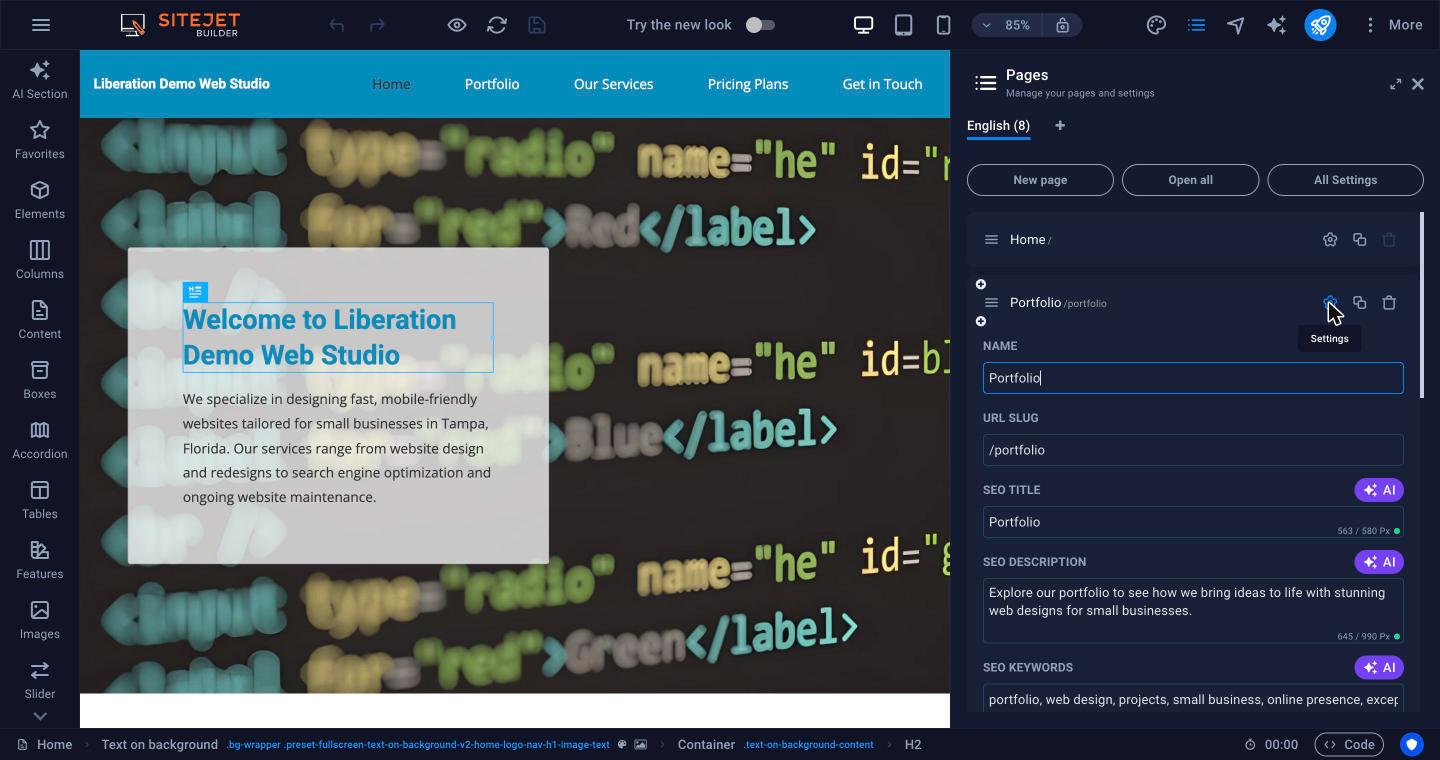
- Name: the label shown in the menu.
- URL slug: the page's address, for example
/services. - SEO title, description and keywords: what search engines show. Click AI for a suggestion. See SEO Settings and SEO Analysis.
- Menu: switch this off to keep a page online but out of the menu (useful for a thank-you page).
- Noindex: ask search engines not to list the page.
More Settings adds page-specific meta tags and a social media preview image. All Settings at the top of the panel shows these settings for every page in one list.
The menu
The menu at the top of your site follows the order of the Pages panel. Select the menu on the page to change its style, or use the Header category in the left sidebar to swap in a different header design.
Legal pages
New sites include Legal Notice and Privacy pages with placeholder text. Replace it with your own privacy policy and business details before you publish.
