
Git Version Control lets you keep a Git repository in your hosting account: clone your code from GitHub, GitLab or another Git host, pull updates, and deploy them to your website.
- Log in to the Client Area, go to Services > My Services and open your hosting service.
- Click Log in to cPanel in the menu on the left.
- In cPanel, click Git Version Control. You can also type its name into the Search Tools box at the top.
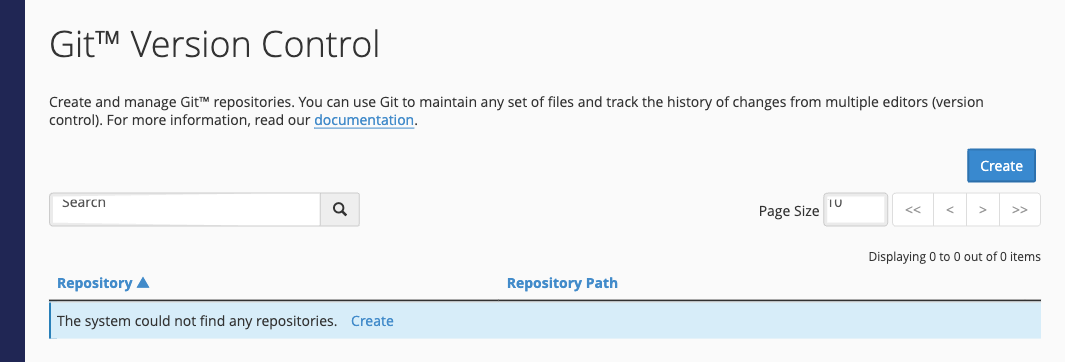
Create or clone a repository
- Click Create.
- To copy an existing repository, leave Clone a Repository switched on and paste its Clone URL (for example
https://github.com/you/site.git). Switch it off to start an empty repository. - Enter the Repository Path, the folder in your account where the repository goes. Don't use public_html itself: pick a folder outside it, such as
repositories/site, and deploy into public_html (below). - Enter a Repository Name to show in the list, then click Create.
Tip: For a private repository, clone over SSH (for example
[email protected]:you/site.git). First create an SSH key in cPanel's SSH Access tool and add the public key to your Git host as a deploy key.Pull updates and deploy
- Click Manage next to the repository and open the Pull or Deploy tab.
- Click Update from Remote to pull the latest commits.
- Click Deploy HEAD Commit to copy the files to your website.
Deployment needs a file called .cpanel.yml in the top folder of your repository that says which files to copy where. A simple example that copies everything into public_html:
---
deployment:
  tasks:
    - export DEPLOYPATH=/home/USERNAME/public_html/
    - /bin/cp -R * $DEPLOYPATH
Replace USERNAME with your cPanel username, shown in the General Information panel on the cPanel home page.
The Basic Information tab shows the repository's clone URL, so you can also push to it from your own computer over SSH. The History link on the repository list lets you browse commits in your browser.
