
File Manager lets you upload, edit, move and delete your website's files from your browser, without an FTP program.
- Log in to the Client Area, go to Services > My Services and open your hosting service.
- Click Log in to cPanel in the menu on the left.
- In cPanel, click File Manager. You can also type its name into the Search Tools box at the top.
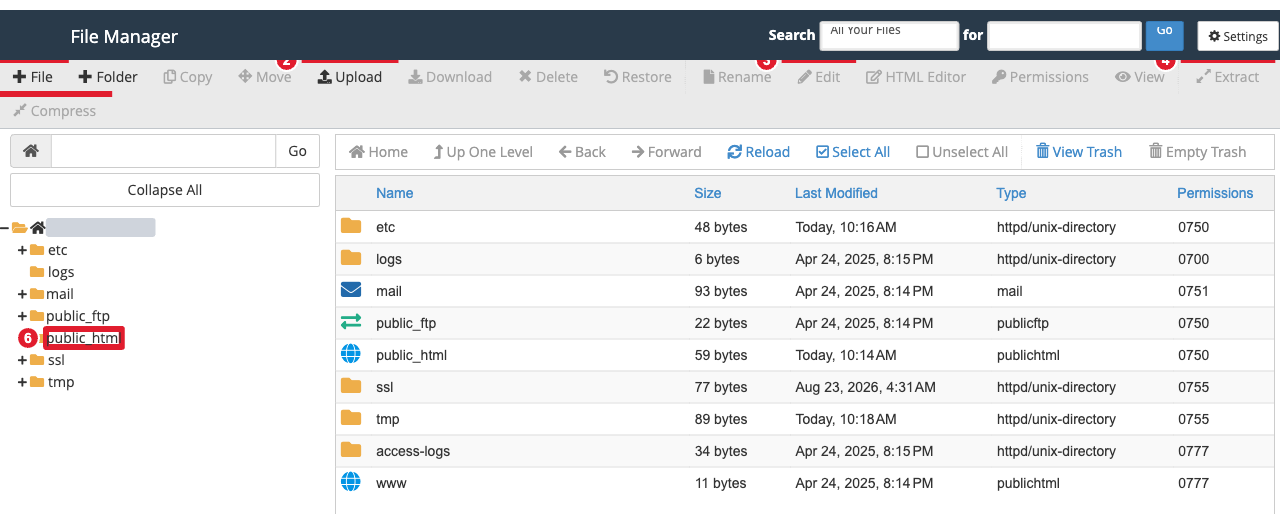
(1) New file (2) Upload (3) Edit (4) Extract (5) Compress (6) public_html, your main website folder
Where your website lives
Files for your main domain go in public_html. Your home page is usually index.html or index.php in that folder. Addon domains and subdomains have their own folders, which you choose when you add them (see Add Domains and Subdomains).
Upload files
- Open the folder you want to upload into (for example public_html).
- Click Upload in the toolbar. A new tab opens.
- Drag files onto the page or click Select File. The page shows the largest file size you can upload.
- When the progress bars finish, click Go Back to the folder link.
Create, edit and rename
- + File and + Folder create a new, empty file or folder in the current location.
- Select a text file (HTML, PHP, CSS, .htaccess) and click Edit to open it in the code editor. Click Save Changes when you're done.
- Rename, Copy and Move work on the selected files. You can select several files with Ctrl-click (Cmd-click on a Mac) or Select All.
- Permissions changes a file's access rights. Folders are normally 755 and files 644.
Zip and unzip
Select files or folders and click Compress to make a .zip or .tar.gz archive, for example to download a copy of your site. Select an archive and click Extract to unpack it.
See hidden files such as .htaccess
Files whose names start with a dot are hidden by default. Click Settings (top right), tick Show Hidden Files (dotfiles) and click Save. You can then select .htaccess in public_html and click Edit.
Delete and restore
Delete moves files to the trash unless you tick Skip the trash and permanently delete the files. Click View Trash to see deleted files, select one and click Restore to put it back. Empty Trash removes them for good.
Deleted something that's no longer in the trash? See Restore a File or Folder from a Backup.
