
Your hosting account includes command-line access. You can use it in your browser with cPanel's Terminal, or connect from your own computer with SSH or SFTP.
Use the Terminal in your browser
- Log in to the Client Area, go to Services > My Services and open your hosting service.
- Click Log in to cPanel in the menu on the left.
- In cPanel, click Terminal. You can also type its name into the Search Tools box at the top.
- Read the warning and click I understand and want to proceed. A command prompt opens in your home folder.
Important: Commands run straight on your files with no undo. A wrong
rm can delete your website. Make a backup first (see Back Up and Restore Your Website).Connect from your computer with an SSH key
We recommend signing in with an SSH key rather than your password.
- Log in to the Client Area, go to Services > My Services and open your hosting service.
- Click Log in to cPanel in the menu on the left.
- In cPanel, click SSH Access. You can also type its name into the Search Tools box at the top.
- Click Manage SSH Keys.
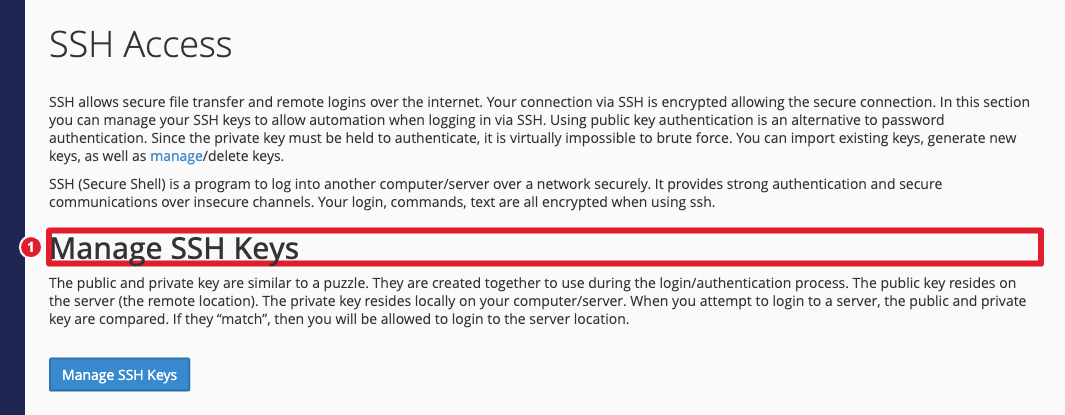
- Either click Generate a New Key, or click Import Key and paste the public key you already use on your computer (usually the contents of
~/.ssh/id_ed25519.puborid_rsa.pub). - In the list of Public Keys, click Manage next to the key and click Authorize. A key doesn't work until it's authorized.
- If you generated the key in cPanel, click View/Download next to it under Private Keys and save it on your computer. Keep it private.
Then connect with:
- Host: your domain name, or your server's hostname shown in your welcome email
- Username: your cPanel username (shown in the General Information panel on the cPanel home page)
- Port: 22, unless your welcome email gives a different port
For example: ssh [email protected]
Transfer files with SFTP
SFTP is a secure alternative to FTP that uses the same SSH login. In an FTP program such as FileZilla, WinSCP or Cyberduck, choose SFTP as the protocol and use the same host, username, port and key (or your cPanel password). For regular FTP accounts, see Create and Use FTP Accounts.
Tip: If your connection is refused or times out, open a support ticket with your IP address and the error you see.
