
IP Blocker stops specific IP addresses, ranges or domains from reaching your website, for example a bot that keeps hammering your login page.
- Log in to the Client Area, go to Services > My Services and open your hosting service.
- Click Log in to cPanel in the menu on the left.
- In cPanel, click IP Blocker. You can also type its name into the Search Tools box at the top.
- In IP Address or Domain, enter one of the formats listed on the page: a single address (192.168.0.1), a range (192.168.0.1-192.168.0.40), a CIDR block (192.168.0.1/32) or a domain name.
- Click Add.
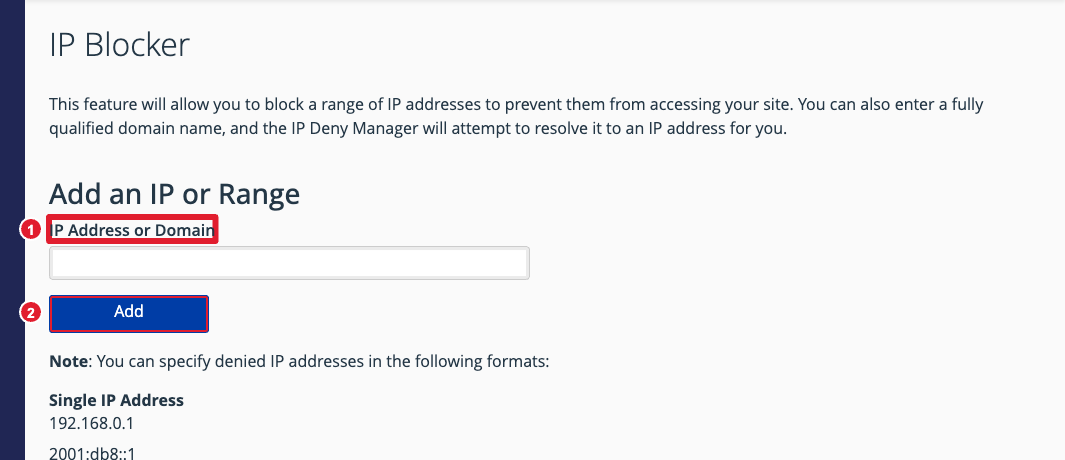
(1) Address, range or domain (2) Add
Blocked addresses appear under Currently-Blocked IP Addresses. Click Delete to unblock one.
Important: Be careful not to block your own IP address, or a range your visitors share. If you lock yourself out, open a support ticket.
Tip: Your hosting also has Imunify360, which blocks most attacks automatically. Use IP Blocker for specific addresses you want kept out.
