
Account Preferences is where you set the email address cPanel uses for notices and password resets, choose your language, and pick which alerts you get.
- Log in to the Client Area, go to Services > My Services and open your hosting service.
- Click Log in to cPanel in the menu on the left.
- In cPanel, click Account Preferences. You can also type its name into the Search Tools box at the top.
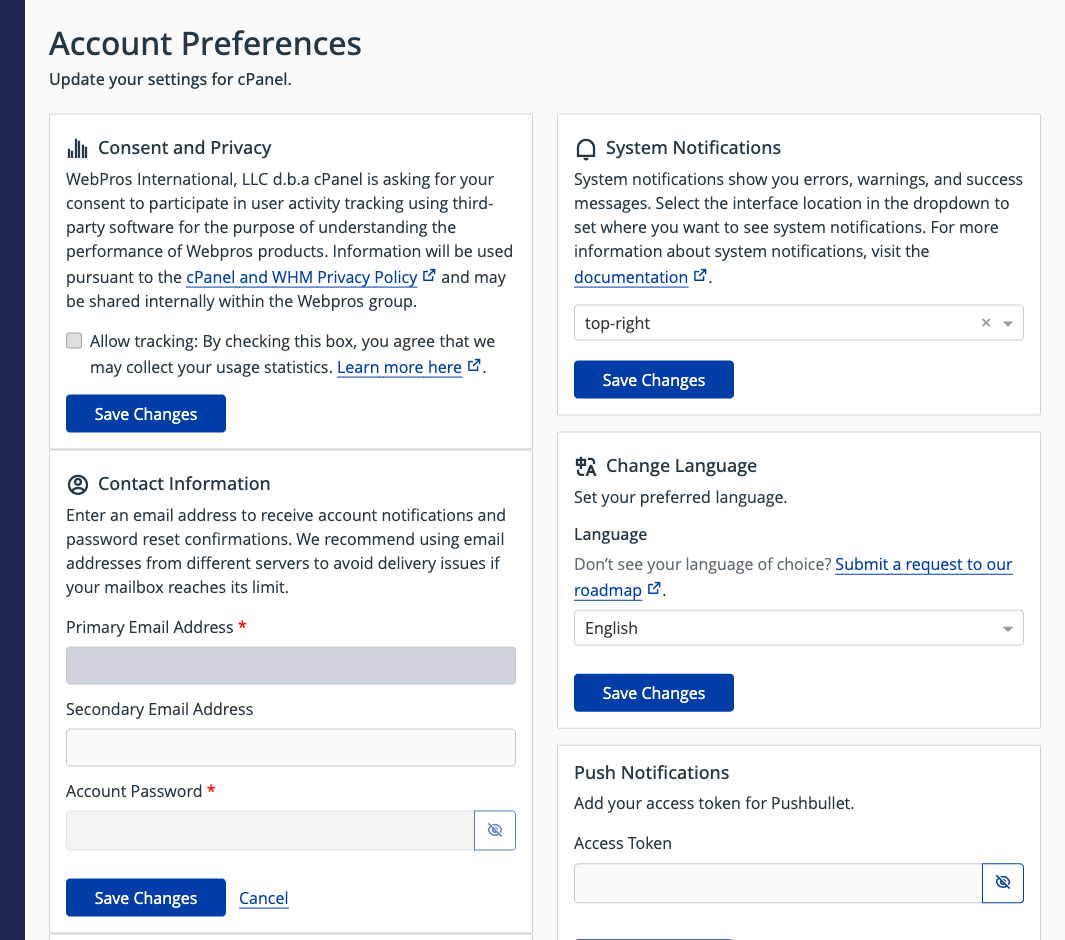
Contact email
Under Contact Information, enter a Primary Email Address and, optionally, a Secondary Email Address. Enter your cPanel password in Account Password and click Save Changes.
Tip: Use an address that isn't on the domain you host here, such as your Liberation Email or another provider's mailbox, so you still get notices if your site has a problem.
Notifications
Under Contact Preferences, tick the events you want an email about, for example when your contact address or password changes, when you approach your disk quota or bandwidth limit, or when you log in from a new IP address. Click Save Changes.
Language
Under Change Language, choose a language and click Save Changes. This changes the cPanel screens only, not your website.
Other settings
- Consent and Privacy: choose whether cPanel may collect anonymous usage statistics. It's off unless you tick it.
- System Notifications: where success and error messages appear on screen.
Important: The contact email here is for cPanel notices only. Billing and support emails go to the email address on your Client Area account. To change that one, see your profile in the Client Area.
