
A redirect sends visitors from one address to another, for example from an old domain to your new one, or from an old page to its replacement.
- Log in to the Client Area, go to Services > My Services and open your hosting service.
- Click Log in to cPanel in the menu on the left.
- In cPanel, click Redirects. You can also type its name into the Search Tools box at the top.
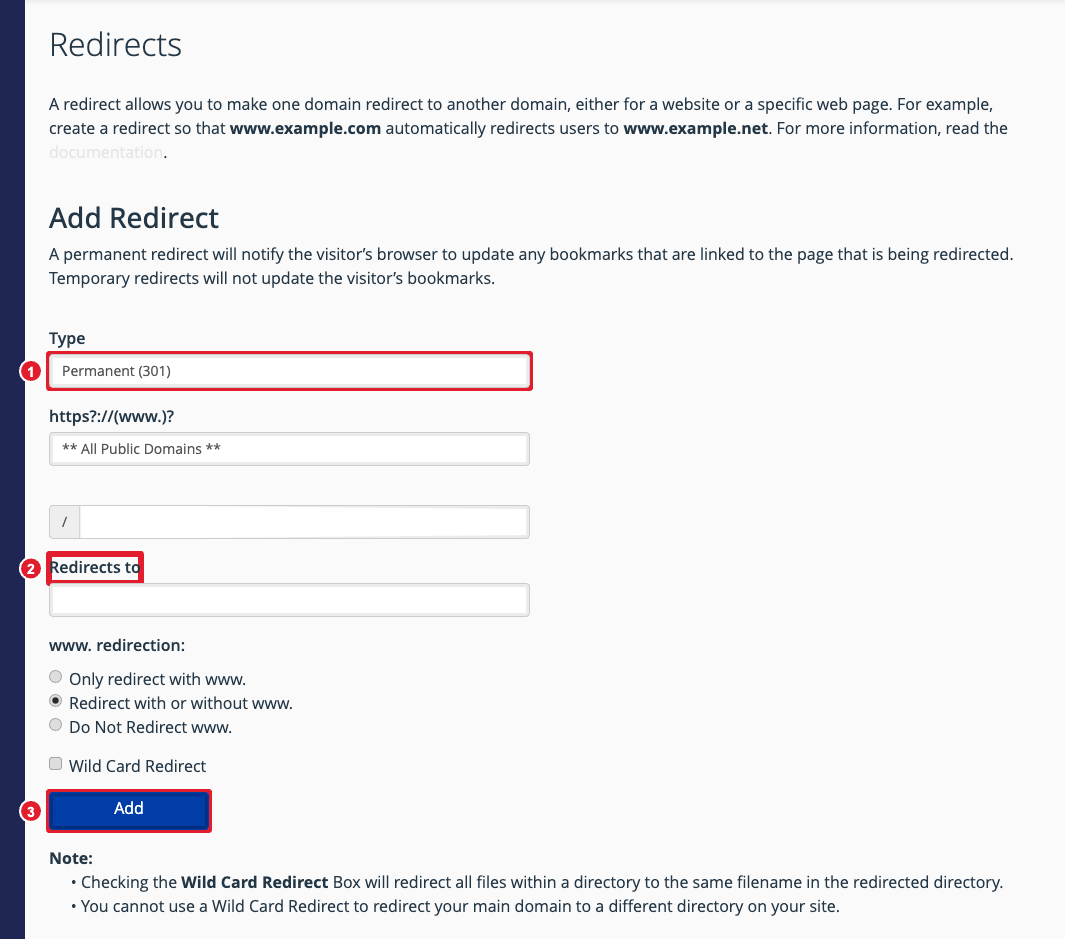
(1) Permanent or temporary (2) Where visitors should go (3) Add
- Choose the Type:
- Permanent (301) for moves that won't change back. Search engines transfer the old address's ranking to the new one.
- Temporary (302) for short-term changes, such as a maintenance page.
- Choose the domain to redirect from. To redirect one page only, type its path in the box after the / (for example old-page.html).
- In Redirects to, enter the full new address, including https:// (for example https://www.newsite.com/).
- Choose how to treat www.. Redirect with or without www. suits most sites.
- Tick Wild Card Redirect if every page should go to the same page on the new site (old.com/about goes to new.com/about).
- Click Add.
Your redirects are listed under Current Redirects, where you can remove them.
Tip: To send every visitor from http:// to https://, use the Force HTTPS Redirect switch in Domains instead of a redirect.
