
Most web apps, including WordPress, store their content in a MySQL database. You create the database and a user for it in Manage My Databases, then give the user access to the database.
Tip: Installing WordPress with WP Toolkit creates its database for you. You only need these steps for apps you install yourself.
- Log in to the Client Area, go to Services > My Services and open your hosting service.
- Click Log in to cPanel in the menu on the left.
- In cPanel, click Manage My Databases. You can also type its name into the Search Tools box at the top.
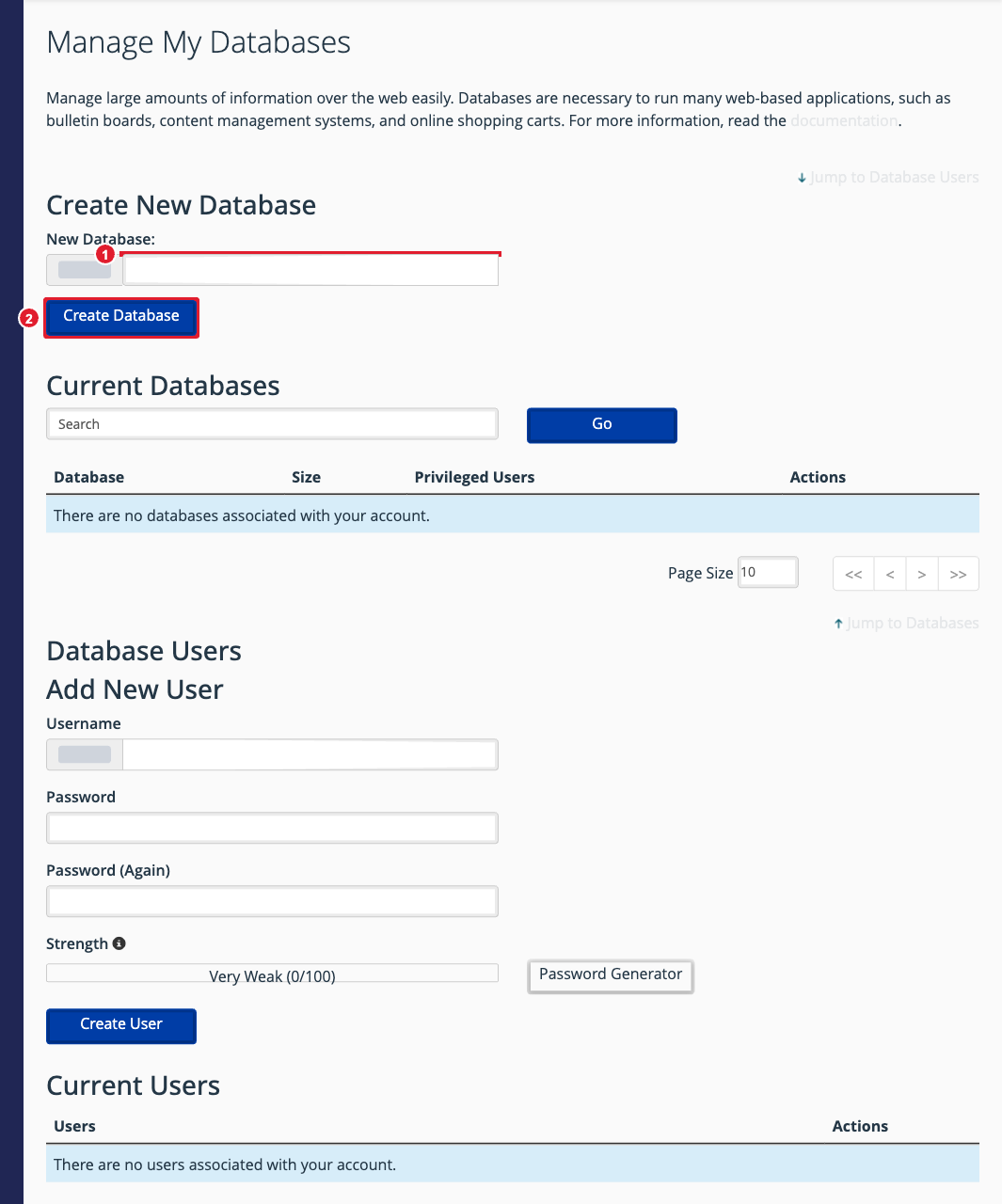
(1) Name the new database (2) Create Database
1. Create the database
- Under Create New Database, type a name. cPanel adds your account prefix in front of it.
- Click Create Database, then Go Back.
2. Create a database user
- Under Database Users > Add New User, enter a username and a strong password (or use Password Generator).
- Click Create User. Save the password somewhere safe.
3. Give the user access to the database
- Under Add User to Database, choose the user and the database, then click Add.
- Tick ALL PRIVILEGES (what most apps need) and click Make Changes.
Your app will ask for the database name, username and password (both with the prefix), and the host, which is localhost.
Other tasks
- Check or repair a database: use Modify Databases on the same page.
- Look at or edit the data, import or export: open phpMyAdmin from the Databases section of cPanel.
- Back up a database: see Back Up and Restore Your Website.
