
Hub Email gives you two ways to mark messages so you can find them again: flags, which you set by hand, and tags, which a filter can add for you as mail arrives.
Flag a message
- Click the star next to a message in the list, or open the message and click its star.
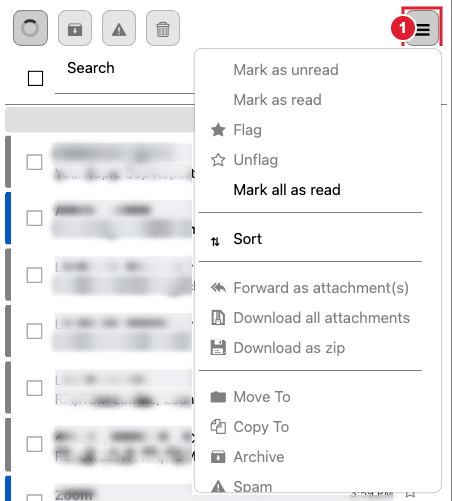
- To flag several at once, tick them and choose ☰ More > Flag. Use Unflag to remove it.
- Flags are saved on the mail server, so a flagged message also shows as flagged in the mail app on your phone or computer.
Tag new mail automatically
- In Email, open your account menu (top right) and choose Settings.
- Click Filters, then click Hub For Teams (Simple).
- Click Add a Filter.
- Under Conditions, choose which messages the rule applies to (for example, mail from a certain sender or with a word in the subject).
- Under Actions, choose Add Tag and type the tag name.
- Click Done, then Save.
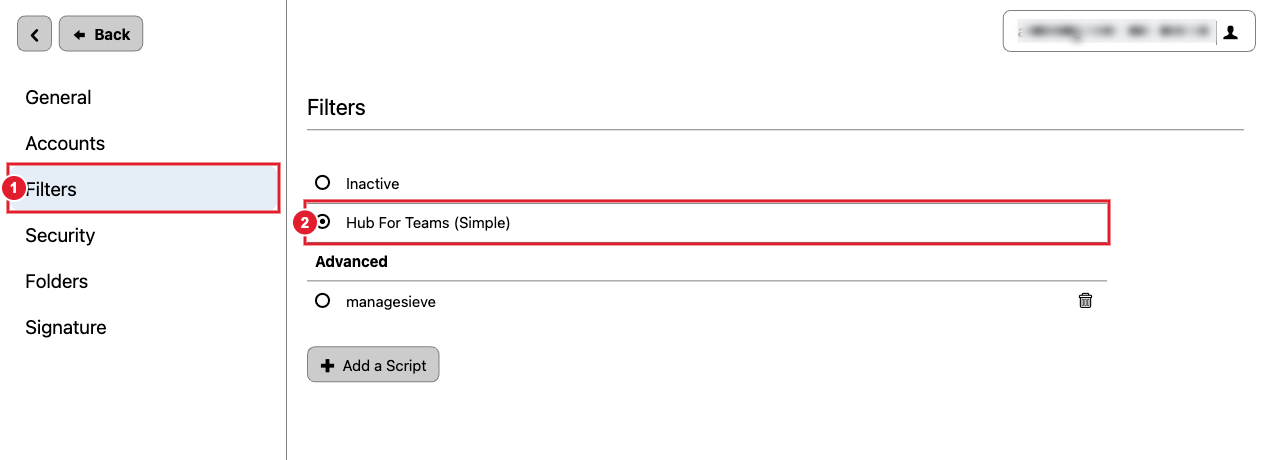
(1) Settings > Filters (2) Click this rule set to add or edit filters. The dot on the left shows which set is active.
The same filter screen can also move, forward or reject messages, and set your out-of-office reply. See Email Out of Office (Vacation) auto-response.
For a full tour of Hub Email, see Using Hub Email.
