
An alias is an extra email address that delivers to an existing mailbox, for example billing@ delivering to Jane's mailbox.
- Log in to the Client Area.
- Click Hub for Teams in the menu. You can also go to Services > My Services, open your Hub service and click Click here to manage Hub for Teams.
- Click User Accounts, then the pencil next to the user.
- Open the Email tab and click Edit aliases.
- Click Add Alias, type the new address and pick the domain.
- Click Save changes.
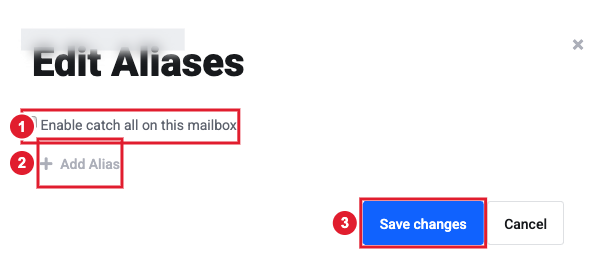
(1) Catch-all: also receive mail sent to addresses that don’t exist (2) Add Alias (3) Save changes
To send from the alias in Hub Email, add it as an identity: in Email go to Settings > Accounts > Add an Identity. See Using Hub Email.
Need an address that goes to several people? Use a forwarder instead. See Setting Up Email Forwarding.
Setting up a catch-all: a catch-all receives mail sent to any address at your domain that does not exist. Turn it on from the user account, not from the forwarder: go to User Accounts, click the pencil next to the user, open the Email tab, click Edit aliases and tick Enable catch all on this mailbox, then Save changes.
