
There are two kinds of forwarding in your Hub:
- Forward one person's mail to other addresses.
- A shared address (a forwarder), such as info@, that delivers to several people.
Forward one person's mail
- Log in to the Client Area.
- Click Hub for Teams in the menu. You can also go to Services > My Services, open your Hub service and click Click here to manage Hub for Teams.
- Click User Accounts, then the pencil next to the user.
- Open the Email tab and click Edit Forwarders.
- Click Add Destination and enter the address to forward to. Add as many as you need.
- Keep Deliver messages to mailbox ticked if the person should still get a copy. Untick it to forward only.
- Click Save changes.
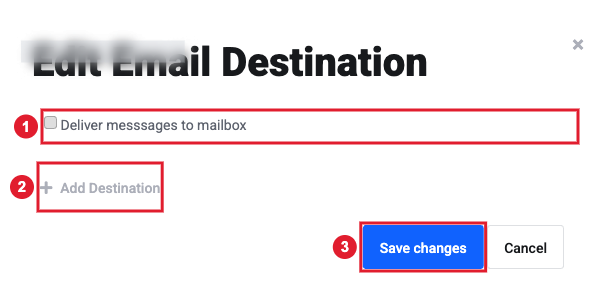
(1) Keep a copy in the mailbox (2) Add Destination (3) Save changes
Create a shared address (forwarder)
- In the Hub manager, click the Forwarders tab, then Create new.
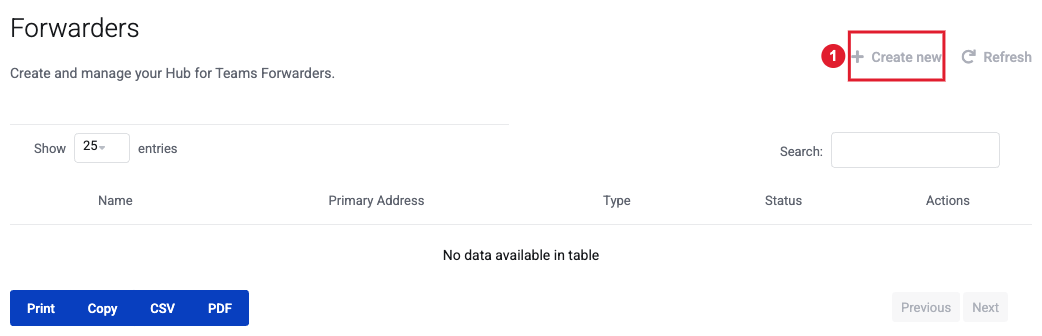
- Enter a Name for the forwarder and its Primary Address (the part before the @), then pick the domain.
- Click Next. Add Members (people in your Hub) and any outside Destinations.
- Finish to create the forwarder. You can disable it later from the Forwarders list.
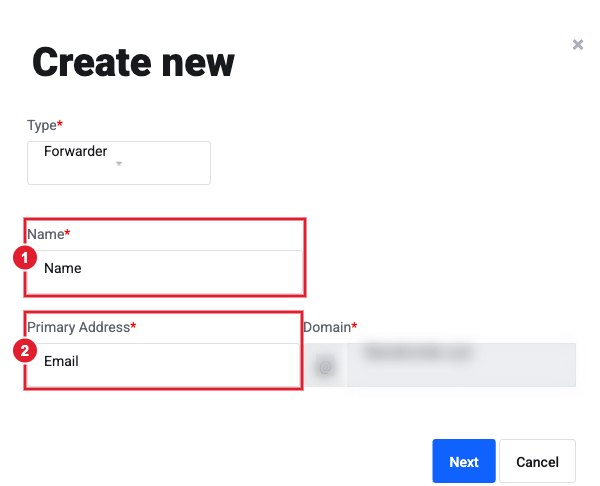
(1) Name (2) Primary address and domain
