
Use your own domain (for example yourcompany.com) for your team's email addresses.
Personal plan: the custom domain feature is an add-on. If you don’t see the Hub Domains tab, buy the Custom Domain Pack from the Licenses tab first (Buy licenses). The tab appears once the add-on is active.
1. Add the domain
- Log in to the Client Area.
- Click Hub for Teams in the menu. You can also go to Services > My Services, open your Hub service and click Click here to manage Hub for Teams.
- Click the Hub Domains tab, then Create new.
- Type your domain name and click Add Domain.
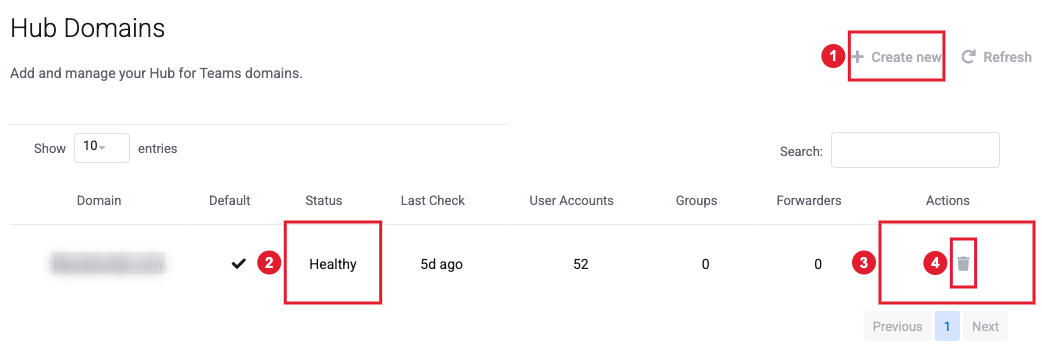
(1) Create new (2) Status of the domain (3) Check domain: shows the DNS records you need (4) Delete the domain
2. Prove you own it
- Click the Check domain icon next to your domain.
- Copy the TXT record shown under Verify domain ownership.
- At the company that manages your domain's DNS, add that TXT record. Some providers want @ in the Name field, others want your full domain name.
- Come back and click Verify Ownership. DNS changes can take a few minutes to a few hours to show up.
3. Add the email DNS records
Add the records listed under DNS Records so mail reaches your team and mail apps can set themselves up:
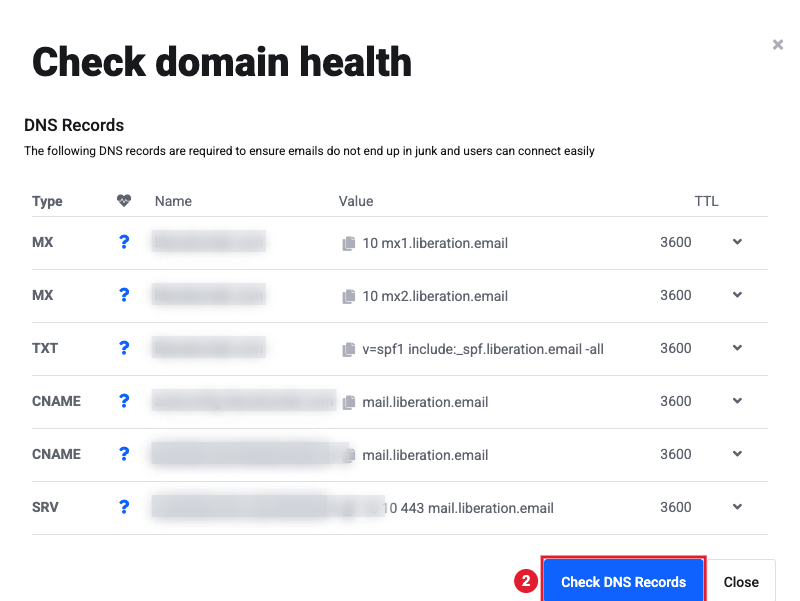
(1) The records to add at your DNS provider (2) Check DNS Records to confirm they are right
| Type | Name | Value |
|---|---|---|
| MX (priority 10) | your domain (@) | mx1.liberation.email |
| MX (priority 10) | your domain (@) | mx2.liberation.email |
| TXT | your domain (@) | v=spf1 include:_spf.liberation.email -all |
| CNAME | autoconfig | mail.liberation.email |
| CNAME | autodiscover | mail.liberation.email |
| SRV | _autodiscover._tcp | priority 10, weight 10, port 443, target mail.liberation.email |
Then click Check DNS Records. When everything is right, the domain shows as Healthy.
Important: If your domain already receives email somewhere else, changing the MX records moves your email to your Hub. Create your users first so no mail is lost, and open a support ticket if you want help planning the switch.
4. Use the domain
When you add or edit a user, pick your domain in the Domain box. See Adding a User to Your Hub.
Your domain is managed with us? See Manage my Liberation DNS records.
