
The Video app runs video meetings right from your Hub: screen sharing, presentations, chat, polls, breakout rooms and recording. There's no limit on the number of rooms.
Create a meeting room
- Log in at hubforteams.com.
- Click Video in the top bar.
- Type a name in Room name at the bottom of the list and click Create.
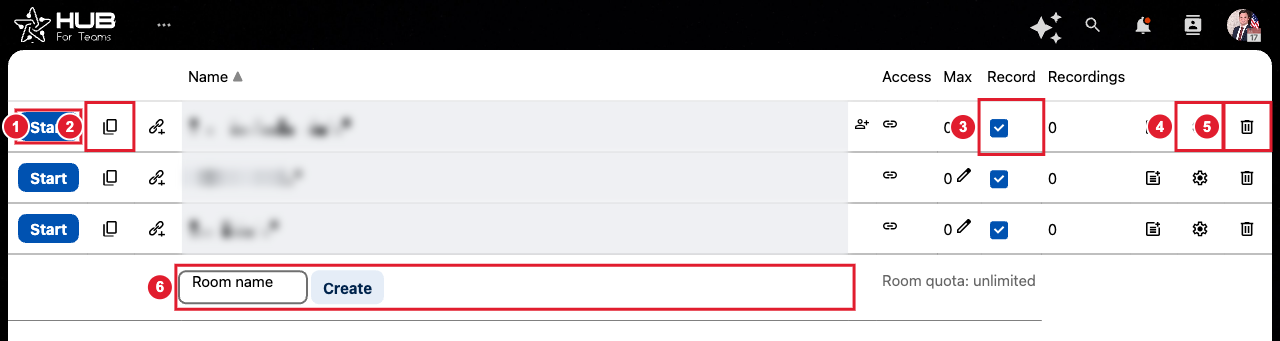
(1) Start the meeting (2) Copy the invite link (3) Allow recording (4) Room settings (5) Delete the room (6) Create a new room
Room settings
Click the settings (gear) icon next to a room:
- Name and Welcome message shown in the meeting chat.
- Participant limit (0 means no limit).
- Access:
- Public: anyone with the link can join.
- Internal + Password protection for guests: your team joins directly, guests need a password.
- Internal + Waiting room for guests: a moderator lets each guest in.
- Waiting room for all users.
- Internal: only people in your Hub.
- Internal restricted: only the people and groups you pick.
- Sharing: add moderators, or make every participant a moderator.
- Recording, Require moderator to start room, Listen only option, Join meeting muted and other options.
Start and invite
- Click Start to open the meeting in a new tab. Allow your browser to use your microphone and camera.
- Click the copy icon next to the room to copy the invite link, and send it to your guests. You can also paste it into a calendar invite.
In the meeting
When you join, choose how to connect your audio:
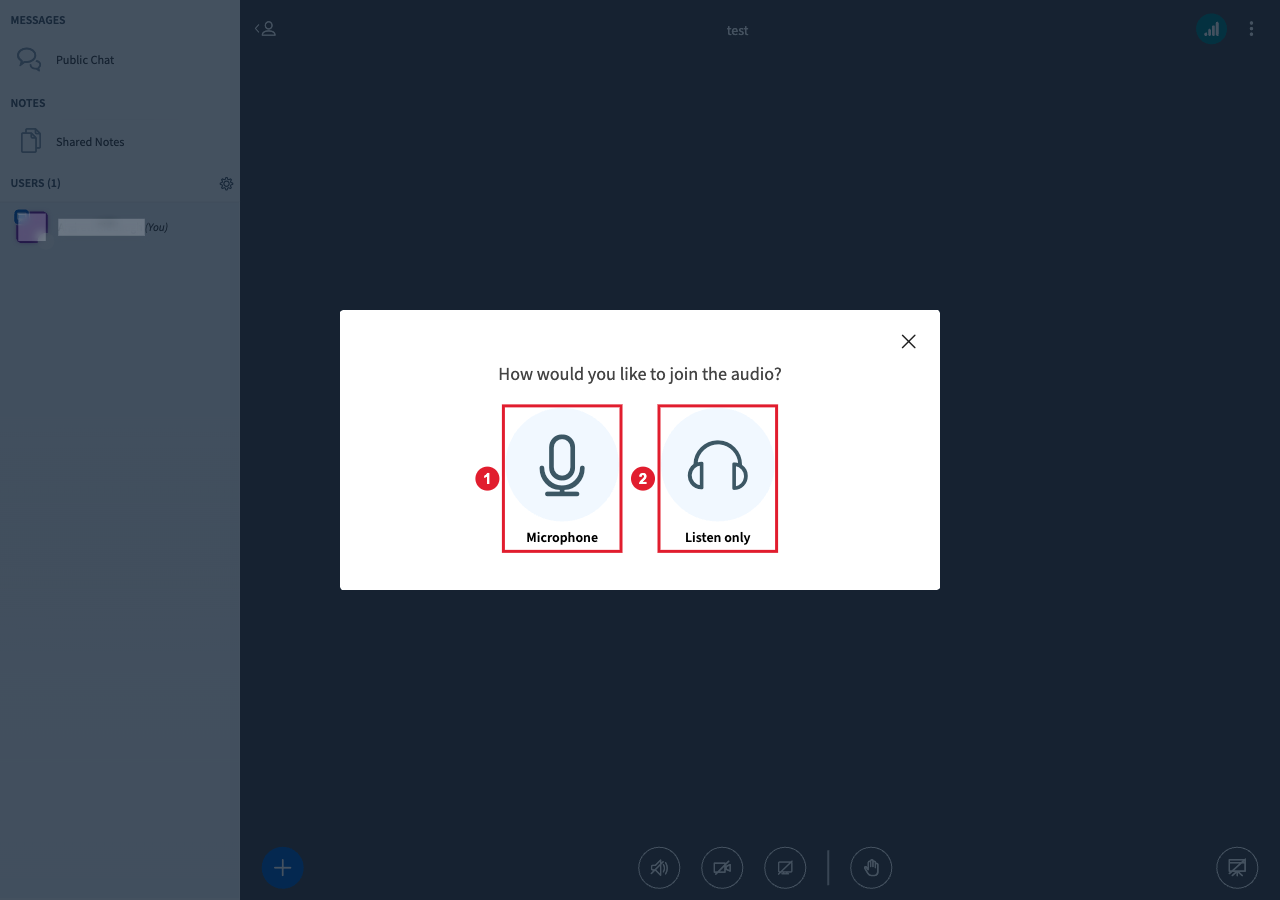
(1) Microphone: speak and listen (2) Listen only: hear the meeting without a microphone
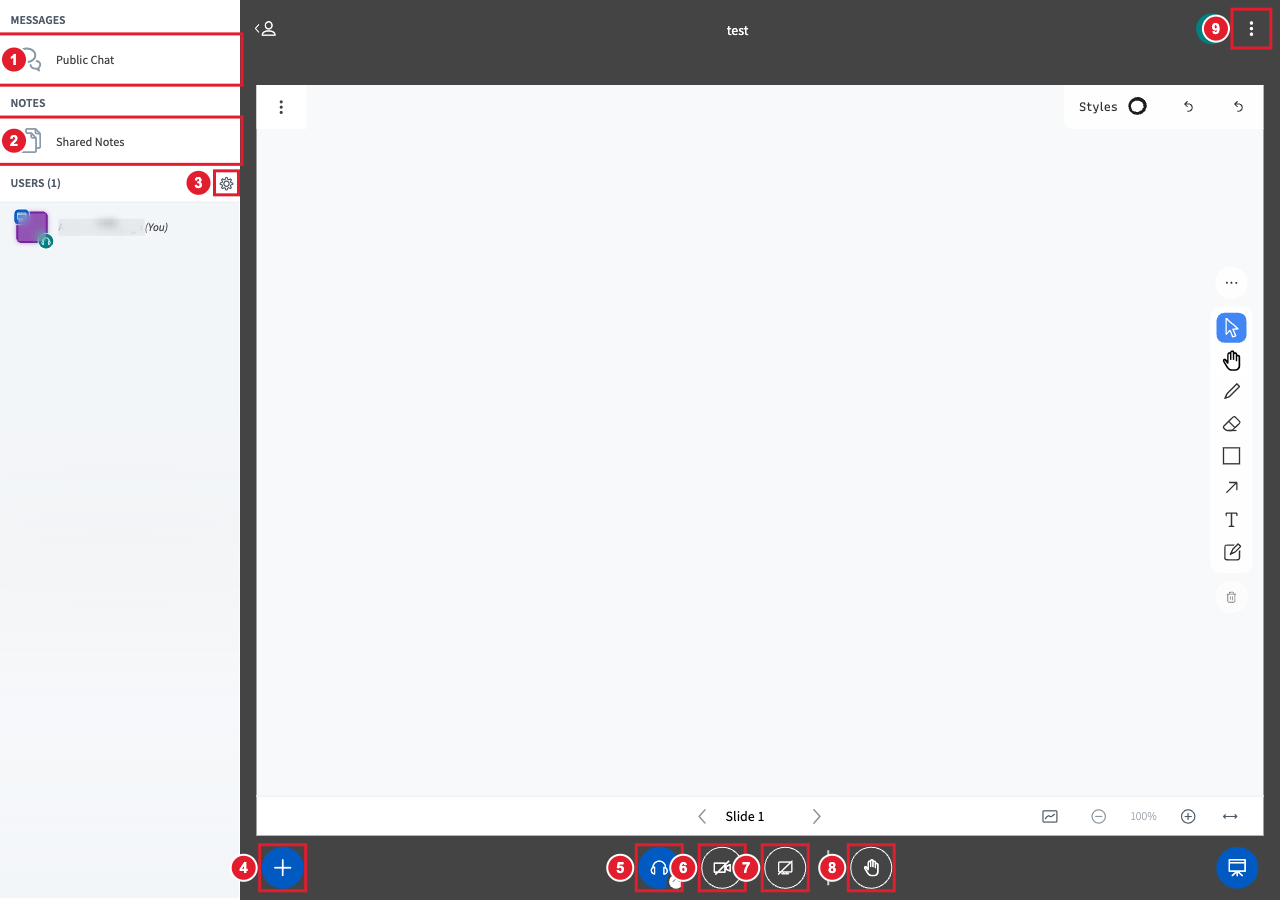
(1) Public chat (2) Shared notes (3) Manage users (moderators) (4) Actions: presentations, polls and external video (5) Audio (6) Webcam (7) Share your screen (8) Reactions and raise hand (9) Options: settings, layout, shortcuts and leave
When you join, choose how to connect your audio:
(1) Microphone: speak and listen (2) Listen only: hear the meeting without a microphone
(1) Public chat (2) Shared notes (3) Manage users (moderators) (4) Actions: presentations, polls and external video (5) Audio (6) Webcam (7) Share your screen (8) Reactions and raise hand (9) Options: settings, layout, shortcuts and leave
- Participants: join the audio, share a webcam, send chat messages, respond to polls.
- Presenters: share your screen, upload a presentation, run a poll.
- Moderators: manage users, breakout rooms, recording.
