
When the presenter enables the multi-user whiteboard, all users in the Hub Video session can annotate the whiteboard simultaneously.
Once the presenter has engaged the multi-user capabilities, the whiteboard controls will appear to the right hand side in the presentation area.
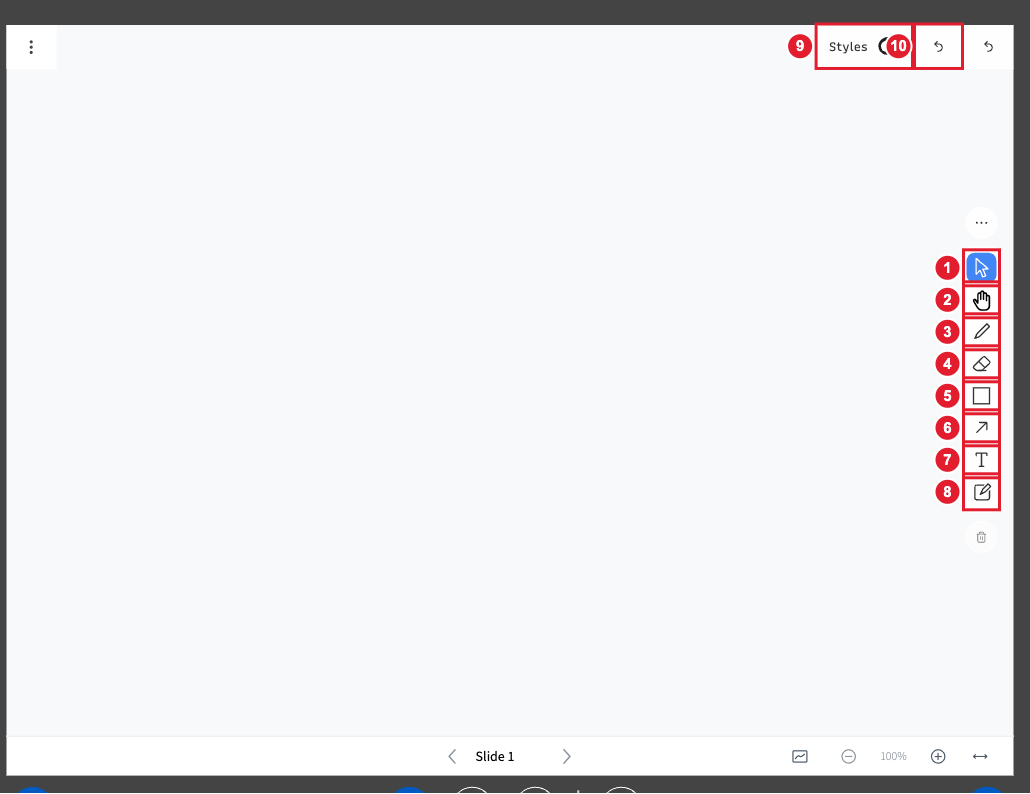
(1) Select (2) Pan (3) Draw (4) Eraser (5) Shapes (6) Arrow (7) Text (8) Sticky note (9) Styles (10) Undo

(1) Previous slide (2) Next slide (3) Multi-user whiteboard (4) Zoom out (5) Zoom in (6) Fit to width (7) Hide or show the presentation
By default the Pencil [1] tool is enabled; you can use the other whiteboard controls to change the Thickness [2] and Colour [3] of the line.
To draw on the presentation select and drag the mouse button to draw a line.
You can Undo last annotation [4] made or Clear all annotations [5] while the multi-user whiteboard is enabled.
It is important to note that once the presenter turns the multi-user capabilities off they can clear the whiteboard marks made by others when it was enabled.
Select the Pencil to display the other available whiteboard tools, which include:
- Text input [2]
- Line [3]
- Ellipse [4]
- Triangle [5]
- Rectangle [6]
- Pencil [default]
- Pan/pointer [7]
To write on the presentation, select the Text Input [2] tool and draw a rectangle. The rectangle will be the text area.
