
When a Hub Video conference/activity is enabled for recording, the Moderator can engage the Start/Stop button in the live session to generate a recording.
It is important to note that enabling your conference/activity to be recorded when it was created is not an auto-capture function. A Moderator must still engage the start/stop record in the live session for a recording to process.
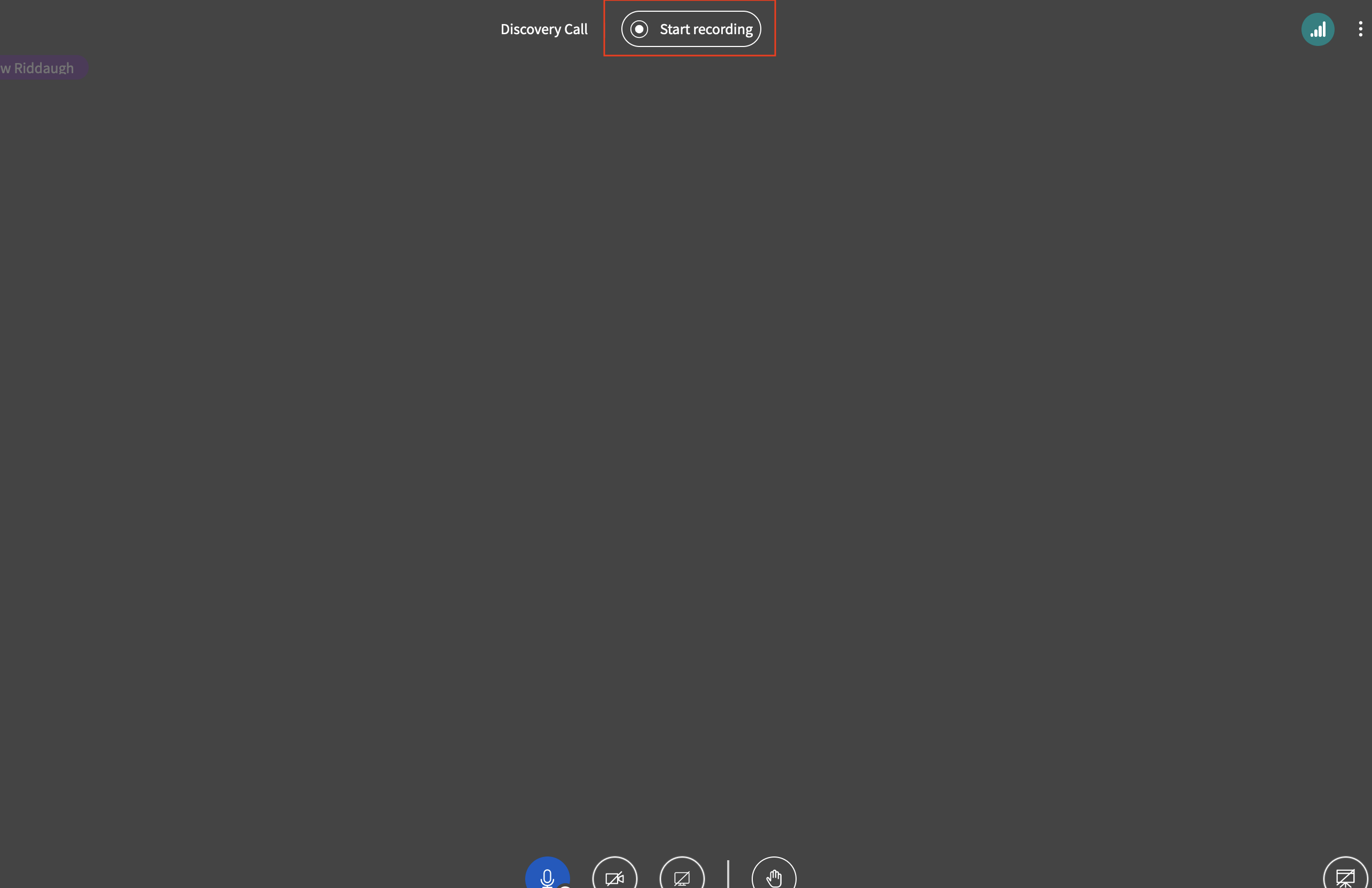
The Recording icon is located in the top center of the Hub Video interface to the right of the session title.
To start the recording select the Start Recording button:
When started, the recording icon will change to red and a timer will begin counting up the total number of recorded minutes captured.
