
Every Hub for Teams account includes Email, a full webmail app built into your Hub. You can read, write and organize your mail without leaving the Hub, and it works with the same mailbox you use on your phone or computer.
Open Email
- Log in at hubforteams.com.
- Click Email in the top bar.
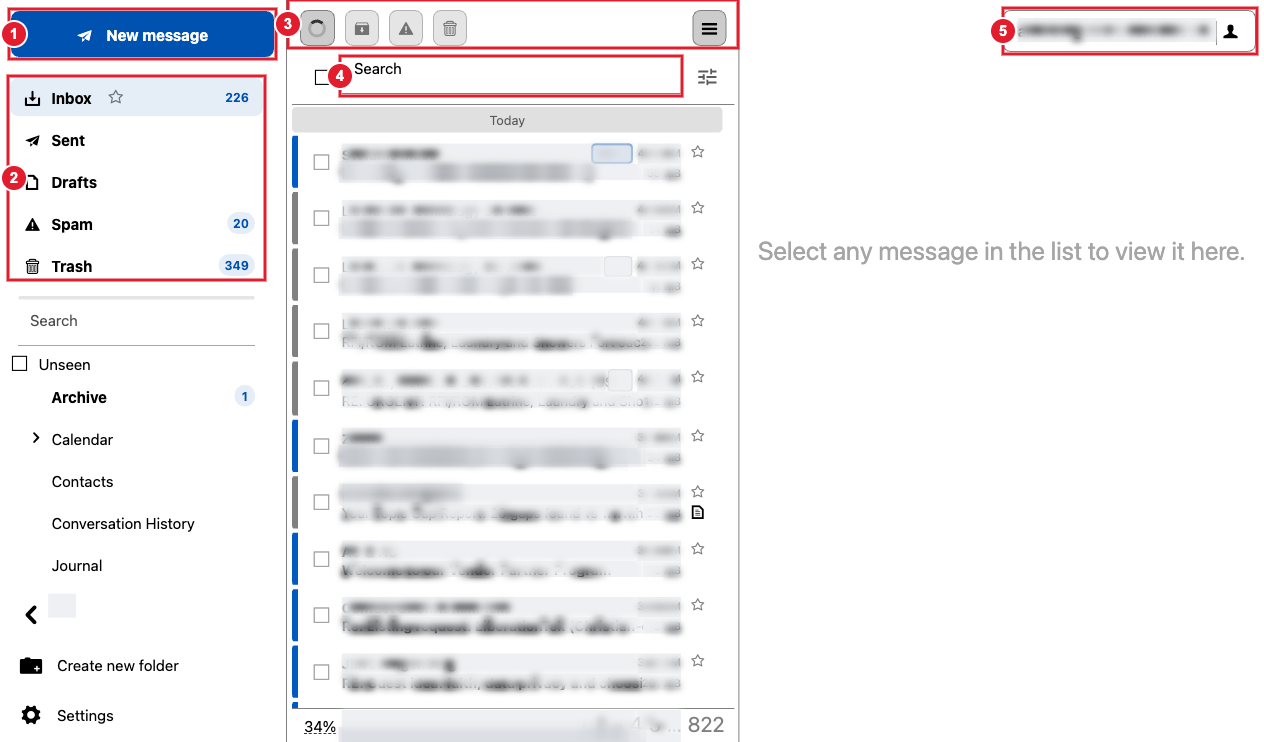
(1) New message (2) Your folders: Inbox, Sent, Drafts, Spam and Trash (3) Actions for the selected messages (4) Search this folder (5) Your account menu, with Settings and Log out
Read and reply
- Click a message to open it in the reading pane on the right.
- Use Reply, Reply All or Forward at the top of the open message. You can also forward a message as an attachment or use Edit as New to reuse it.
- Messages in the same conversation can be grouped together. Turn this on under Settings > General > Use threads.
- Choose whether pictures from outside senders load automatically under Settings > General > External images.
Write a new message
- Click New message.
- Pick the From address if you have more than one identity, then fill in To and Subject. Click Cc or Bcc to add those fields.
- Write your message. The toolbar has fonts, lists, links and images.
- To attach something, click the paperclip to upload from your computer, or click HUB to attach a file that is already in your Hub Files.
- The ☰ menu in the message window lets you request a read or delivery receipt, mark the message as important, or sign and encrypt it.
- Click Send. Click Save at any time to keep a draft in your Drafts folder.
Organize your mail
Tick one or more messages, then use the buttons above the list (Archive, Spam, Delete) or open the ☰ More menu:
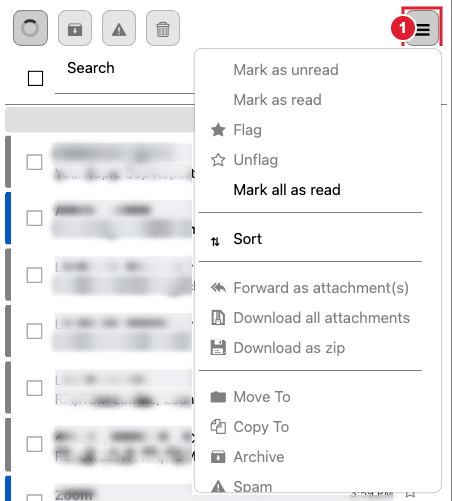
- Mark as read / unread, and Mark all as read.
- Flag important messages. Flagged messages show a star, and the star also shows up as a flag in most mail apps on your phone and computer.
- Move To or Copy To another folder. You can also drag messages onto a folder.
- Sort by date, sender, subject or size.
- Download all attachments or Download as zip.
- Spam moves a message to your Spam folder. Open the Spam folder and choose Not Spam to move it back.
- Delete moves messages to Trash. Delete permanently and Clear Folder cannot be undone.
Folders
- Click Create new folder at the bottom of the folder list to add a folder.
- Go to Settings > Folders to rename, delete, or hide folders you don't use. The Inbox, Sent, Drafts, Spam and Trash folders are system folders and can't be deleted.
Settings
Open your account menu (top right) and choose Settings.
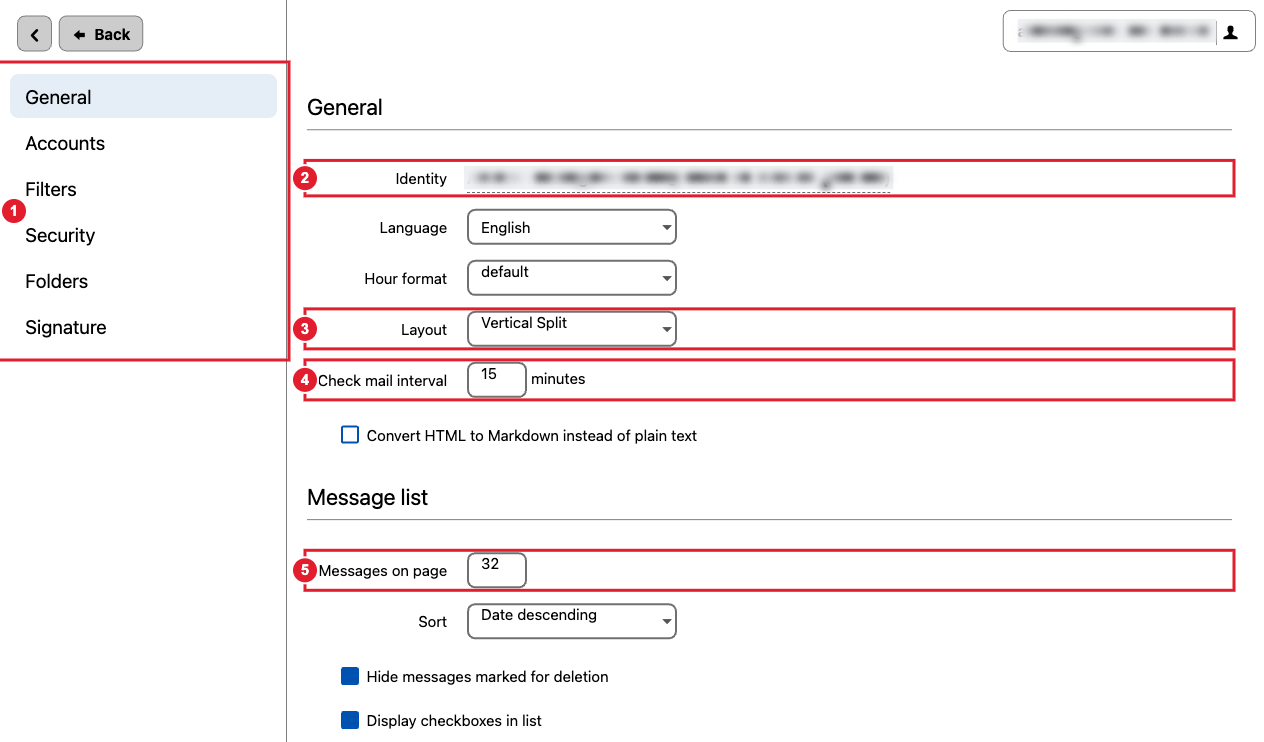
(1) Settings sections (2) Your name and address (3) Screen layout: No split, Vertical split or Horizontal split (4) How often to check for new mail (5) How many messages to show per page
- General: language, time format, layout, sort order, threads, when to mark messages as read, and the default editor (HTML or plain text).
- Accounts: add another mailbox so you can read it here too, and add identities (other From addresses and display names).
- Filters: rules that sort, forward or tag new mail, and your out-of-office reply. See Email Out of Office (Vacation) auto-response.
- Security: automatic log out after a period of inactivity, and OpenPGP keys for encrypted mail.
- Folders: manage and hide folders.
- Signature: signatures belong to an identity. Go to Accounts, click your address under Identities, and open the Signature tab.
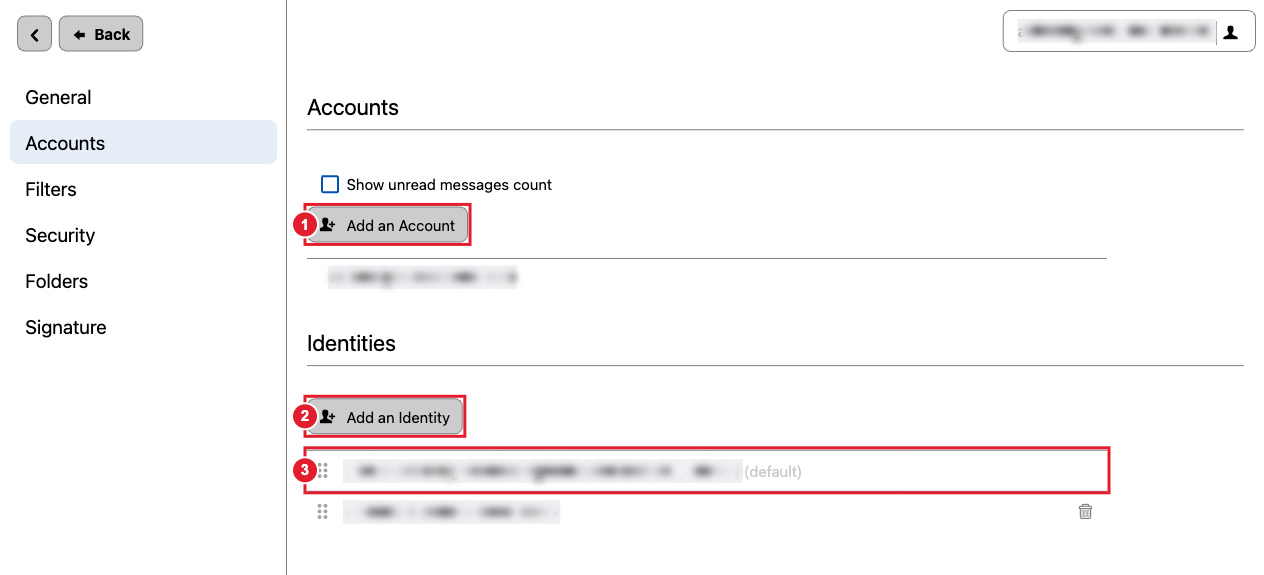
(1) Add another mailbox (2) Add another From address (3) Click an identity to change its name, reply-to address and signature
Use your email somewhere else
- If the Hub is down: you can still read the same mailbox in our backup webmail at mail.liberation.email. See Backup Webmail: Reading Your Email When the Hub Is Down.
- Phone and computer: see Adding Liberation Email to your computer and smartphone for the server settings.
Need help? Open a support ticket.
