Basics of Hub Chat
You can create any number of conversations. There are two kinds of conversations:
-
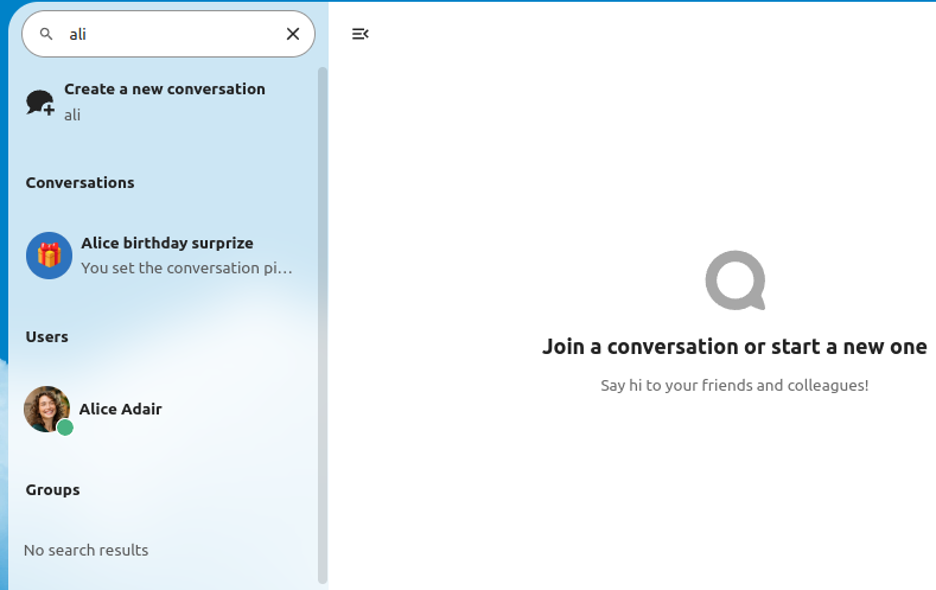
One-on-one conversations. This is where you have a private chat with another Hub user. You can’t add other people to this conversation or share it with a link. You start a direct one-on-one chat by looking for another user in the search bar and then clicking their name.
-
Group conversations. Besides the person who created the conversation, a group conversation can have any number of people in it. A group conversation can be shared publicly with a link, so external guest users can join the chat. It can also be listed, so other people on your Hub server can join the conversation.
Creating a chat
You can create a direct, one-on-one chat by searching for the name of a user, a group or a team and clicking it. For a single user, a conversation is immediately created and you can start your chat. For a group or team you get to pick a name and settings before you create the conversation and add the participants.
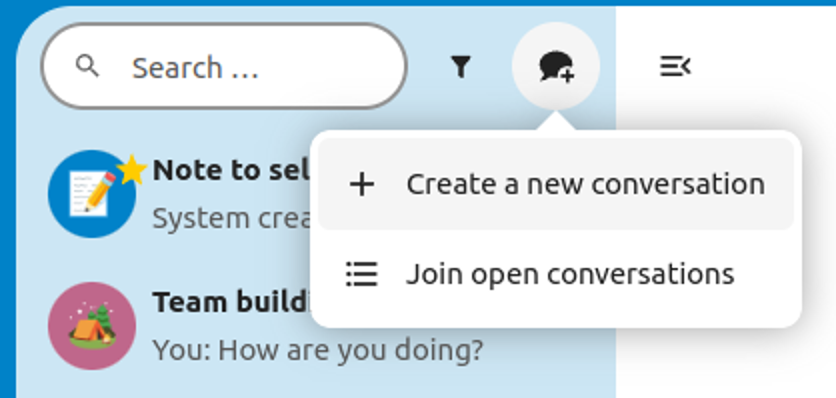
If you want to create a custom group conversation, click the button next to the search field and filters button and then on Create a new conversation.
You can then pick a name for the conversation, put a description, and set up an avatar for it (with uploaded photo or emoji), and select if the conversation should be open to external users and if other users on the server can see and join the conversation.
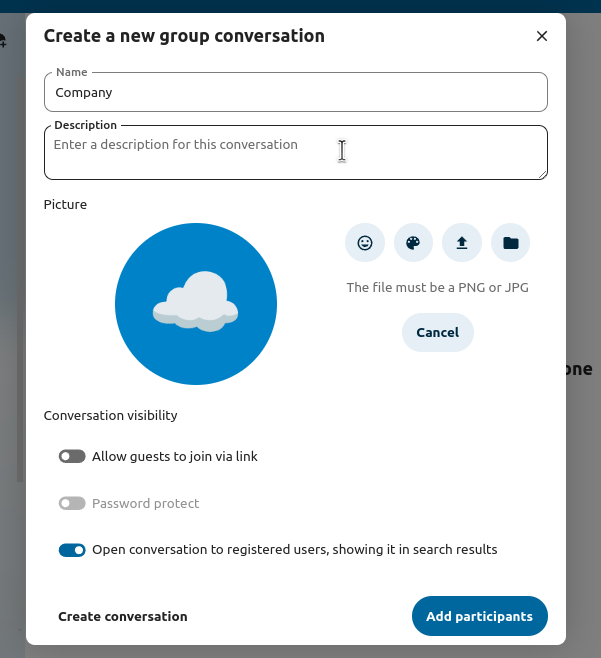
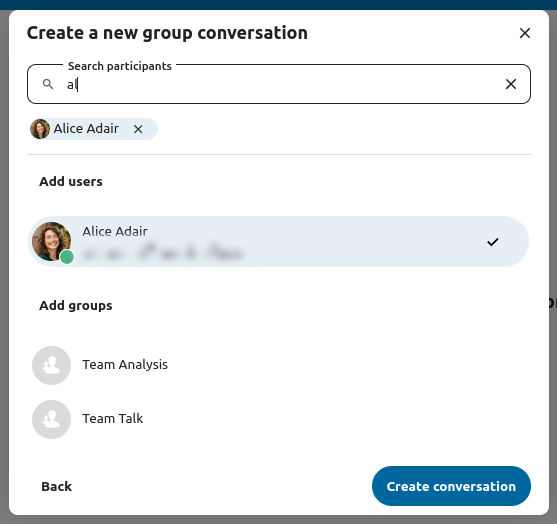
In the second step, you get to add participants and finalize the creation of the conversation.
You can cancel the creation of a conversation by clicking outside the white menu area at any time.
View all open conversations
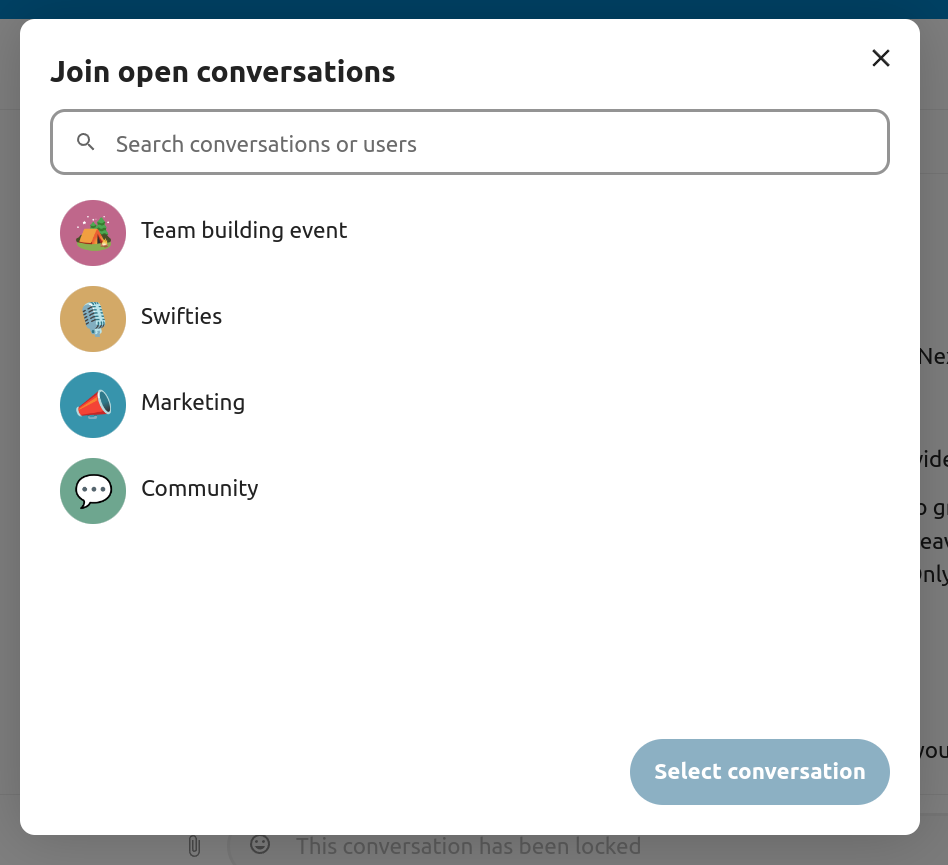
You can view all the conversations that you can join by clicking the button next to the search field and filters button and then on Join open conversations.
Filter your conversations
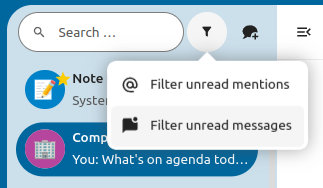
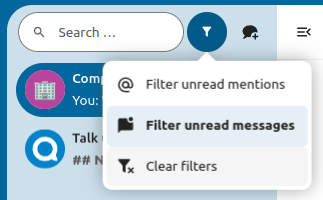
You can filter your conversations using the filter button located next to the search field. There are two options for filtering: 1. Filter unread mentions: This option allows you to view group conversations with unread mentions or unread one-on-one conversations. 2. Filter unread messages: This option allows you to view all unread messages in all joined conversations.
You can then clear the filter from the filters menu.
Sharing files in a chat
You can share files in a chat in 3 ways.
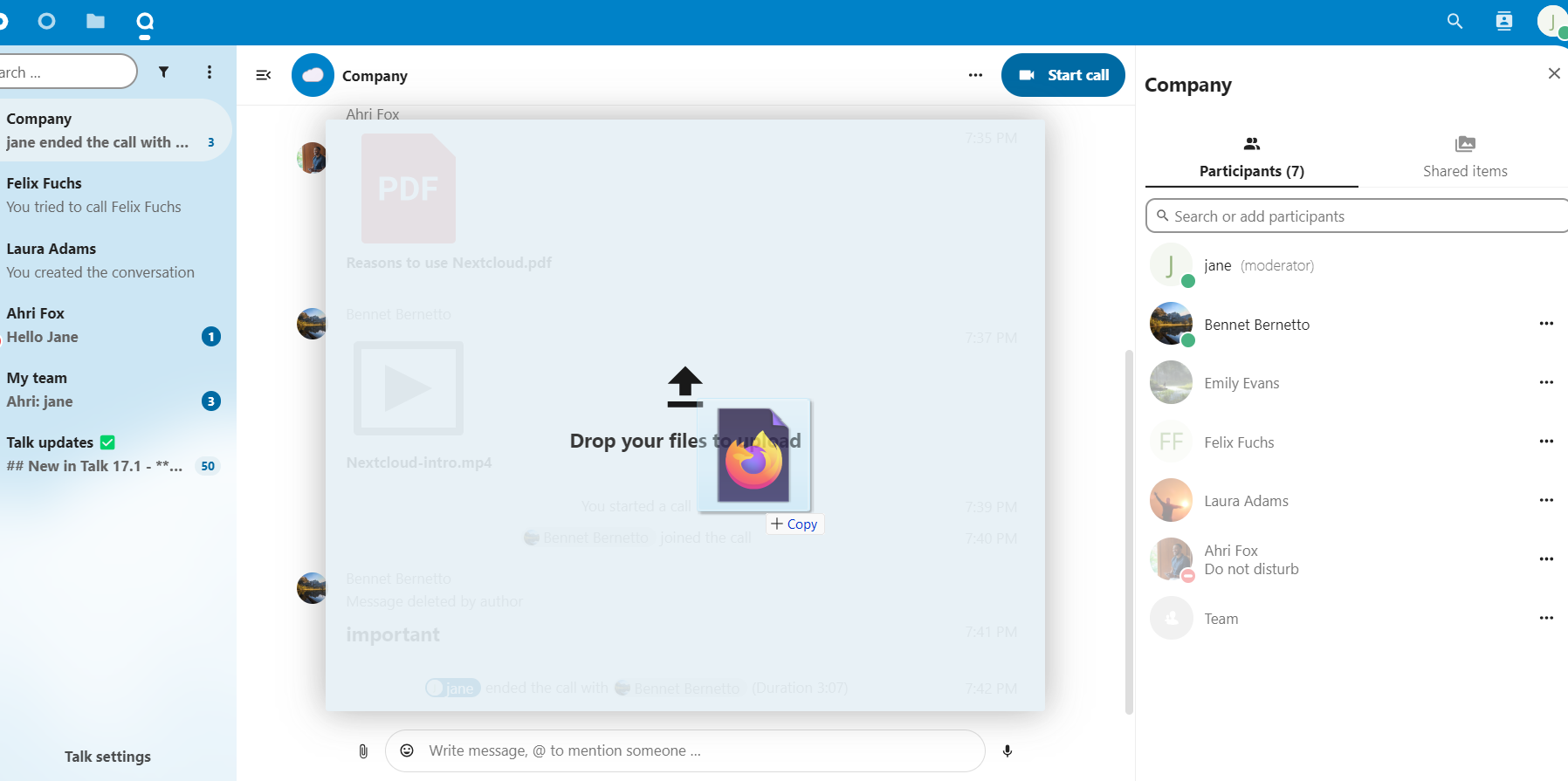
First, you can simply drag’n’drop them on the chat.
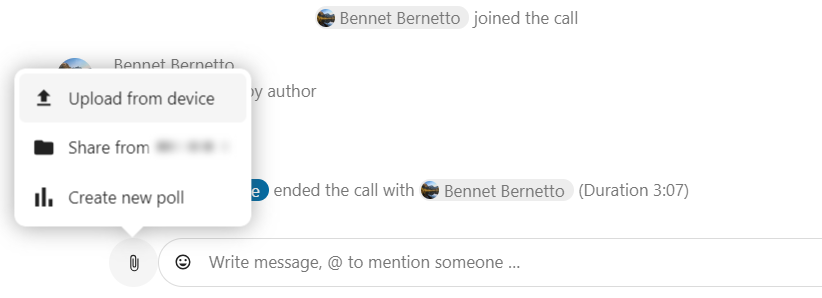
Second, you can select a file from your Hub Files or a file manager by choosing the little paperclip and selecting where you’d like to pick the file from.
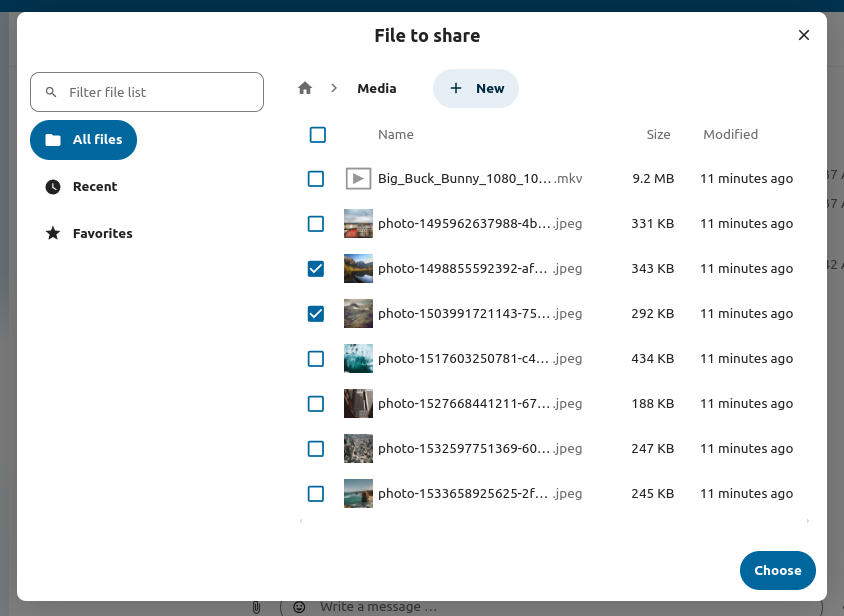
You can add more files until you are done and decide to share the files. You can also add a text caption to your shared files, providing a brief description or context.
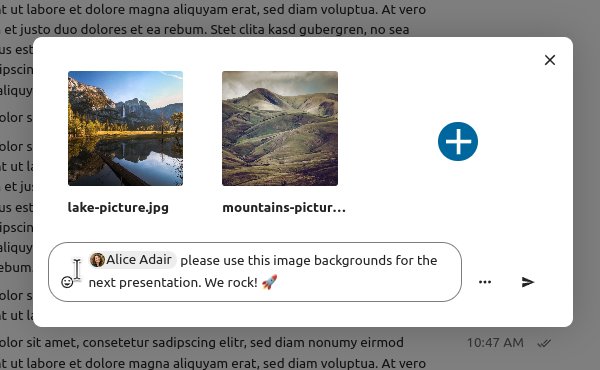
All users will be able to click the files to view, edit or download them, irrespective of them having a user account. Users with an account will have the file automatically shared with them while external guest users will get them shared as a public link.
Inserting emoji
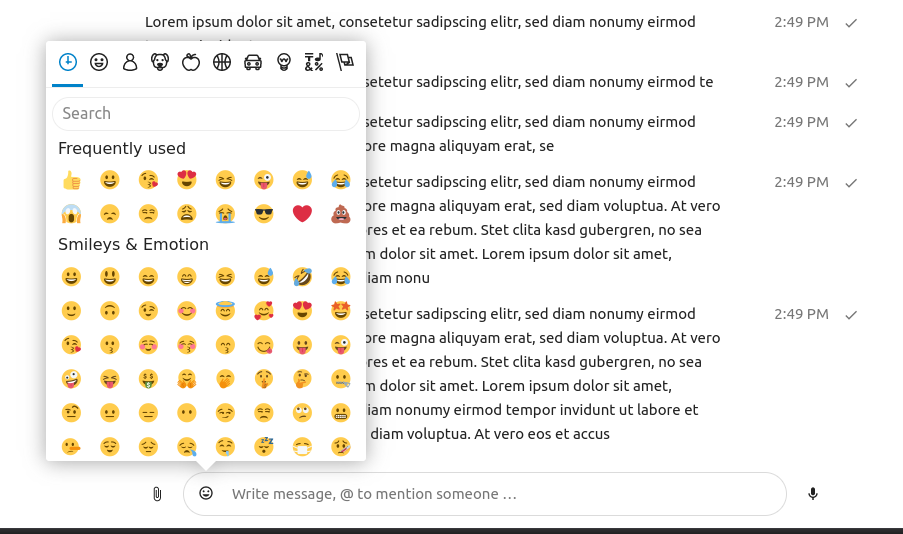
You can add emoji using the picker on the left of the text input field.
Using Markdown
You can enhance your messages with markdown syntax support. See the list for usage:
Headings and dividers
# Heading 1
## Heading 2
### Heading 3
#### Heading 4
##### Heading 5
###### Heading 6

Heading
===
Normal text
***
Normal text
Inline decorations
**bold text** __bold text__
*italicized text* _italicized text_
`inline code` ``inline code``
```
.code-block {
  display: pre;
}
```
Lists
1. Ordered list
2. Ordered list

* Unordered list
- Unordered list
+ Unordered list
Quotes
> blockquote
second line of blockquote
Setting reminders on messages
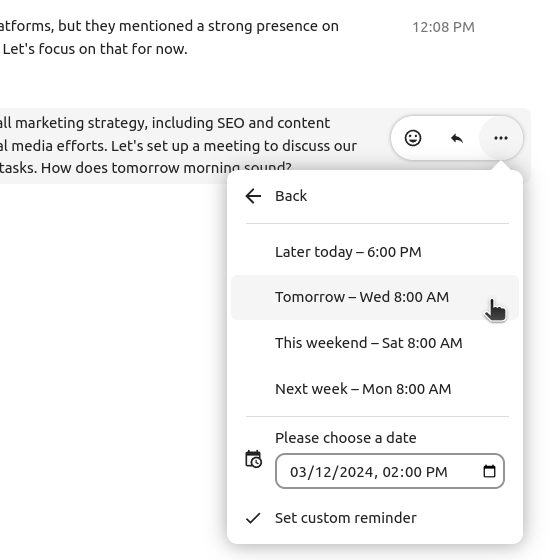
You can set reminders on specific messages. If there’s an important message you want to be notified about later, simply hover over it and click on the reminder icon.
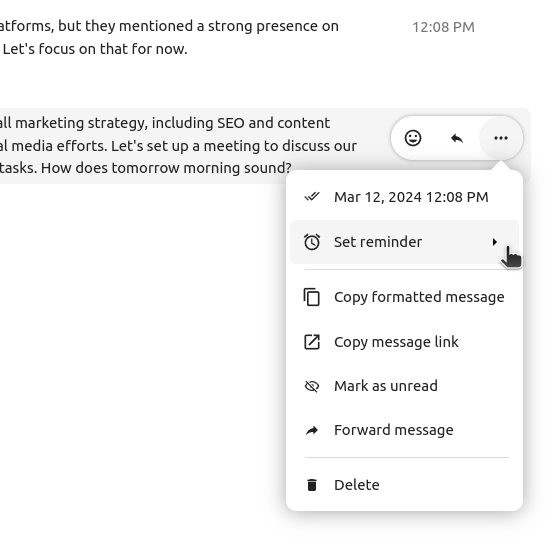
In the submenu, you can select an appropriate time to receive a notification later.
Replying to messages and more
You can reply to a message using the arrow that appears when you hover a message.
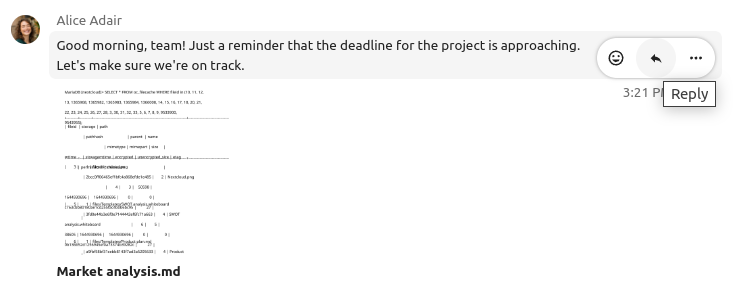
In the ... menu you can also choose to reply privately. This will open a one-on-one chat.
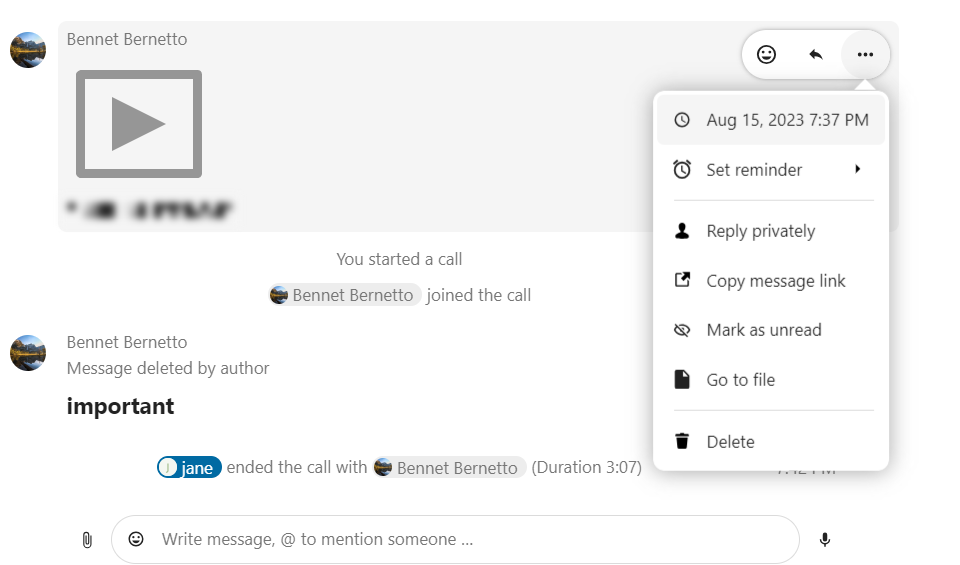
Here you can also create a direct link to the message or mark it unread so you will scroll back there next time you enter the chat. When it is a file, you can view the file in Files.
Managing a conversation
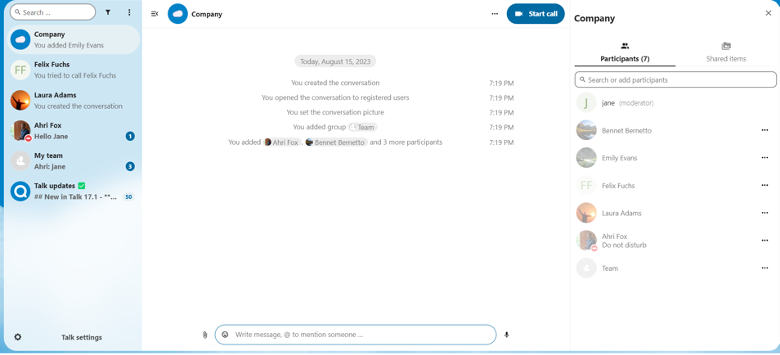
You are always the moderator in your new conversation. In the participant list you can promote other participants to moderators using the ... menu to the right of their user name, assign them custom permissions or remove them from the conversation.
Changing the permissions of a user who joined a public conversation will also permanently add them to the conversation.
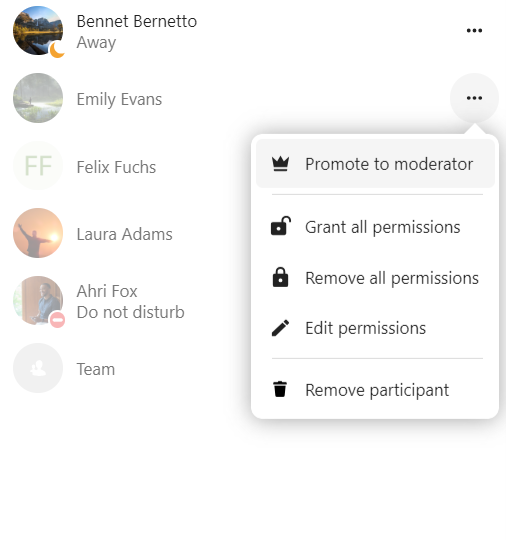
Moderators can configure the conversation. Select Conversation settings from the ... menu of the conversation on the top to access the settings.
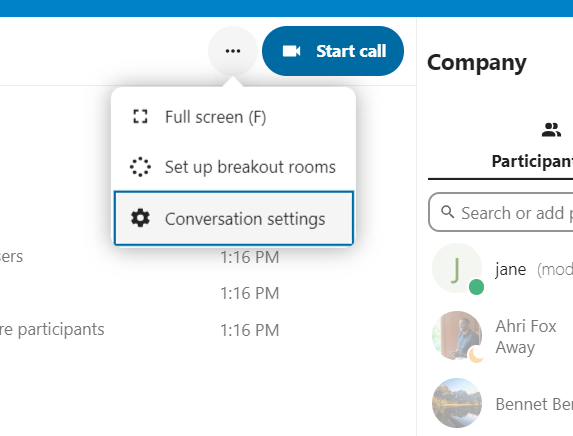
Here you can configure the description, guest access, if the conversation is visible to others on the server and more.
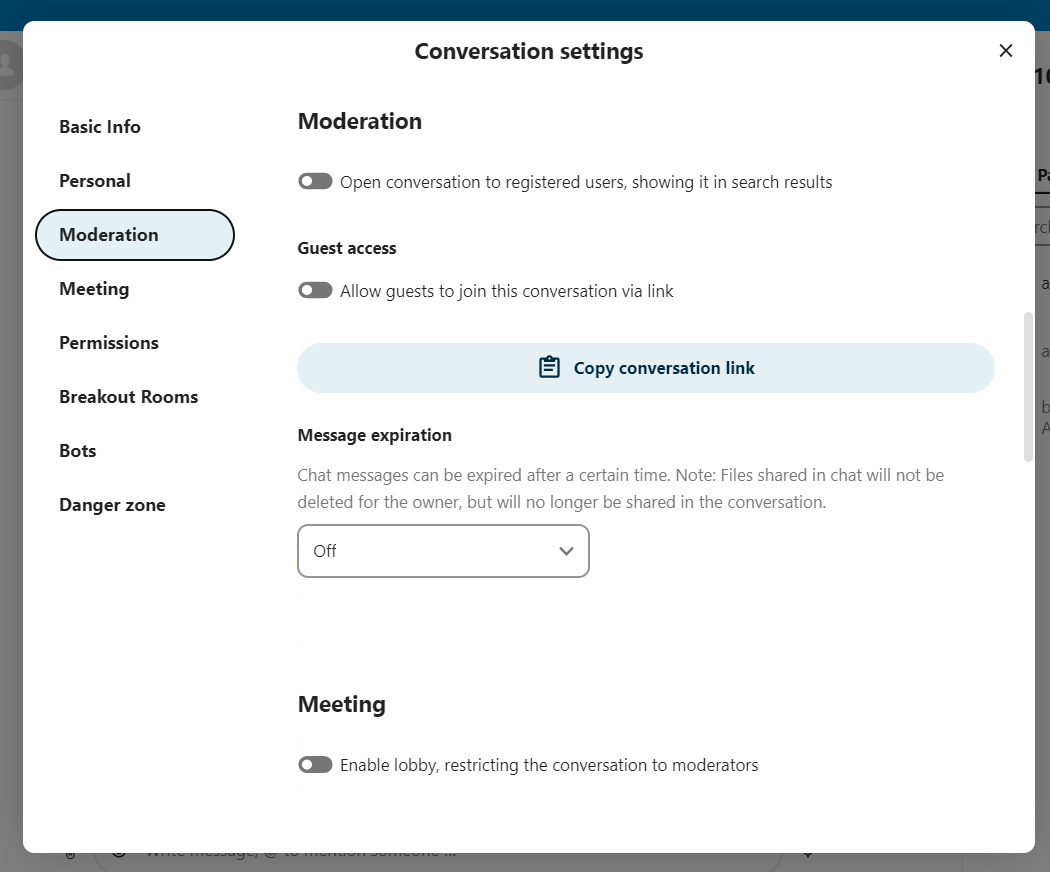
Messages expiration
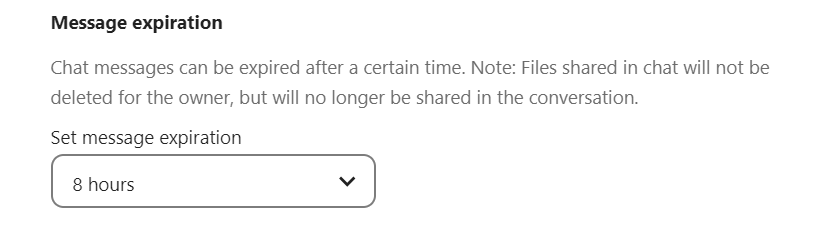
A moderator can configure message expiration under the Conversation settings within the Moderation section. Once a message reaches its expiration time, it is automatically removed from the conversation. The available expiration durations are 1 hour, 8 hours, 1 day, 1 week, 4 weeks, or never (which is the default setting).