
Everything about your Hub account (users, licenses, email domains and forwarders) is managed from the Hub manager in the Client Area. This works the same way on every Hub plan.
Open the Hub manager
- Log in to the Client Area.
- Click Hub for Teams in the menu. You can also go to Services > My Services, open your Hub service and click Click here to manage Hub for Teams.
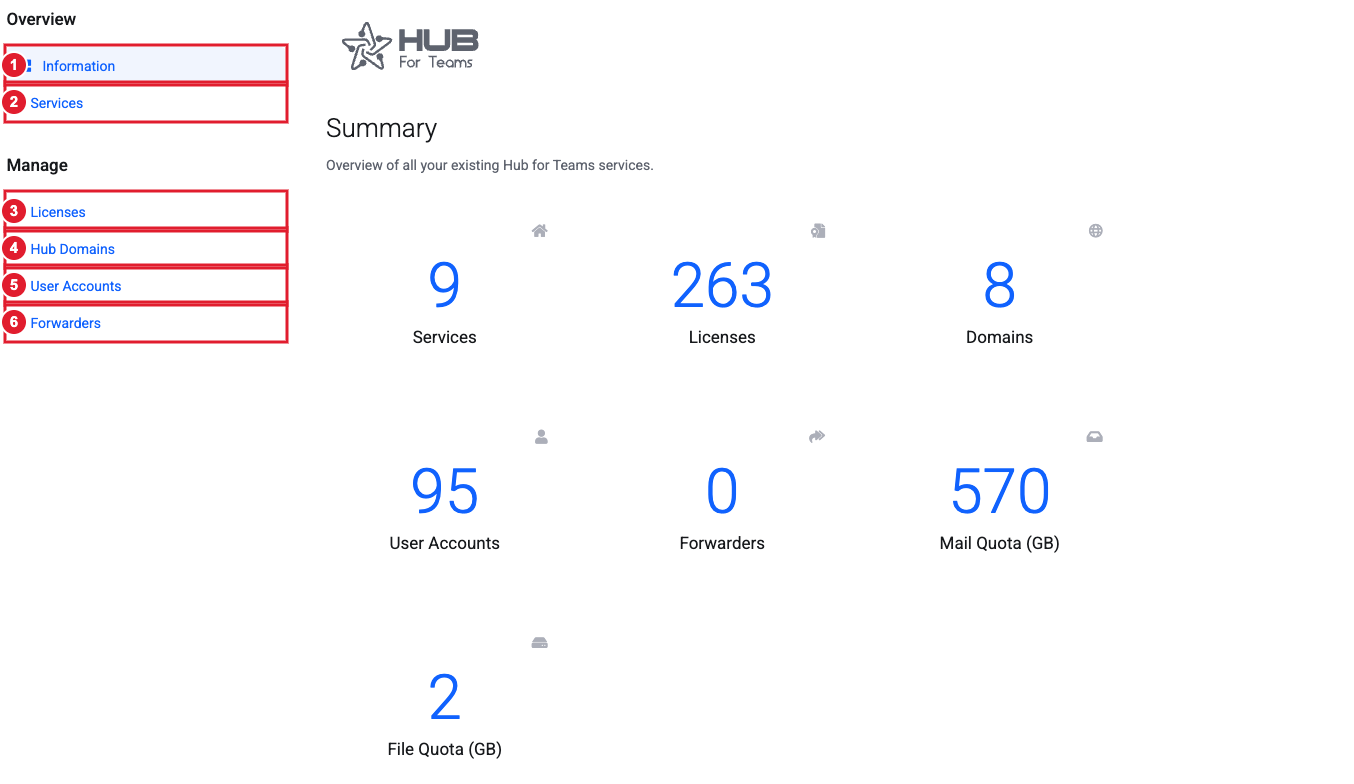
(1) Information: a summary of your Hub (2) Services (3) Licenses (4) Hub Domains (5) User Accounts (6) Forwarders
Information
A quick count of your services, licenses, domains, user accounts and forwarders, plus the total mail and file storage in use.
Services
Each Hub you have with us is listed here.
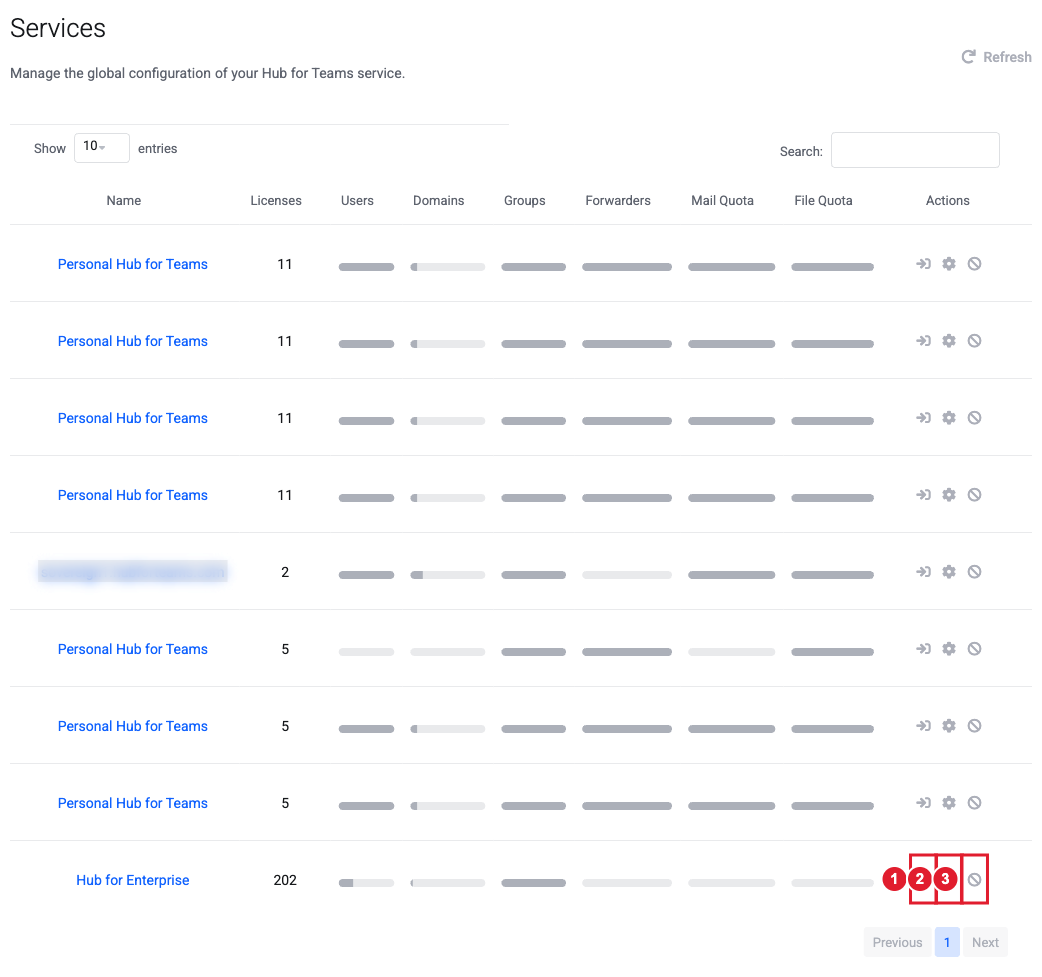
Actions on each service, left to right: (1) Log in to the Hub (2) Settings (rename the service and see its default quotas) (3) Request cancellation
If you have a new Hub that hasn't been set up yet, you'll be asked to create your Hub environment. Pick a name (3 to 30 letters, numbers or dashes) and click Check availability, then Activate. The name becomes your Hub address, for example mycompany.hubforteams.com.
Licenses
See how many licenses you own and how many are assigned, and buy more. See Hub Licenses: Buying and Assigning.
Hub Domains
Add your own domain so your team's email uses your company name. See Adding Your Custom Domain to Your Hub.
User Accounts
Add people to your Hub, assign licenses, reset passwords, and manage each person's email. See Adding a User to Your Hub and Managing Hub Users.
Forwarders
Create shared addresses such as sales@ or info@ that deliver to one or more people. See Setting Up Email Forwarding.
Need help? Open a support ticket.
