
FTP lets you upload and download website files with a program on your computer, such as FileZilla, WinSCP or Cyberduck. You can use your main cPanel login, or create separate FTP accounts, for example for a web designer, limited to one folder.
Create an FTP account
- Log in to the Client Area, go to Services > My Services and open your hosting service.
- Click Log in to cPanel in the menu on the left.
- In cPanel, click FTP Accounts. You can also type its name into the Search Tools box at the top.
- In Log In, enter a name. The account's full username is [email protected].
- Enter a strong password twice, or use Password Generator.
- In Directory, choose the folder the account can see. For your main website this is public_html. Leave it as suggested to limit the account to its own folder.
- Set a Quota in MB, or leave it Unlimited.
- Click Create FTP Account.
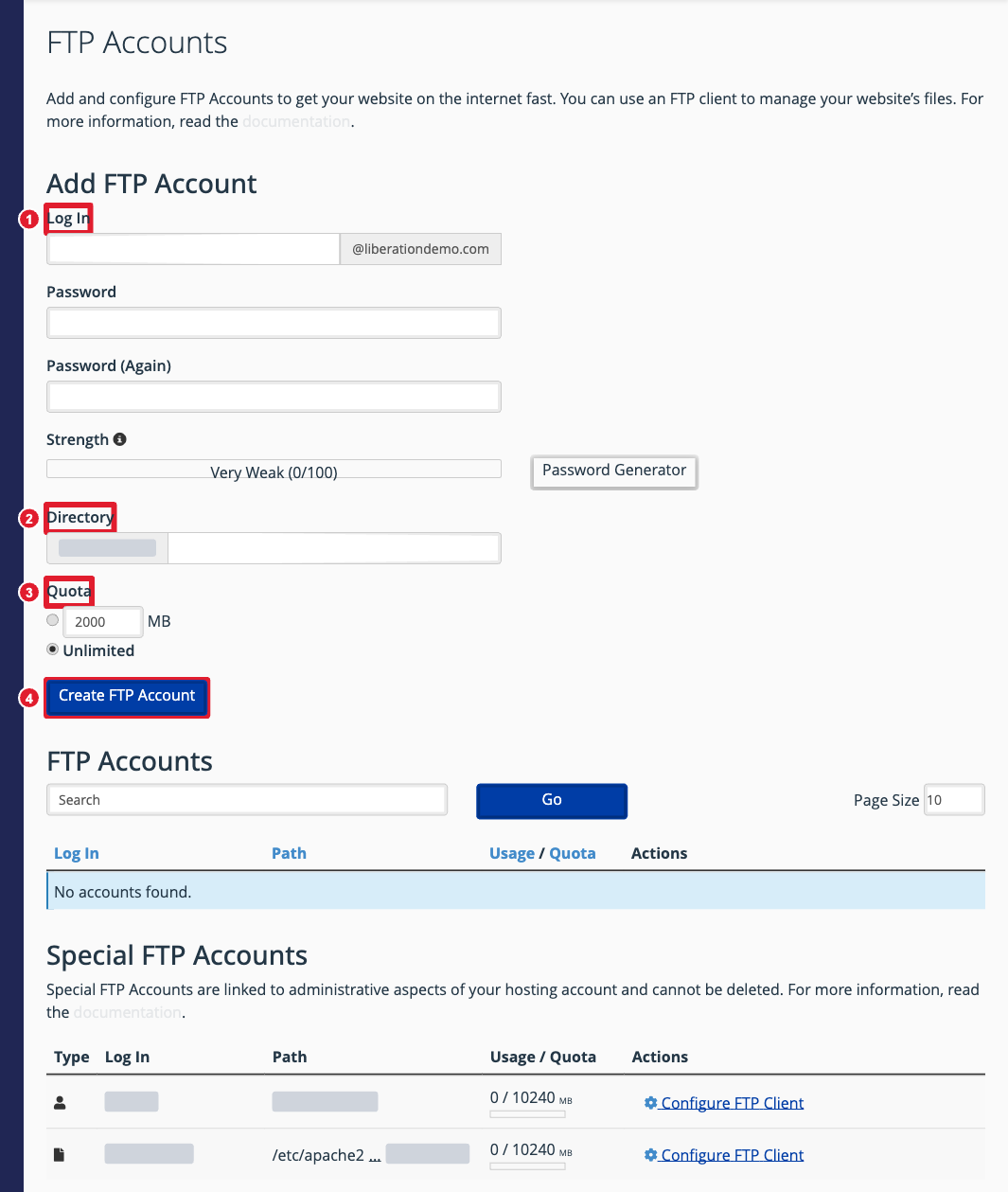
(1) Username (2) Folder the account can use (3) Storage limit (4) Create FTP Account
Connect with an FTP program
| Setting | Value |
|---|---|
| Host | Your domain (for example ftp.yourdomain.com), or your hosting server's IP address if the domain doesn't point to us yet |
| Username | The full FTP username ([email protected]), or your cPanel username |
| Password | The account's password |
| Port | 21, with Require explicit FTP over TLS for an encrypted connection |
Put your website files in public_html (or the domain's own folder for extra domains). The file that loads first should be called index.html or index.php.
Next to each account, Configure FTP Client gives you the exact settings and ready-made configuration files for some FTP programs.
Change or delete an FTP account
Your accounts are listed under FTP Accounts on the same page. Use Change Password, Change Quota or Delete next to the account. Deleting an account doesn't delete its files.
