
Each person on your team needs their own user account. The account is their Hub login and, with an email license, their mailbox.
Before you start
- Make sure you have a free license for the person. The Licenses tab shows how many are available. See Hub Licenses: Buying and Assigning.
- To give them an address at your own domain, add the domain first. See Adding Your Custom Domain to Your Hub.
Add the user
- Log in to the Client Area.
- Click Hub for Teams in the menu. You can also go to Services > My Services, open your Hub service and click Click here to manage Hub for Teams.
- Click the User Accounts tab, then Create new.
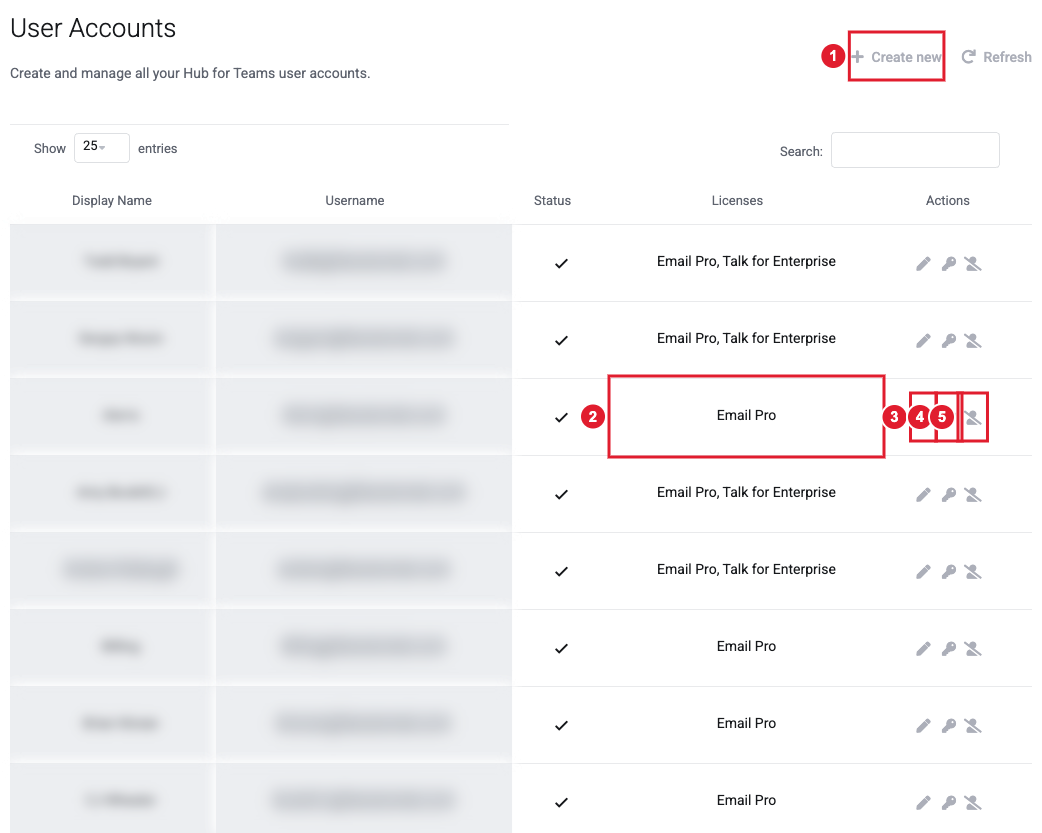
(1) Create new (2) The licenses each user has (3) Manage the user (4) Change their password (5) Disable the user
- Fill in the details:
- Username and Domain: together these make the person's login and email address. Usernames can use letters, numbers, dots, dashes and underscores.
- Display Name, First name and Last name.
- Password: at least 8 characters with at least one number, one lowercase letter and one uppercase letter. Click Generate Password to create a strong one.
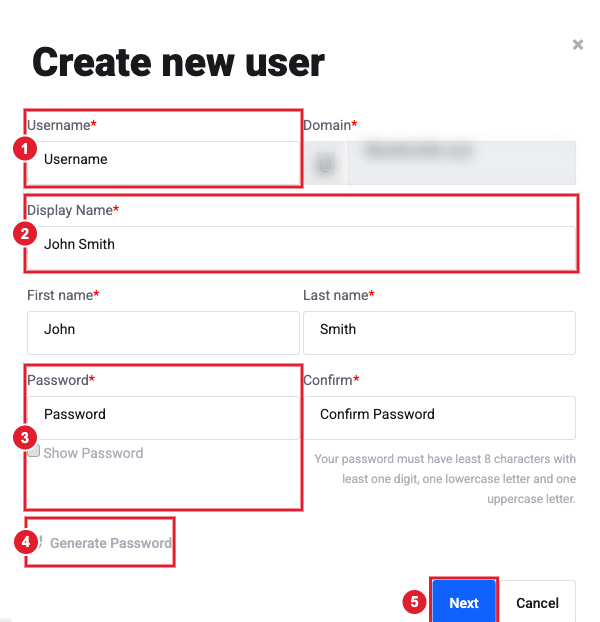
(1) Username and domain (2) Display name (3) Password (4) Generate Password (5) Next
- Click Next, tick the licenses this person should have, and finish.
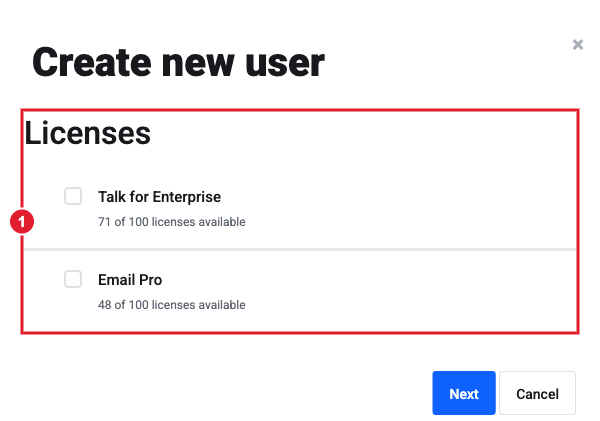
(1) Tick each license to give this user. The number available is shown under each one.
- Send the person their username and password. They log in at hubforteams.com and can change their password after signing in.
To change anything later (licenses, email quota, aliases, forwarding), see Managing Hub Users.
