
DNS records tell the internet where your website, email and other services live. If your domain uses our nameservers, you add, change and delete its DNS records in the Client Area.
Where is your DNS managed?
That depends on your domain's nameservers:
- Our nameservers (dns1, dns2 and dns3.liberationtek.com): you manage DNS in the Client Area, as shown below. This is true whether the domain is registered with us or somewhere else.
- Someone else's nameservers (for example Cloudflare or your old host): you manage DNS with that company, not here. You can still use the records in our articles; just add them there.
To see or change your nameservers, see Changing your domain's nameservers.
Open DNS Management
- Log in to the Client Area.
- Go to Domains > My Domains and click the domain.
- In the menu on the left, click DNS Management.
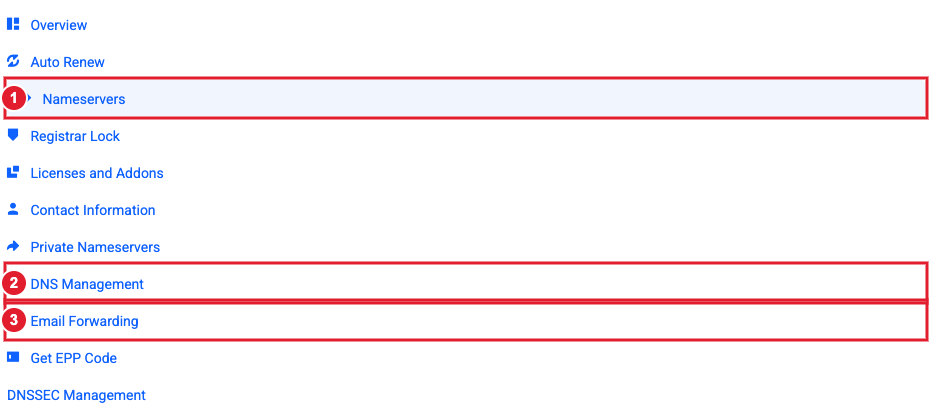
(1) Nameservers (2) DNS Management (3) Email Forwarding
Add a record
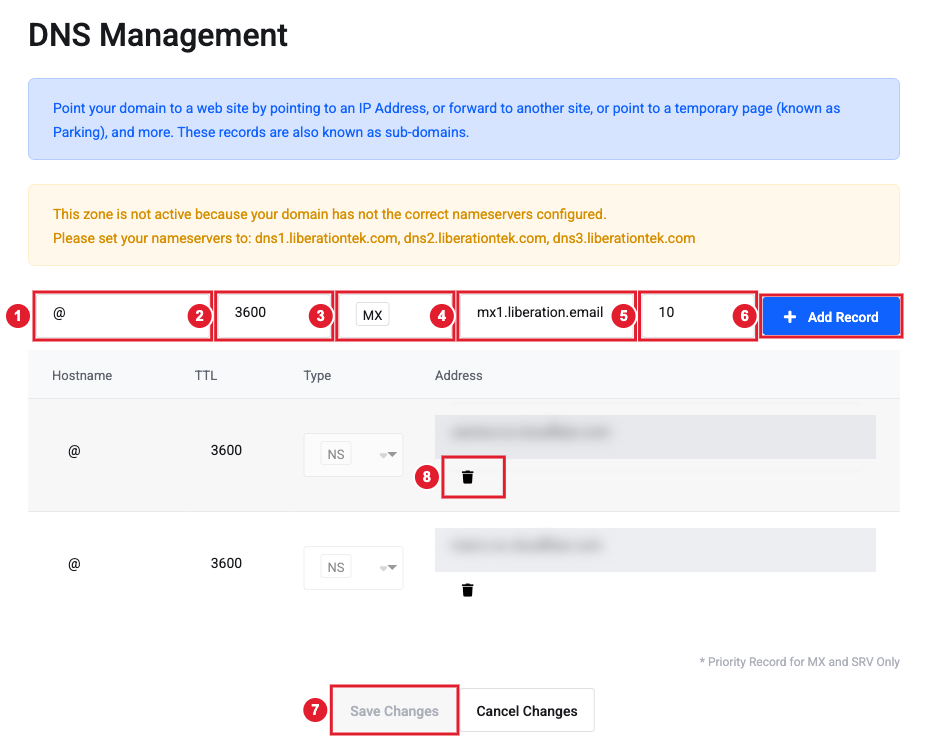
(1) Hostname (2) TTL (3) Type (4) Address (5) Priority (MX and SRV only) (6) Add Record (7) Save Changes (8) Delete a record
- Hostname: @ for the domain itself (yourdomain.com), or a prefix such as www, blog or mail. Don't type the domain name.
- TTL: how long other servers may cache the record, in seconds. 3600 (one hour) is a good default.
- Type: the kind of record (see the table below).
- Address: where the record points: an IP address, a host name, or text.
- Priority: only for MX and SRV records. Lower numbers are tried first.
- Click Add Record, then Save Changes.
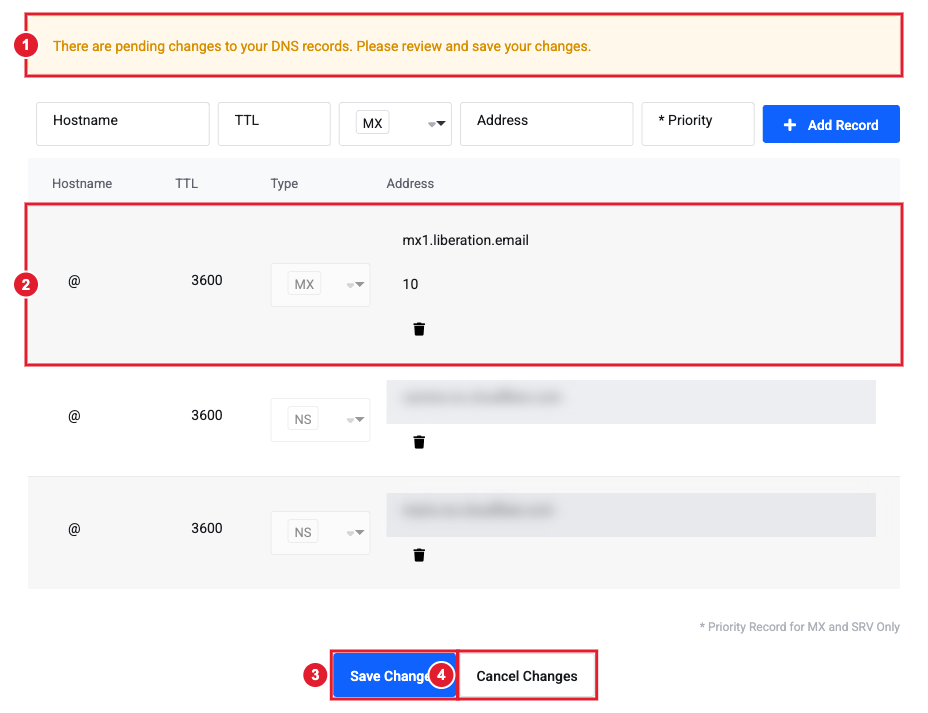
(1) Your change is pending (2) The new record (3) Save Changes (4) Cancel Changes
Change or delete a record
- Change: edit the Hostname, TTL or Address in the list, then click Save Changes.
- Delete: click the trash icon under the record, then click Save Changes.
Be careful with MX and NS records. Deleting or changing them can stop your email or your whole domain from working.
Record types
| Type | What it does | More |
|---|---|---|
| A | Points a name to an IPv4 address, usually your website's server. | A records |
| AAAA | Same as A, for an IPv6 address. | |
| CNAME | Points a name (such as www) to another host name. | CNAME records |
| ALIAS | Like a CNAME, but can be used on the domain itself (@). | |
| MX | Tells the internet which servers receive your email. | MX records |
| TXT | Text used to prove you own the domain and for email security (SPF, DMARC). | TXT records, SPF |
| SRV | Points a specific service (such as autodiscover) to a server and port. | |
| CAA | Lists which certificate authorities may issue SSL certificates for your domain. | |
| NS | Nameserver records. Leave these alone unless we ask you to change them. | |
| URL / FRAME | Forwards visitors to another web address. FRAME keeps your domain in the address bar. | |
| MXE, PTR, NAPTR, SSHFP, TLSA | Advanced records. Only add these if a provider gives you exact values. |
How long do changes take?
Most changes work within an hour. Some networks keep the old record until its TTL runs out, so allow up to 24–48 hours before assuming something is wrong.
Related
- What is DNS?
- Subdomains
- Getting Started with Liberation Email (the DNS records Liberation Email needs)
