
Filters act on new mail as it arrives. They can move messages to a folder, flag them, forward them, or delete them, based on the sender, subject, recipients, size or content.
Filters run on the server, so they work even when the webmail is closed. Set up your rules in one place only. If you also make rules in a mail app on your computer, the two can conflict.
Create a filter
- Sign in at mail.liberation.email.
- Click the gear icon next to your name in the top left to open Preferences.
- Click Mail on the left, then the Filters tab, then Create Filter.
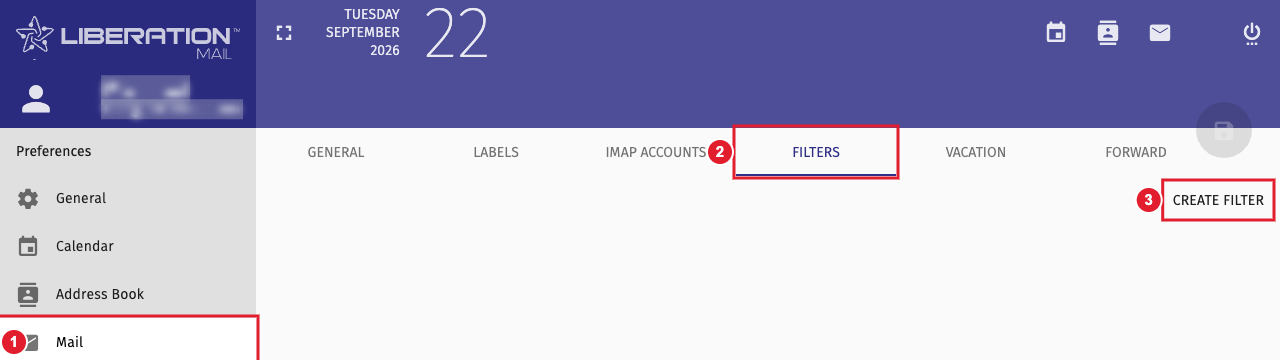
(1) Mail (2) Filters tab (3) Create Filter
- Give the filter a name.
- Choose whether messages must match all of the rules, any of them, or all messages.
- Click Add a condition and set it up, for example From contains newsletter@. You can check Subject, From, To, Cc, To or Cc, Size, a Header or the Body.
- Click Add an action and choose what happens: file the message in a folder, flag it, forward it, keep it, discard it, send a reject message, or stop processing more filters.
- Click OK, then click the save icon at the top right of Preferences. The filter isn't active until you save.
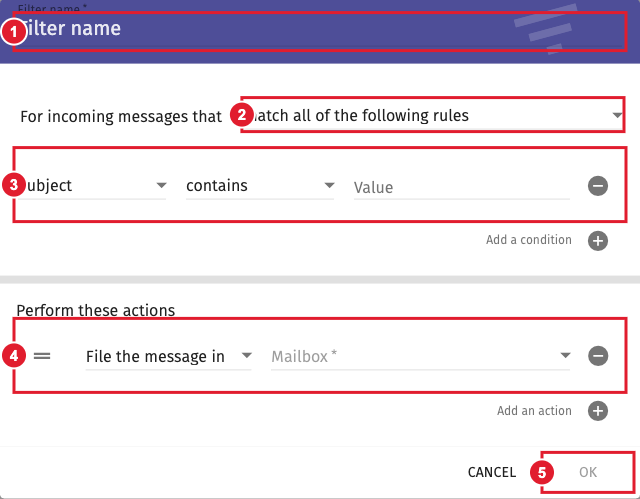
(1) Filter name (2) Match all or any rules (3) A condition (4) An action (5) OK
Order matters
Filters run from top to bottom, and more than one filter can act on the same message. Drag filters in the list to change their order. If a message should not be touched by later filters (for example after a Discard), add Stop processing filter rules as the last action.
For example, if your website sends orders and support requests, and urgent ones have [PRIORITY] in the subject:
- Filter 1: From is [email protected] and Subject contains "ORDER:" → file the message in Orders.
- Filter 2: From is [email protected] and Subject contains "SUPPORT:" → file the message in Support.
- Filter 3: From is [email protected] and Subject contains "[PRIORITY]" → flag the message with Important.
An urgent support request ends up in Support and is flagged Important. A normal order just goes to Orders.
Example filters
Always keep mail from certain senders (allow list)
Put this filter first so nothing else changes it.
- Match any of the following rules: From is [email protected]; From is [email protected].
- Actions: Keep the message, then Stop processing filter rules.
Mail from these senders can still go to Junk if our spam protection finds it dangerous. To stop that too, add the action Flag the message with Not Junk.
Delete mail from certain senders (block list)
- Match any: From is [email protected]; From is [email protected].
- Actions: Discard the message, then Stop processing filter rules.
Discarded mail is deleted on arrival. It doesn't go to Trash and can't be recovered.
Never send certain senders to Junk
- Match any: From is [email protected]; From is [email protected].
- Action: Flag the message with Not Junk.
Move mail from one sender about one topic into a folder
- Match all: From is [email protected]; Subject contains ORDER.
- Action: File the message in Orders.
Related
- Out-of-office replies: Set up an out-of-office reply in the Liberation Mail webmail
- Forwarding: the Forward tab next to Filters forwards all incoming mail to another address.
