
marketgoo uses your keywords and competitors to measure your progress and compare you with other sites, so set them up early.
Choose good keywords
- Pick searches real customers would type, for example "roof repair Tampa" rather than just "roofing".
- Specific phrases with a location or service are easier to rank for than one-word terms.
- Choose keywords that match a page on your site. If there's no page about it yet, that's your first task.
Add keywords
- Open marketgoo from the Client Area (Log in to Dashboard on your marketgoo service).
- Click Visibility in the left menu and scroll to Your tracked keywords.
- Click Add keywords, enter your keywords and save.
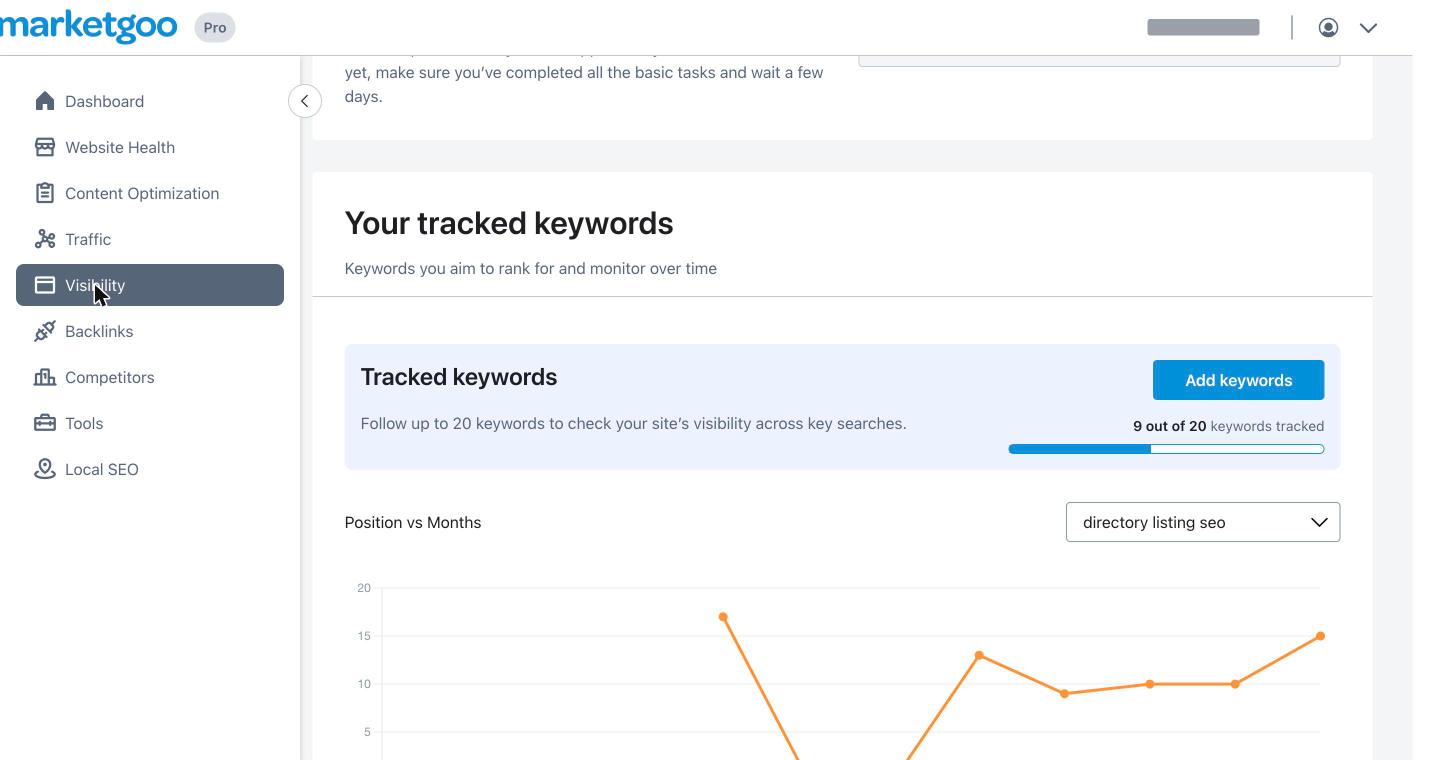
The counter shows how many you're using (for example "9 out of 20 keywords tracked"). Lite tracks up to 5 keywords and Pro up to 20. The chart shows your Google position for each keyword month by month, and how your competitors rank for the same keywords.
Competitors
Click Competitors in the left menu. You'll see your site ("You") next to up to 4 competitor sites, then charts comparing backlinks and keyword rankings.
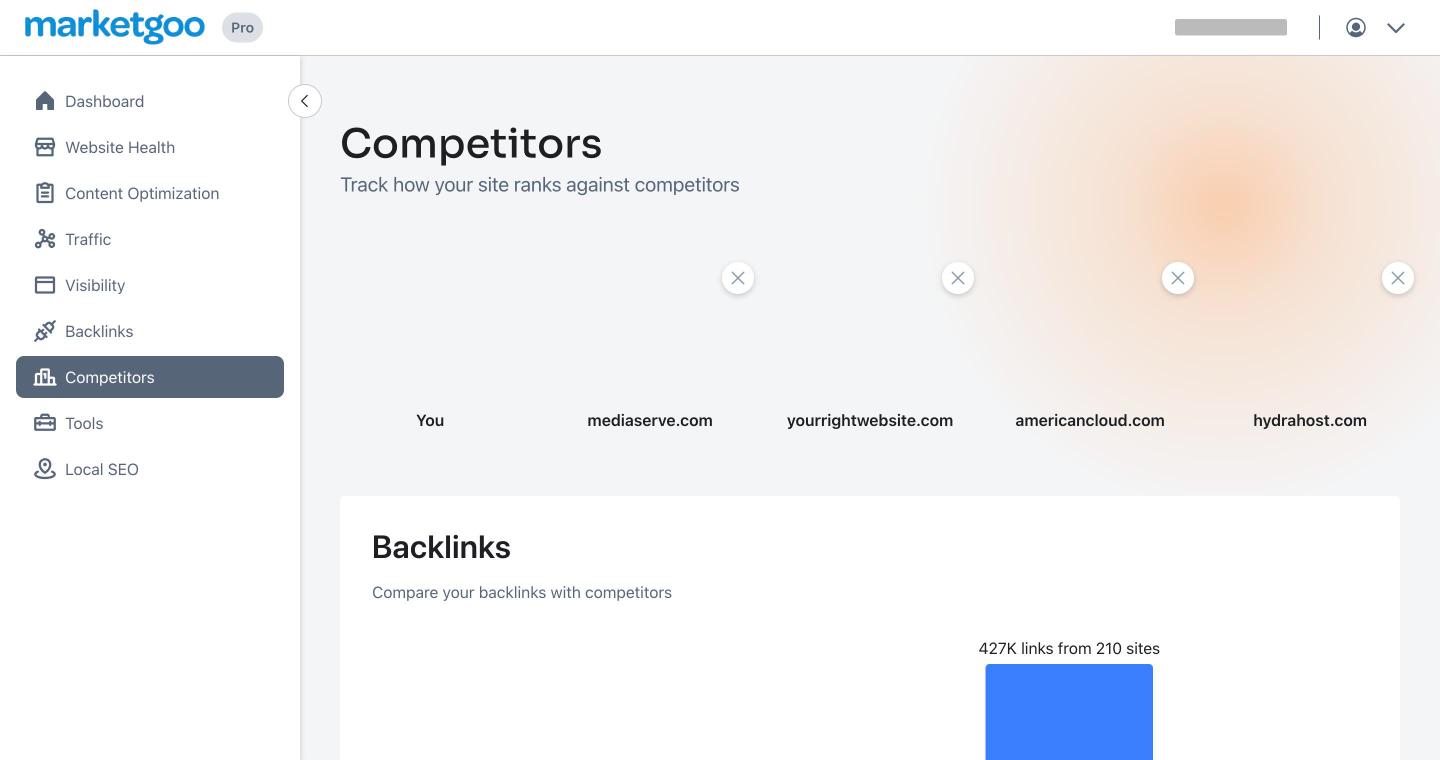
- Remove a competitor: click the X on its card. This frees a slot for a different site.
- Keyword comparison: uses your tracked keywords. Click Update my keywords to change them.
marketgoo may suggest competitors for you. Choose sites that compete for the same customers and searches, not just big national brands.
How often does data update?
Rankings update on marketgoo's schedule (weekly on Lite, daily on Pro), so a change to your keywords or competitors may take a little while to show in the charts.
