
CodeGuard backs up your website automatically every day and keeps the copies off-site, so you can roll back a bad update, a hacked site or an accidental delete in a few clicks. It's separate from the backups included with your hosting, which gives you a second, independent copy.
What you get
- Daily automatic backups of your website files and databases (MySQL and MSSQL), with no limit on the number of files or databases. You only pay for storage space.
- Backup history (a "time machine"): go back to any saved day, for the whole site or a single file.
- One-click restores, including restoring just a database or a few files.
- Change alerts: an email when files on your site change, which helps you spot a hack early.
- Malware monitoring and a free WordPress plugin that can update WordPress and plugins with automatic rollback if an update breaks the site.
- Backups are stored encrypted (AES-256) on Amazon Web Services.
Choose a storage size
Plans are sold by backup storage: 1 GB, 5 GB, 10 GB, 25 GB, 50 GB, 100 GB or 200 GB. Pick a size a bit larger than your website's disk usage (shown on your hosting service page and in cPanel), because the history of changes also takes space.
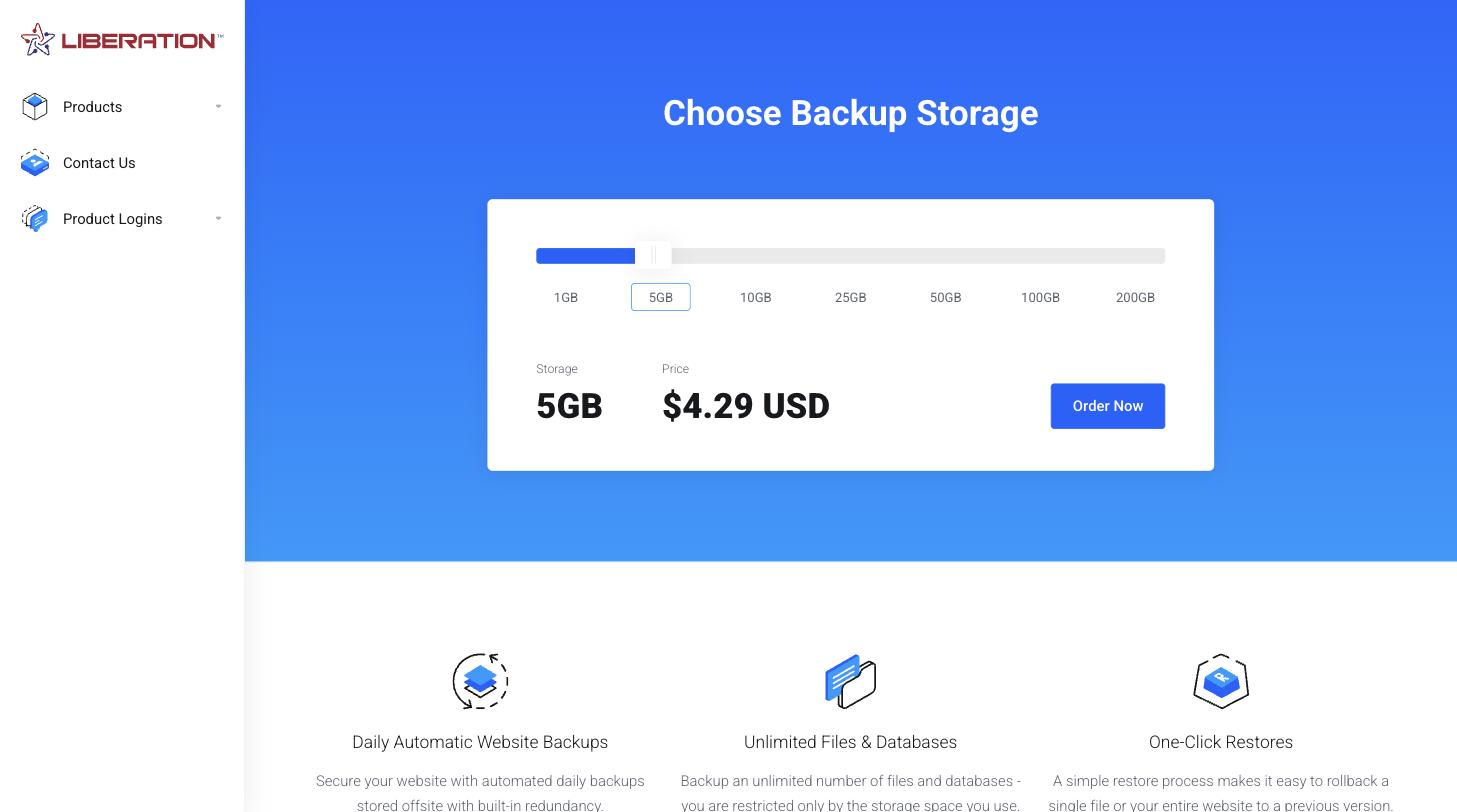
Order CodeGuard
- With hosting: add CodeGuard as an add-on when you order hosting, or later from your hosting service.
- On its own: go to CodeGuard Backup in our store (Products > CodeGuard Backup), choose a size, click Order Now, choose the payment term and enter your domain, then check out.
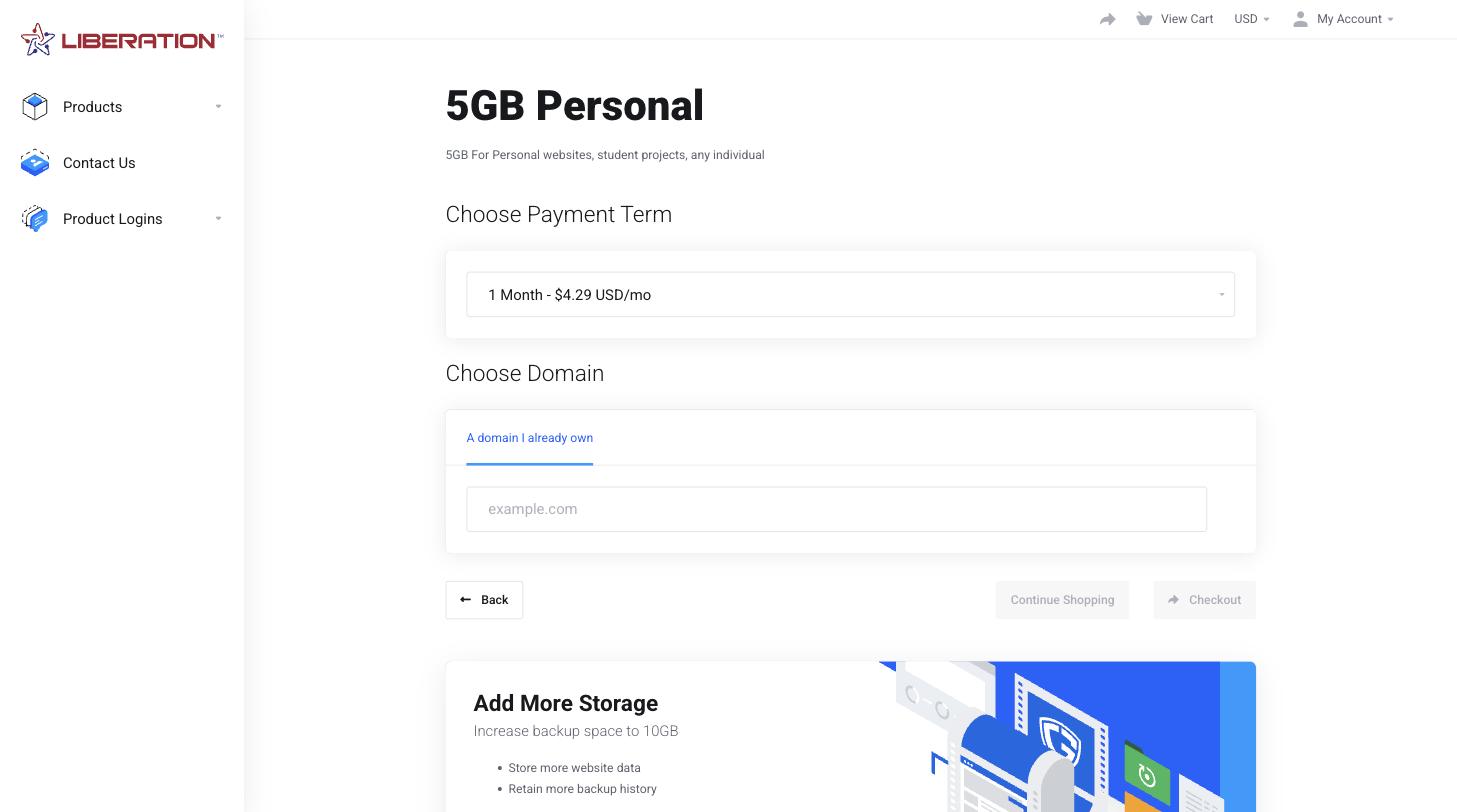
Setup
If your website is hosted with us, setup is automatic: we create a secure connection for CodeGuard, and the first backup starts on its own. You'll get a welcome email when it's ready. The first backup of a large site can take several hours.
If your website is hosted somewhere else, or automatic setup didn't work, add the site yourself: see Add a Website Manually and Fix Backup Problems.
Open the CodeGuard dashboard
- Log in to the Client Area and go to Services > My Services.
- Click your CodeGuard service. If you ordered it as an add-on, open your hosting service instead and find CodeGuard under its add-ons.
- Click Log in to CodeGuard Control Panel. It's under Actions on the left, and under the CodeGuard logo on the page. CodeGuard opens and signs you in automatically, so you don't need a separate password.
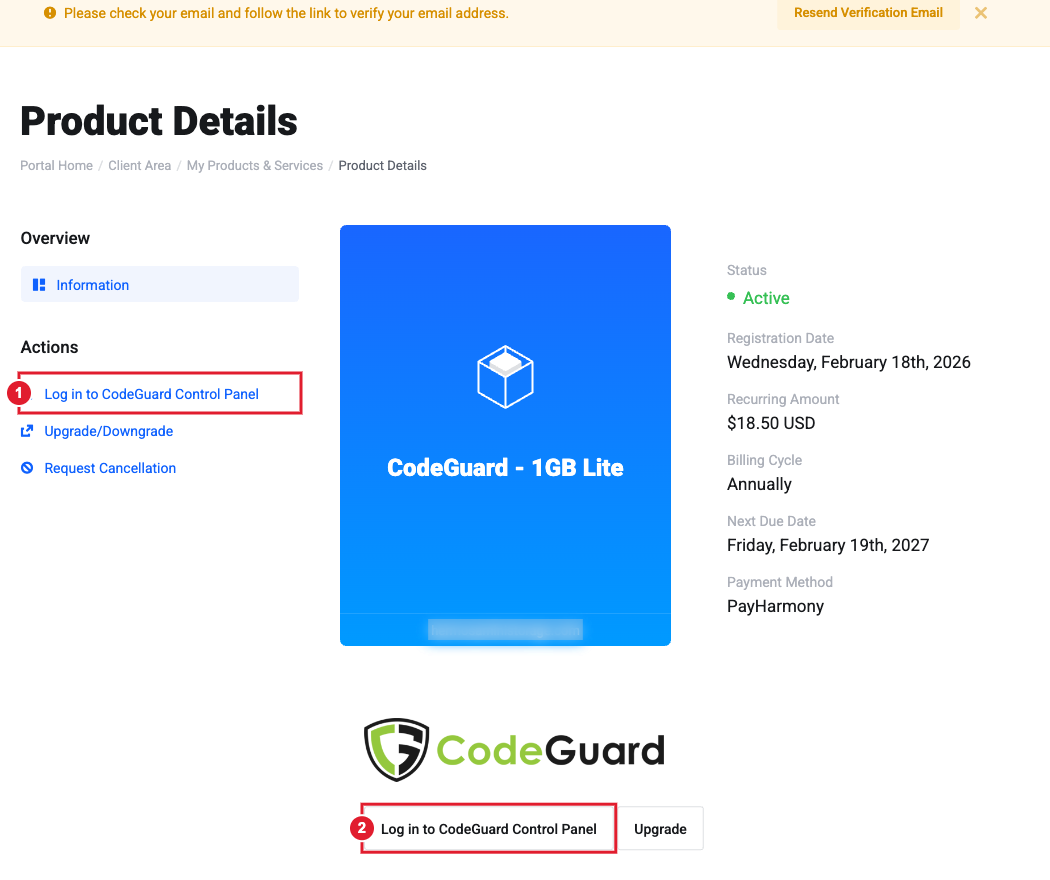
(1) and (2): both buttons open your CodeGuard dashboard.
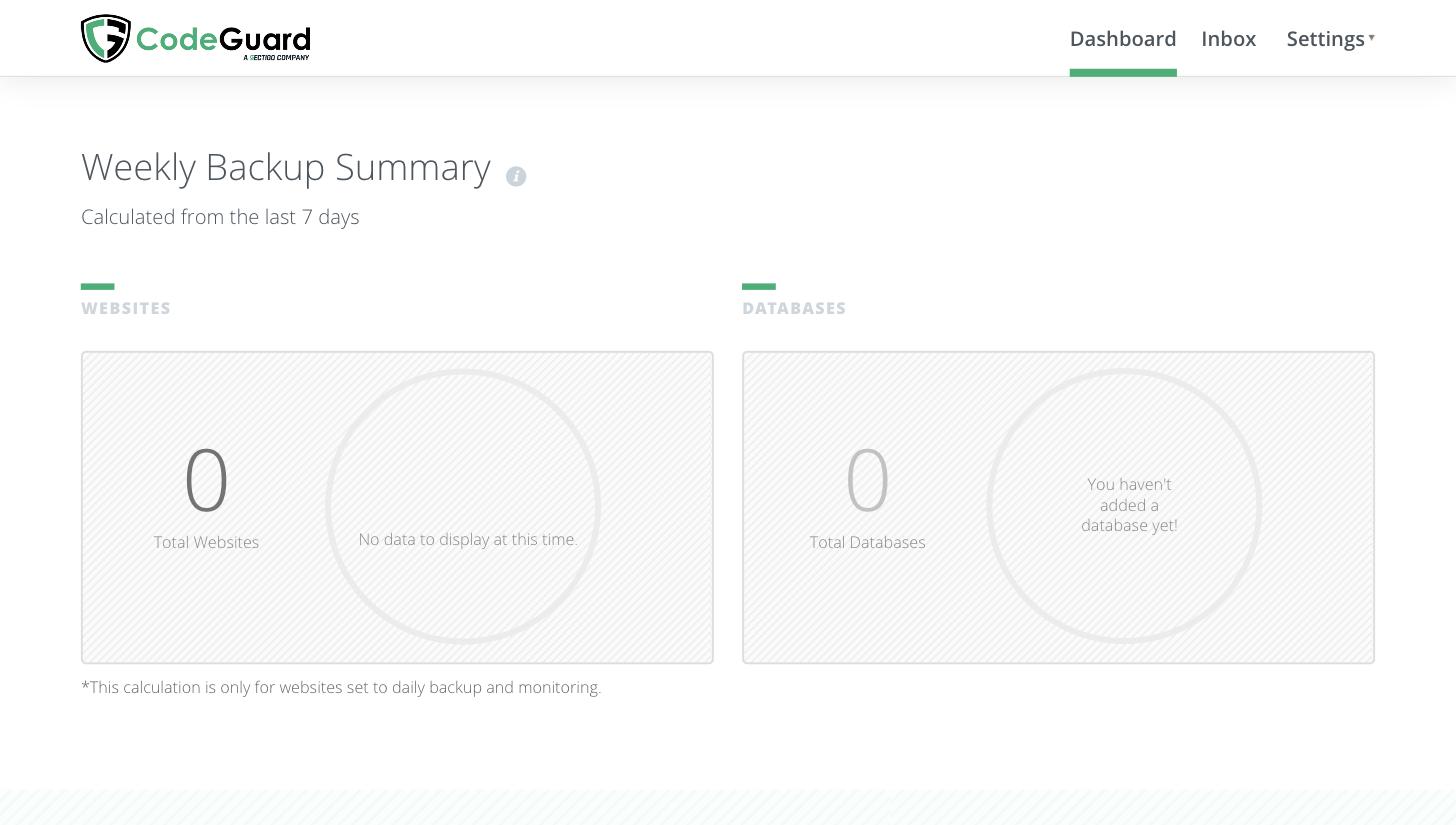
The dashboard opens on the Weekly Backup Summary, which shows how many websites and databases are being backed up and how the last 7 days went. If it shows 0 Total Websites, your site hasn't been added yet. See Add a Website Manually and Fix Backup Problems.
In the dashboard, click your website. The tabs across the top are Files, Databases, Restore, Settings and Issues. The dashboard shows how long until the next backup, and Run Backup Now starts one straight away, which is useful before a big change.
How long backups are kept
In the CodeGuard dashboard, open Settings > Account. Under Backup Retention Settings you can keep backups for 7, 14, 30, 60 or 90 days. Keeping them longer uses more storage.
Change your storage plan
Open the CodeGuard service (or the hosting service it's attached to) and choose Upgrade/Downgrade under Actions (or Upgrade next to the login button). If your backups already use more space than a smaller plan allows, the downgrade can't go through.
Next: Restore Your Website, Files or Database. Need help? Open a support ticket.
