
Changes you make in the editor are saved automatically, but visitors don't see them until you publish.
Publish
- In the editor, click the rocket button at the top right.
- You're taken back to the Sitejet Builder page in cPanel while the site is published. This takes a few seconds.
- When you see Published successfully, your site is live.
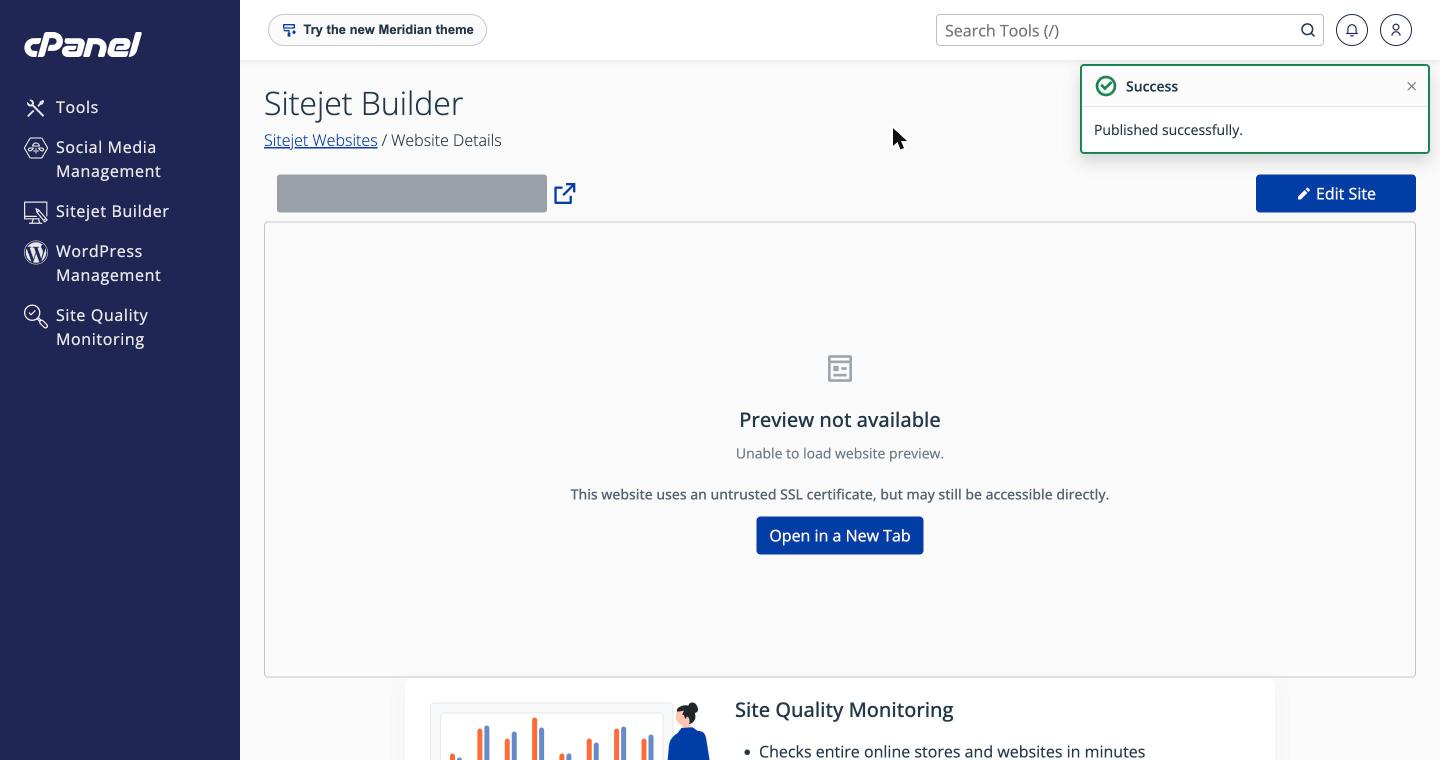
Publish again every time you finish a round of changes. Each publish replaces the live site with the current version from the editor.
public_html) and replaces files with the same names, such as index.html. If there is already a website on that domain, for example a WordPress site, back it up first or publish to a different domain.If the preview says it's not available
The cPanel page shows a preview of the live site. If it says Preview not available or mentions an untrusted SSL certificate, the site is published but one of these still needs doing:
- Your domain must point to your hosting. See Getting Started with Shared Hosting. DNS changes can take a few hours to spread.
- An SSL certificate must be installed so the site opens with https. See Install a Free SSL Certificate.
Your websites list
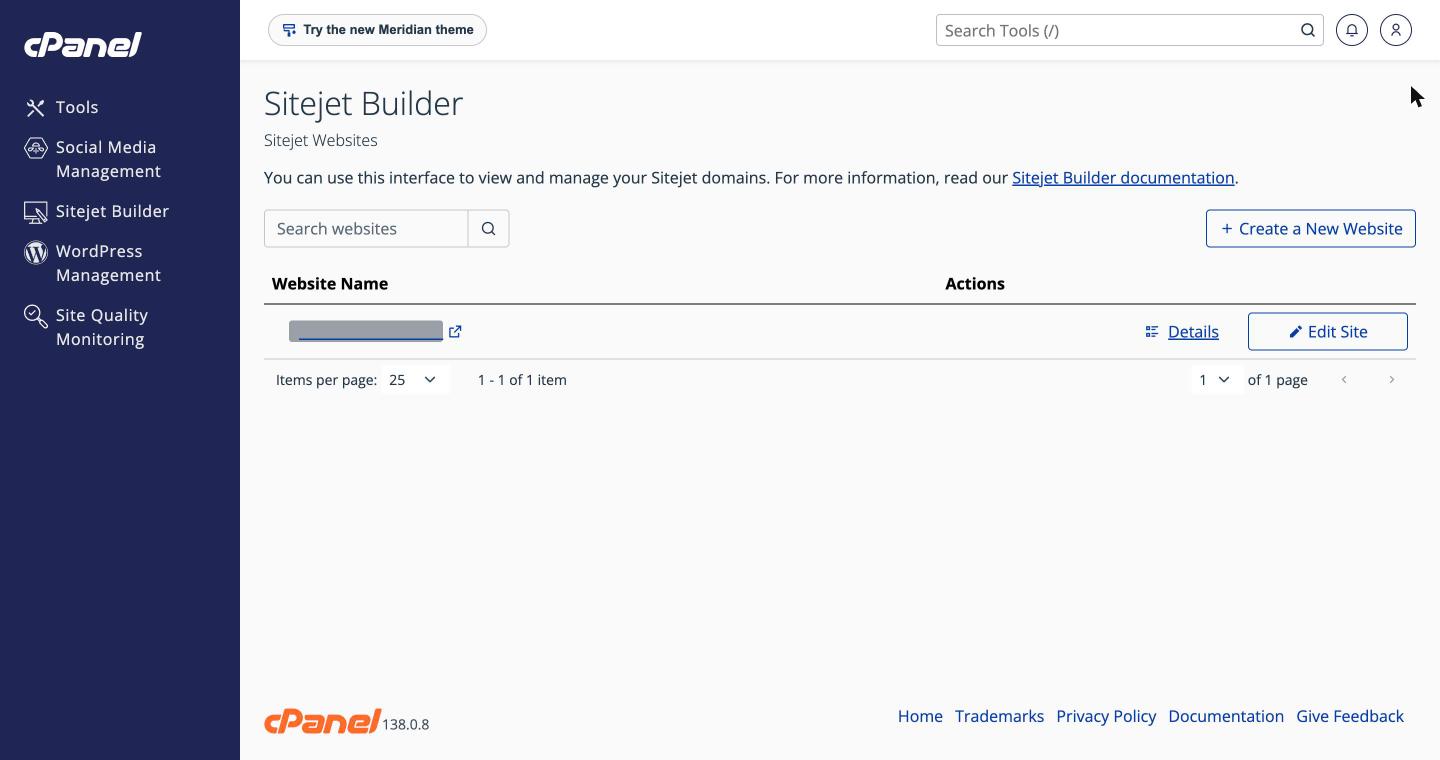
Click Sitejet Websites at the top of the page to see all your sites. Use Details to see the preview and Edit Site to open the editor.
Build a site for another domain
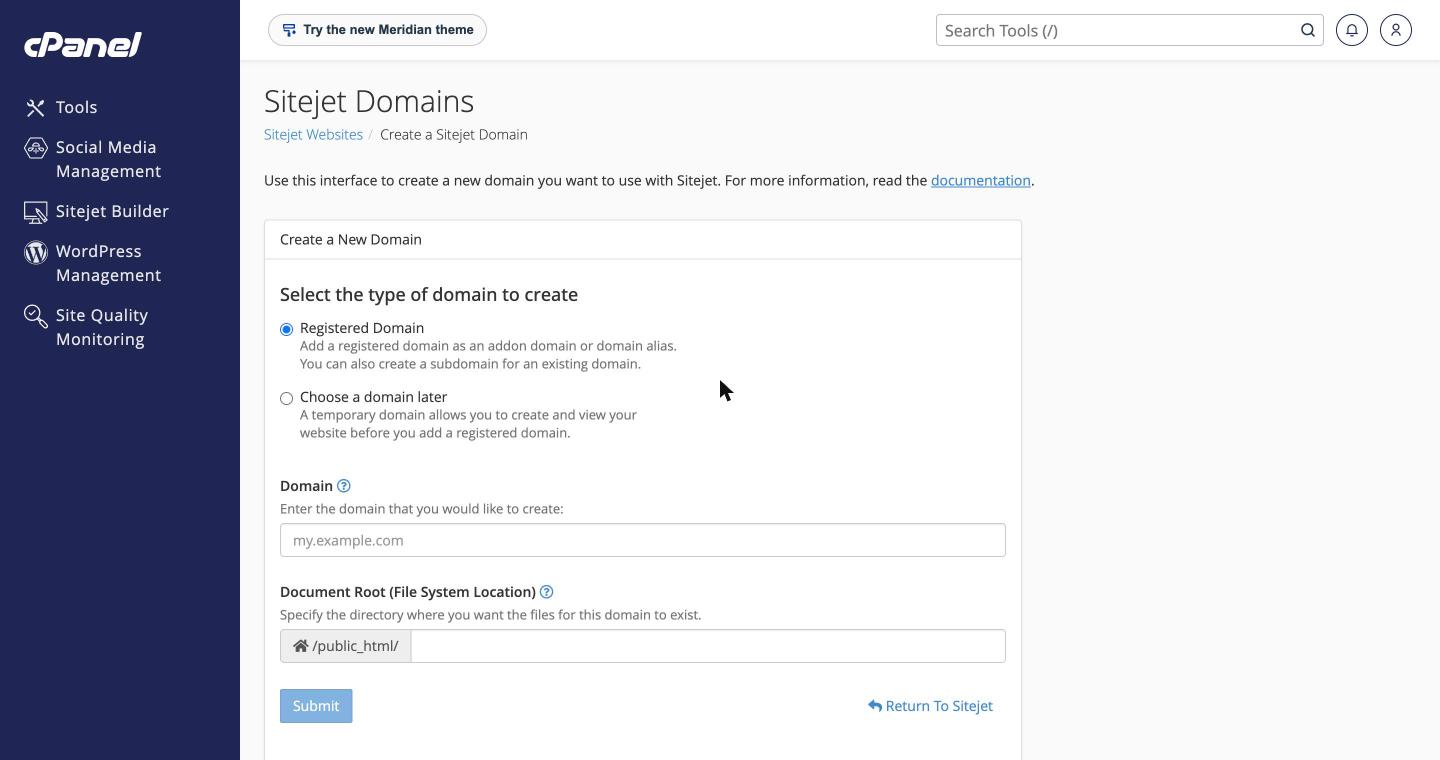
Click Create a New Website. You can add a domain you own (as an addon domain, an alias or a subdomain), or choose Choose a domain later to build on a temporary address and connect your real domain afterwards. How many extra domains and subdomains you can add depends on your plan.
Need help? Open a support ticket.
