
Analytics
- Log in to the Client Area and go to Services > My Services.
- Open your CDN - Cloudflare service for the domain.
- Click Manage Cloudflare.
- Click Analytics in the menu.
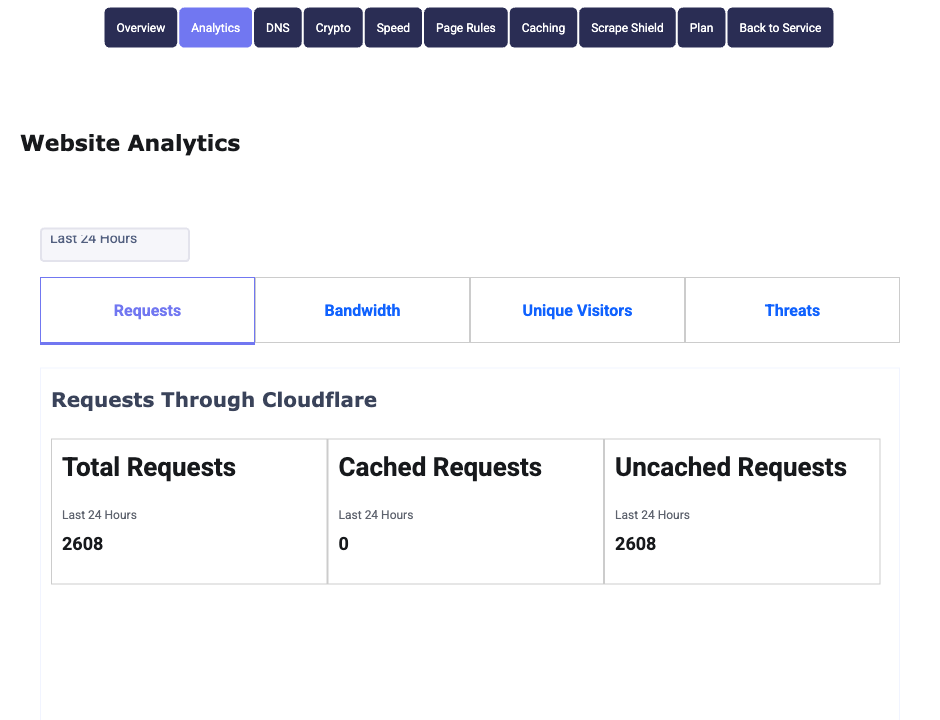
Choose Last 24 Hours, Last Week or Last Month, then switch between the tabs:
- Requests: total requests, and how many Cloudflare served from its cache (cached) versus fetched from your server (uncached).
- Bandwidth: data served, cached and uncached.
- Unique Visitors: visitors and page views.
- Threats: requests Cloudflare blocked, the top country they came from and the top threat type.
Tip: A low cached count usually means your pages set no-cache headers, which is normal for WordPress pages. Images, CSS and JavaScript should still be cached.
Speed
- Rocket Loader delays JavaScript to speed up the first paint. It can break sliders, forms and page builders, so test your site carefully after turning it on, and turn it off if anything misbehaves.
- IP Geolocation adds a
CF-IPCountryheader with the visitor's country, for sites or plugins that use it. - Max Upload Size is the largest single upload Cloudflare passes through (100 MB on the Free plan).
- Auto Minify and Mobile Redirect are no longer supported by Cloudflare, so changing them has no effect. Use a caching or optimization plugin to minify files instead.
Scrape Shield
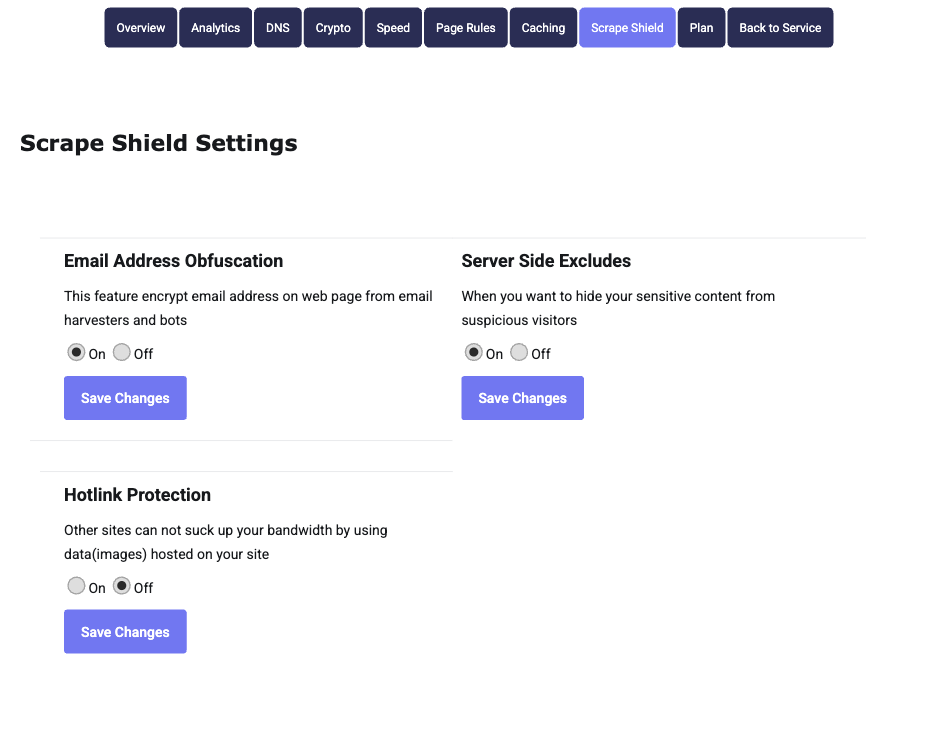
- Email Address Obfuscation hides email addresses on your pages from spam bots while visitors still see them. Keep it on.
- Server Side Excludes has been retired by Cloudflare, so this setting no longer does anything.
- Hotlink Protection stops other websites embedding your images. If your images appear on sites you own or on social media previews, test after turning it on.
After changing a setting, click the Save Changes button under it.
