
When your domain uses Cloudflare's nameservers, the DNS page in the Cloudflare manager is the only place DNS changes take effect. Records you add in cPanel's Zone Editor or under Domains > DNS Management are ignored while Cloudflare is active.
- Log in to the Client Area and go to Services > My Services.
- Open your CDN - Cloudflare service for the domain.
- Click Manage Cloudflare.
- Click DNS in the menu and scroll to DNS Records.
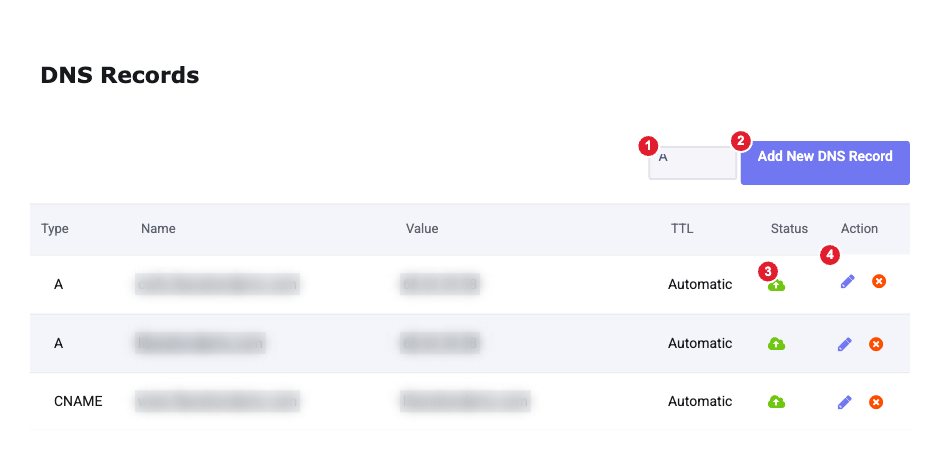
(1) Record type (2) Add New DNS Record (3) Proxy status (cloud icon) (4) Edit and delete
Add a record
- Choose the record type from the list (A, AAAA, CNAME, MX, TXT or NS) and click Add New DNS Record.
- In Name, enter
@for the domain itself, or a subdomain such aswwworshop. - Enter the value exactly as you were given it: an IPv4 address for A, the target hostname for CNAME, the mail server for MX, or the text for TXT.
- Set Proxy Status (see below) and leave TTL on Automatic.
- Click Continue.
Most changes work within a few minutes. If another service (Google, Microsoft 365, an email tool) asks you to verify a record, wait 15–30 minutes before clicking its Verify button.
v=spf1. Don't use the SPF record type in the list: it's obsolete and mail servers ignore it.Proxied or DNS only?
The cloud icon under Status shows whether a record's traffic goes through Cloudflare:
- Proxied (coloured cloud): for your website: the A or CNAME records for your domain and
www. Visitors get Cloudflare's caching and protection, and your server's real IP address is hidden. - DNS only (grey cloud): for everything else, including mail server hostnames, FTP, SSH and verification records. These services don't work through the proxy.
Edit or delete a record
Click the pencil icon to change a record, or the red × to delete it and confirm. Deleting the A record for your domain takes your website offline.
Email records
If you use Liberation Email or Hub for Teams, add the MX, SPF (TXT) and autoconfig/autodiscover (CNAME) records listed in DNS Records Needed for Liberation Email and Hub for Teams and set them to DNS only. The list also includes an SRV record, which this page can't add: open a support ticket and we'll add it for you.
DNS Settings
The IPv6 Compatibility and Pseudo IPv4 settings at the top of the page can stay at their defaults for almost every site.
