
Your Site Builder plan is web hosting with Sitejet Builder, a drag-and-drop website editor built into cPanel. You don't need to know any code. You can start from a template or let the AI generator build a first draft for you, then change anything you like and publish it to your domain.
Open the builder
- Log in to the Client Area and go to Services > My Services.
- Click your Site Builder service.
- Click Log in to cPanel.
- In cPanel, click Sitejet Builder (in the menu on the left, or under Domains).
- Click Edit Site next to your website.
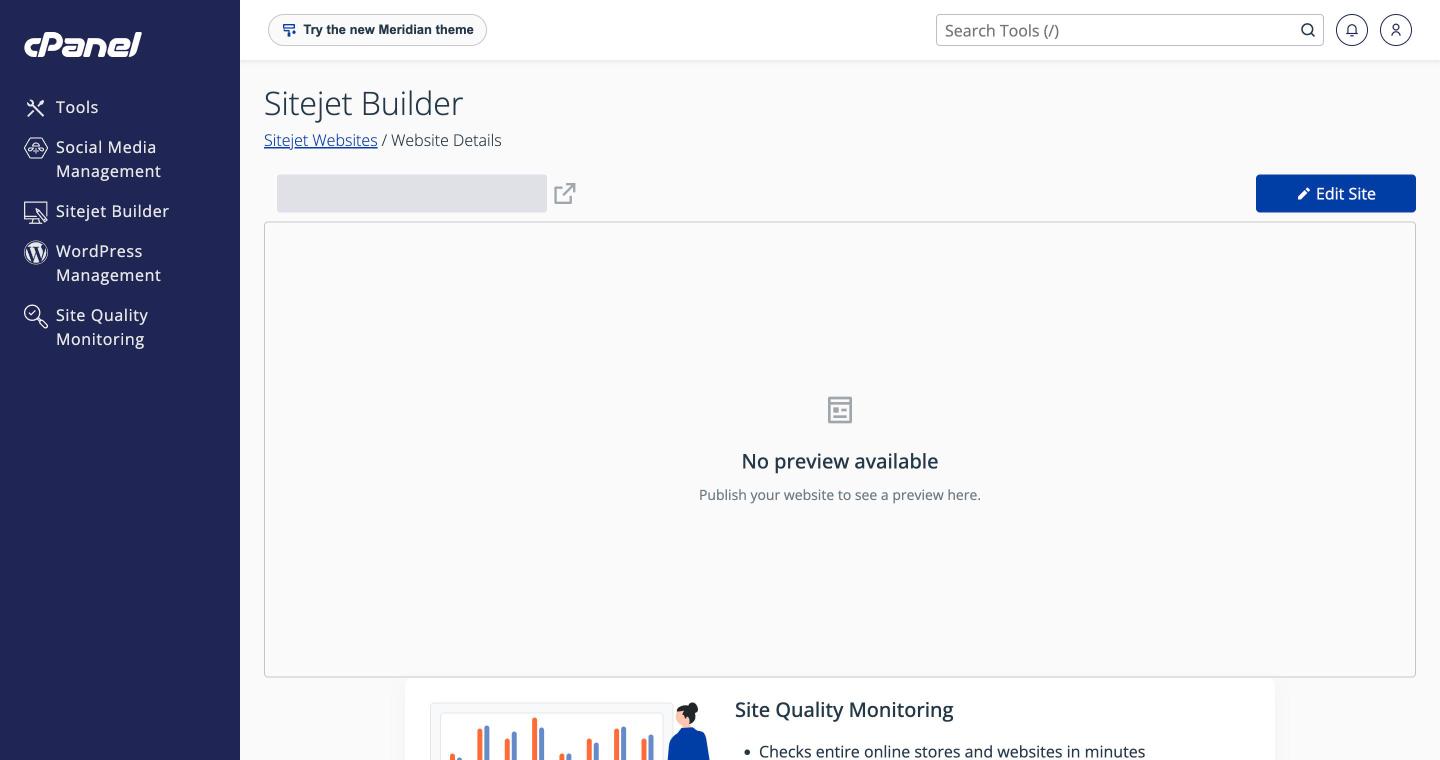
The website details page shows your domain, a preview of the published site and the Edit Site button. The builder opens in a new browser tab.
Tip: Allow pop-ups for our site if nothing opens when you click Edit Site or Log in to cPanel.
The first time you open it
You'll be asked how you want to start:
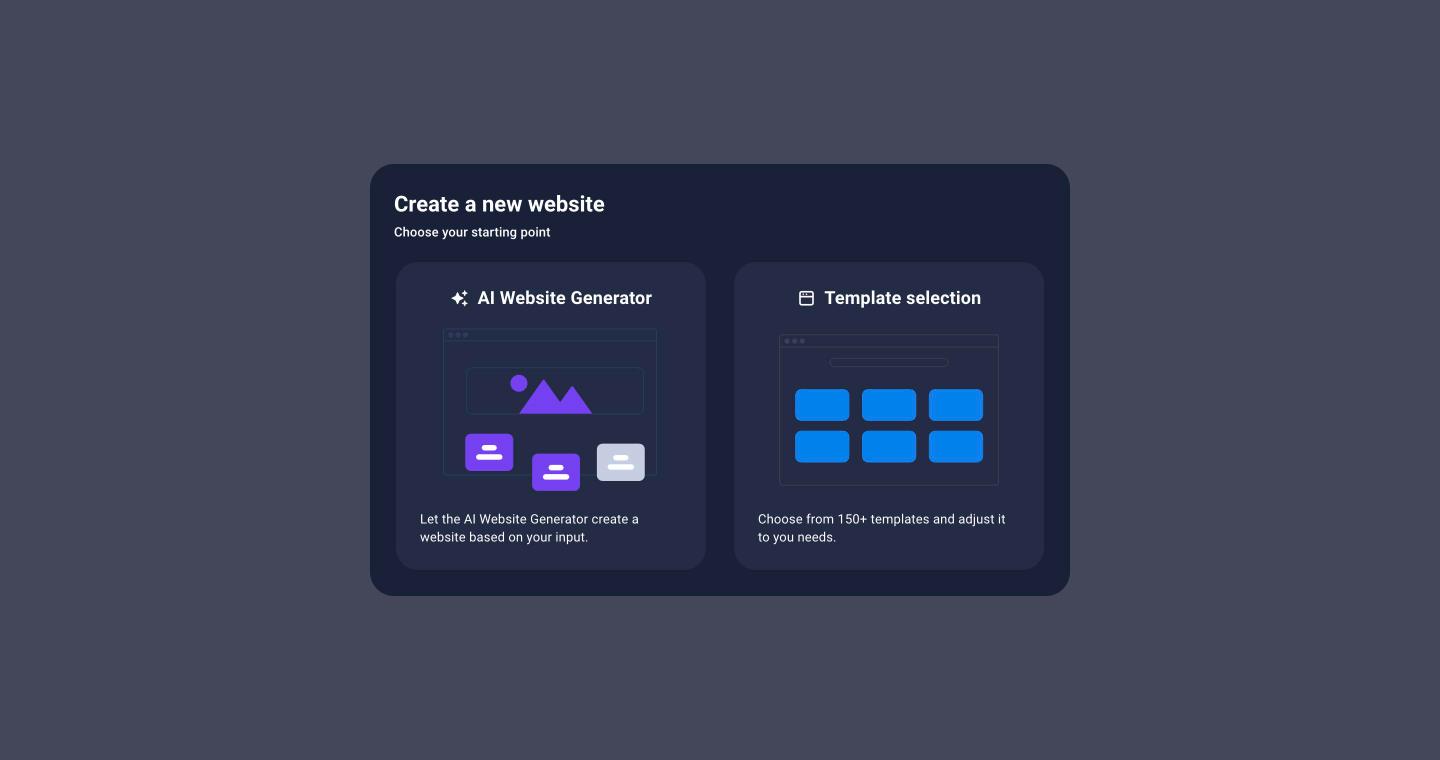
- AI Website Generator: answer three short questions and get a complete draft site with your business name, text, images, colors and pages. See Create Your Website with the AI Generator or a Template.
- Template selection: choose from more than 150 designs, sorted by type (one-pager, multi-pager, landing page, blog) and by industry.
What's included
- Drag-and-drop editor with ready-made sections and elements
- AI website generator and AI writer for text and SEO descriptions
- Unlimited pages, menus and subpages
- Contact forms that email you each message
- Blog and other collections (team, portfolio, jobs and more)
- Free stock photos and videos
- SEO settings for every page, and a weekly SEO check
- Mobile and tablet views, backups, multiple languages and custom code
- One-click publishing to your domain
Online store and booking integrations aren't included in the Site Builder plans.
Articles in this section
- Create Your Website with the AI Generator or a Template
- A Tour of the Editor
- Add and Edit Content
- Colors, Fonts, Logo and Theme
- Pages, Menus and Page Settings
- Images, Videos and Free Stock Photos
- Contact Forms
- Add a Blog (Collections)
- SEO Settings and SEO Analysis
- Check Your Site on Mobile and Tablet
- Build a Multilingual Website
- Backups
- Custom Code (CSS, JavaScript and HTML)
- Publish Your Website to Your Domain
- Make Your Website Accessible
- Troubleshooting
Need help? Open a support ticket.
