
Contact forms send each message to your email address. Many templates already include one on the contact page.
Add a form
Click Forms in the left sidebar and drag a design onto the page. To add fields, drag input types (text, email, phone, dropdown, checkbox, file upload and so on) into the form. Double-click a field to open its settings, such as its label and whether it must be filled in.
Set where messages are sent
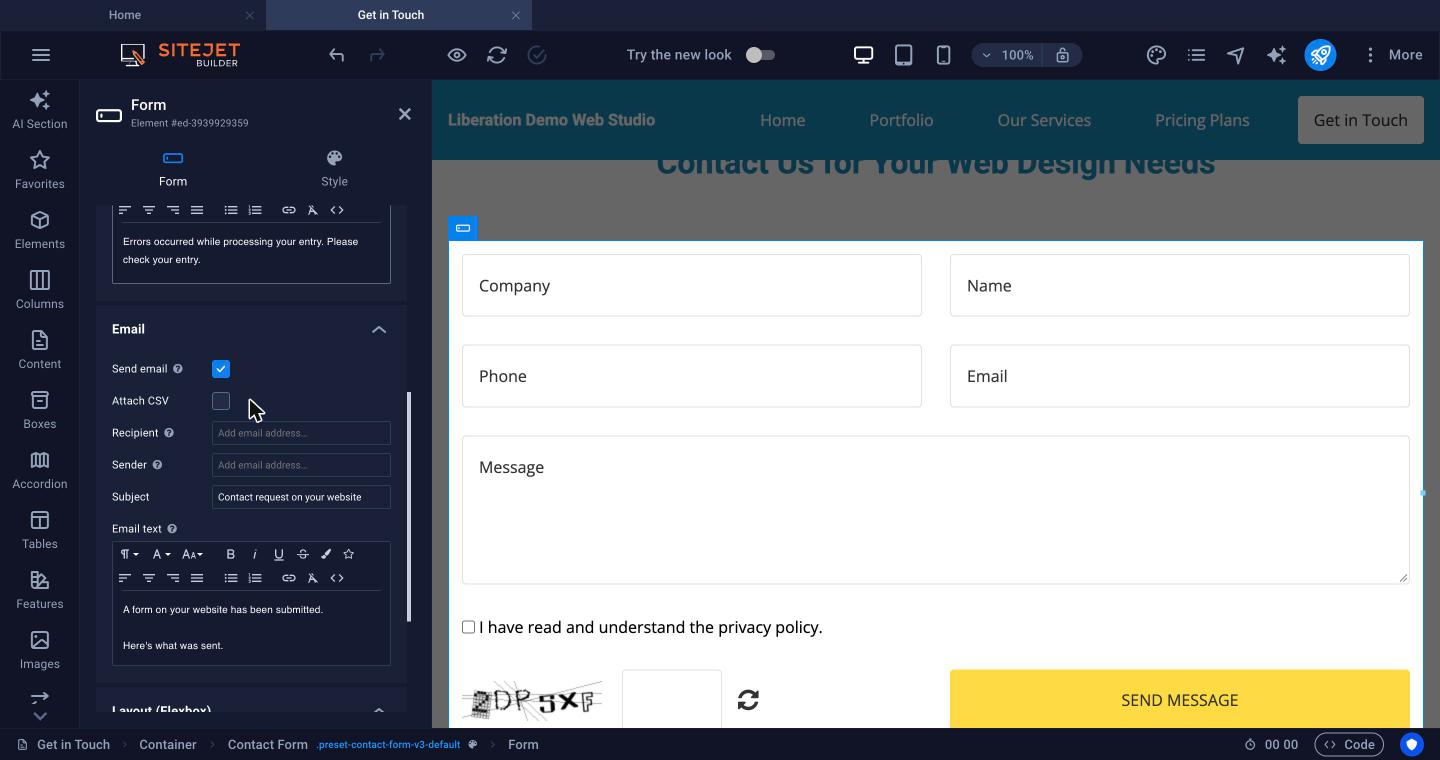
- Click any field in the form, then click Form in the bottom bar and double-click it. The form settings open on the left.
- Scroll to Email.
- Make sure Send email is ticked.
- In Recipient, enter the email address that should receive the messages.
- In Sender, enter an address at your own domain, such as [email protected]. See How form messages are sent below.
- Optionally change the Subject and the email text, and tick Attach CSV to get each message as a spreadsheet file too.
How form messages are sent (SMTP)
The form has no SMTP settings of its own. When a visitor submits it, your hosting server sends the message using its built-in PHP mail function, so there's nothing to set up in the builder. To make sure the messages reach your inbox rather than spam:
- Use a Sender address at your own domain. Don't use a Gmail, Yahoo or Outlook.com address as the Sender: those providers block messages sent in their name from other servers.
- If your domain's email is hosted somewhere else (for example Liberation Email, Google Workspace or Microsoft 365), your domain's SPF record must also allow your hosting server to send, or form messages may land in spam. Add your hosting account's IP address (shown in cPanel under General Information > Shared IP Address) to the SPF record, for example
v=spf1 ip4:YOUR.HOSTING.IP include:_spf.liberation.email -all. A domain can only have one SPF record, so edit the existing one rather than adding a second. See SPF Records. - If your domain's email is on this same hosting account, the standard SPF record already covers it and you don't need to change anything.
Other form settings
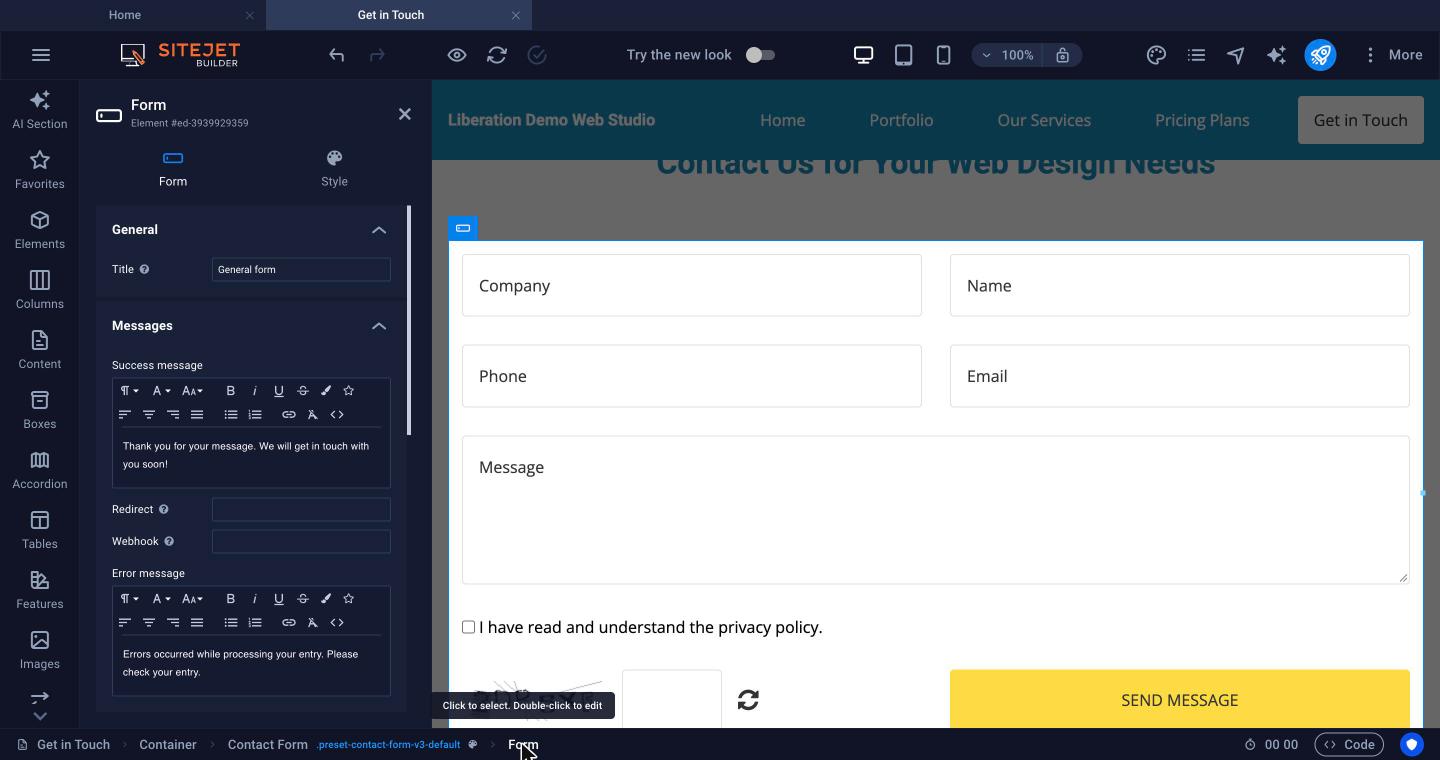
- Success message and Error message: what visitors see after they submit.
- Redirect: send visitors to a page, such as a thank-you page, instead of showing the success message.
- Webhook: for advanced users, also send each submission to another service.
Spam protection and privacy
Forms include a Captcha (the distorted letters visitors type) and a privacy checkbox. Keep both. The privacy checkbox should link to your Privacy page.
