
Pages are built from sections (a full-width band such as a header, a services grid or a contact block) that contain elements (a headline, text, image, button and so on).
Add a ready-made section
- Click a category in the left sidebar, such as Content, Features or Footer.
- Drag a design from the panel onto the page. Blue lines show where it will land.
- Click the sample text and images in it to replace them.
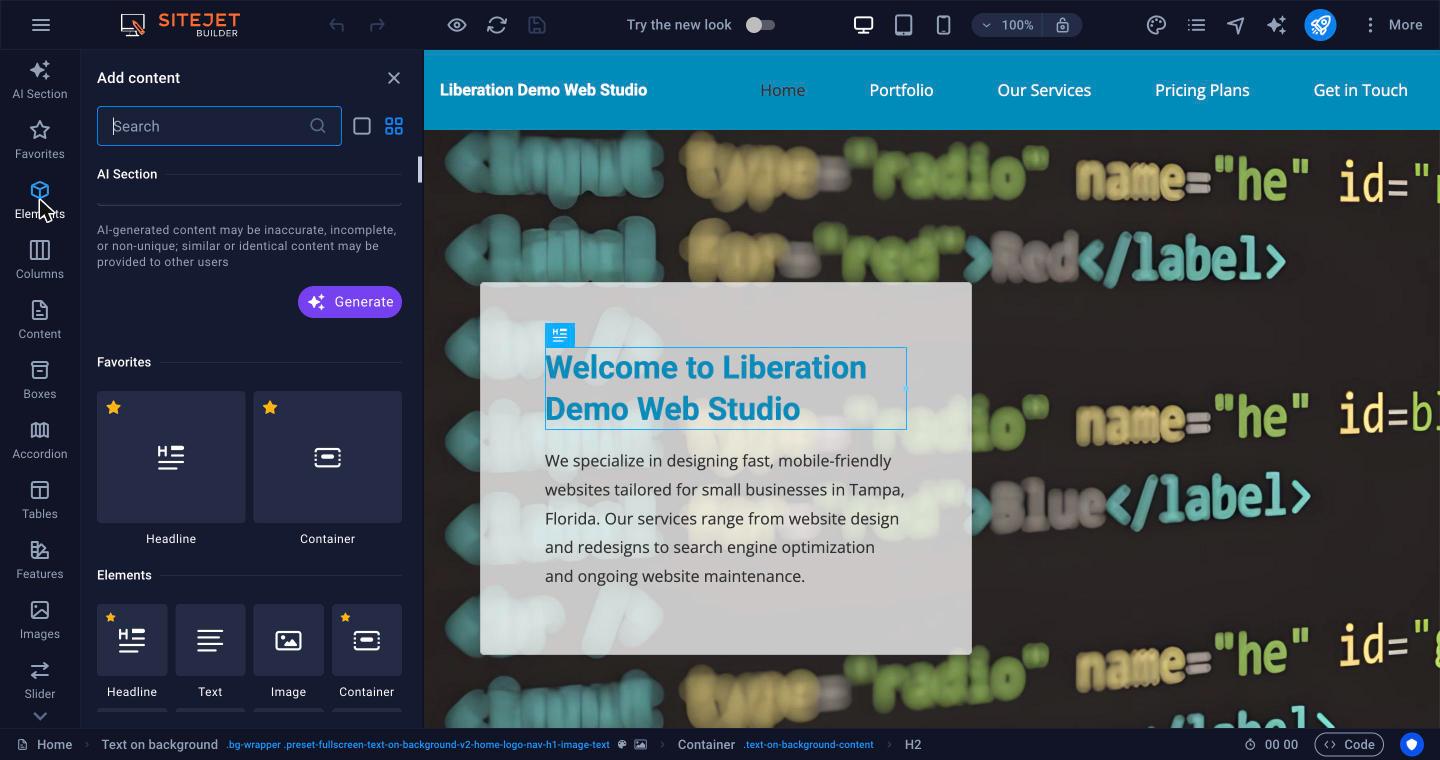
Add a single element
Click Elements and drag one onto the page:
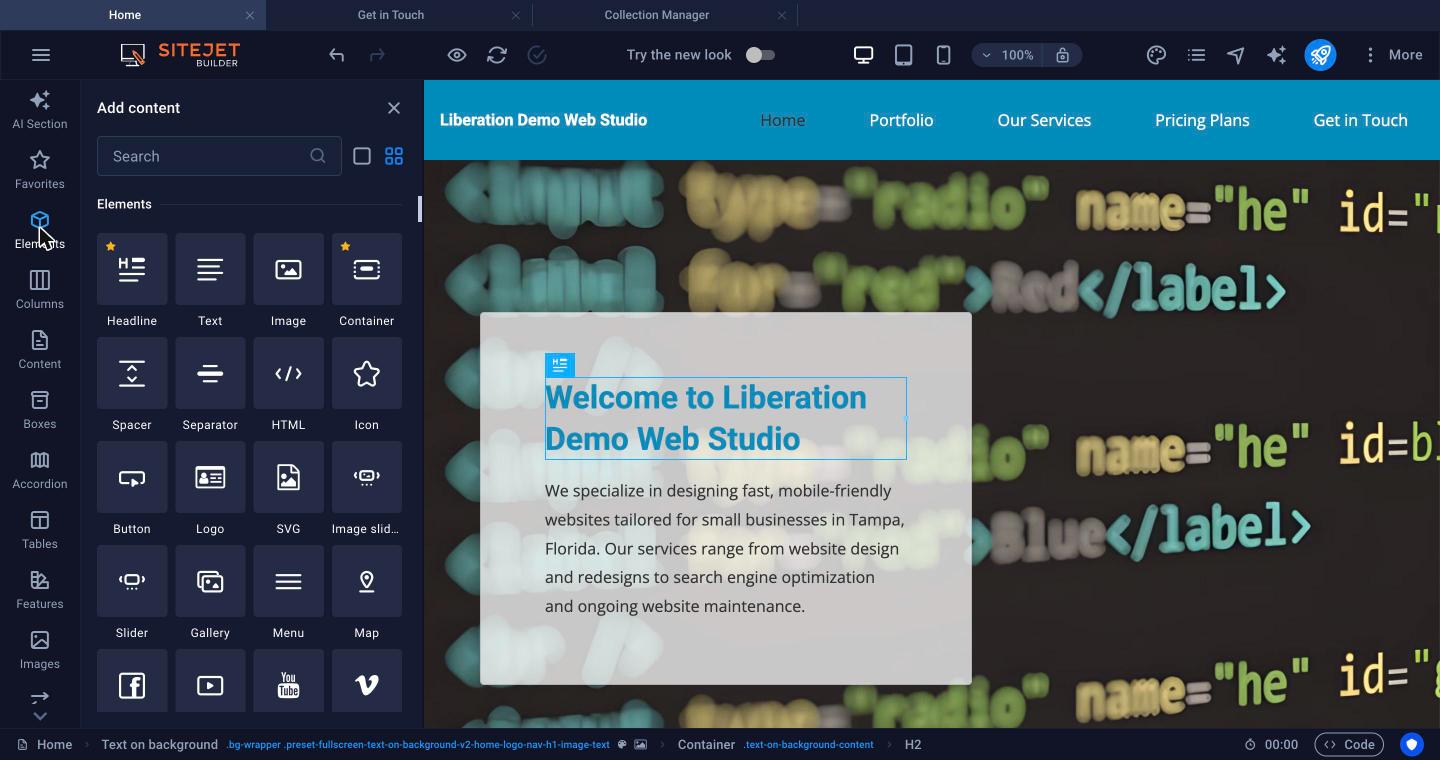
Available elements: Headline, Text, Image, Container, Spacer, Separator, HTML, Icon, Button, Logo, SVG, Image slider, Slider, Gallery, Menu, Map, Facebook, Video, YouTube, Vimeo, Document, Audio, Iframe, Privacy and Languages. Star an element to add it to Favorites.
Edit an element
- Click an element to select it. A small toolbar appears above it to move, copy or delete it.
- Double-click to edit it. Text is edited in place; other elements open their settings in the left panel, with a Style tab for spacing, colors and borders.
- Use the path in the bottom bar to select the section or container around an element.
Let AI write or build for you
- AI Section: in the left sidebar, choose a section type (About, Team, Services, Pricing, Testimonials, FAQ, Contact and more), describe what it should say and click Generate.
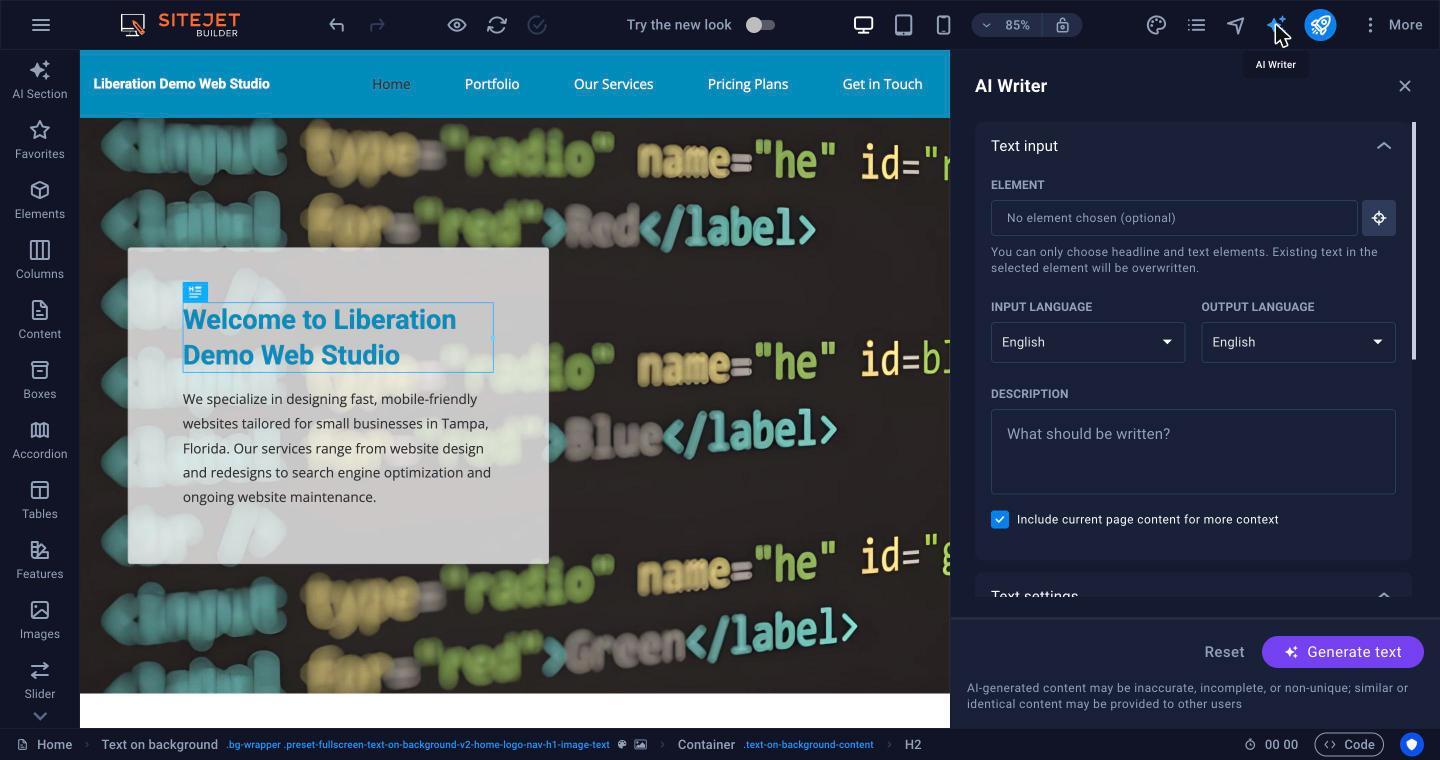
- AI Writer: click the sparkle icon at the top. Pick a headline or text element on the page (optional), choose the language, describe what you want and click Generate text. Existing text in the chosen element is replaced.
Important: Always check AI-written text before publishing. It can be wrong or generic, and similar text may be given to other users.
Tip: Made a mistake? Use Undo at the top, or restore a backup: see Backups.
Related: Images, Videos and Free Stock Photos, Contact Forms.
