
Most visitors will see your site on a phone. Sites made with the builder adjust to the screen automatically, but check every page before you publish.
- Click the tablet or smartphone icon at the top of the editor. Hover over the icon to pick a specific phone or tablet size.
- Scroll through each page. Look for text that is cut off or squashed, images that are too small, and buttons that are hard to tap.
- Click the desktop icon to go back.
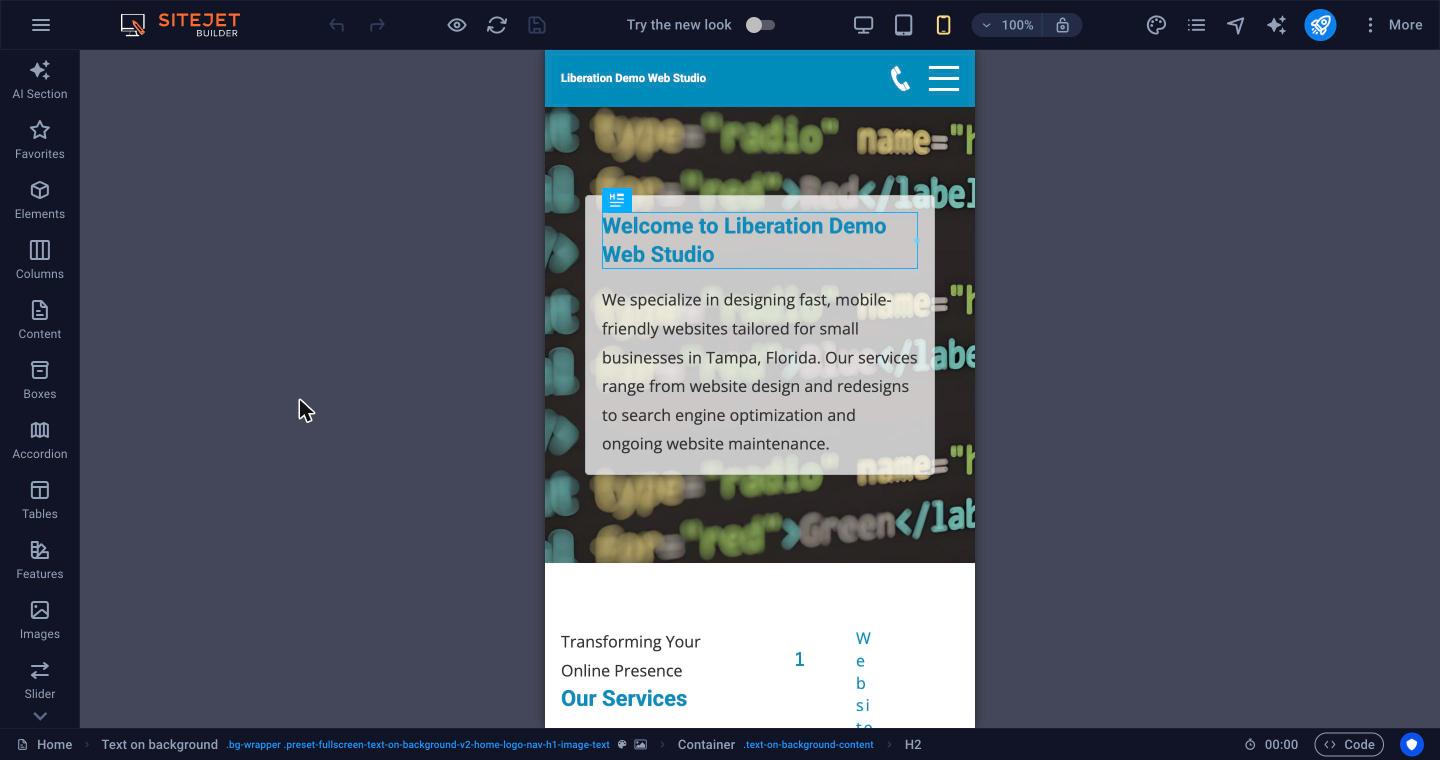
In this example the numbers and words beside Our Services are squashed into a narrow column on a phone. Fixes that usually work:
- With the smartphone view active, select the element and reduce its font size or spacing in its Style settings.
- Shorten long headlines and words.
- Switch back to desktop afterwards to check that it still looks right there.
Tip: Use Preview (the eye icon) to test menus and buttons, then check the published site on your own phone.
