
Replace an image
- Double-click an image on the page.
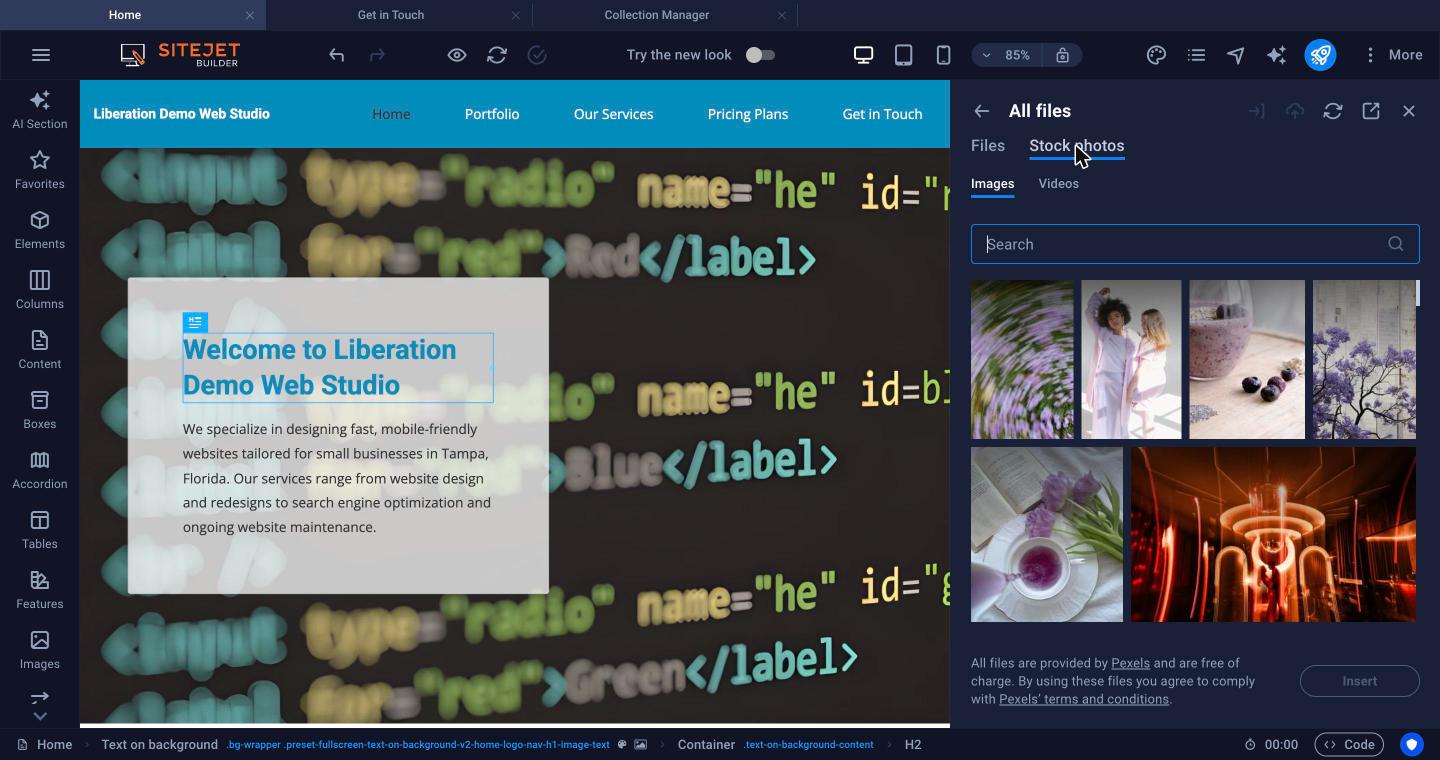
- Choose a file you've already uploaded, click Upload to add one from your computer, or switch to Stock photos.
- Select it and click Insert.
To manage all your files, open More > Files & Stock Photos. Filter by type, show Unused only to find files you can delete, and drag files straight into the panel to upload them.
Free stock photos and videos
The Stock photos tab lets you search thousands of free photos and videos from Pexels. They're free to use on your site under Pexels' license, which is linked at the bottom of the panel.
Galleries, sliders and backgrounds
- Elements > Gallery or Image slider for several pictures. Double-click to add or reorder images.
- The Images and Slider categories in the left sidebar have ready-made image sections and banners.
- To change a section's background picture, select the section (use the bottom bar), open its Style tab and change the background image.
Video, audio, maps and documents
- YouTube and Vimeo elements: paste the video's link.
- Video and Audio elements: upload your own file or use a stock video.
- Map: enter an address to show a map.
- Document: offer a PDF or other file to download.
- Iframe: embed another web page or widget.
Tip: Add a short description (alt text) to every image so people using screen readers, and search engines, know what it shows. See Make Your Website Accessible.
Large photos slow your site down. Resize photos from your camera or phone to around 2000 pixels wide before uploading.
