
The first time you open Sitejet Builder you choose how to start. Both options give you a complete site that you can then edit freely. If you want to start over later, open the menu (☰) and choose Change Template or Generate website.
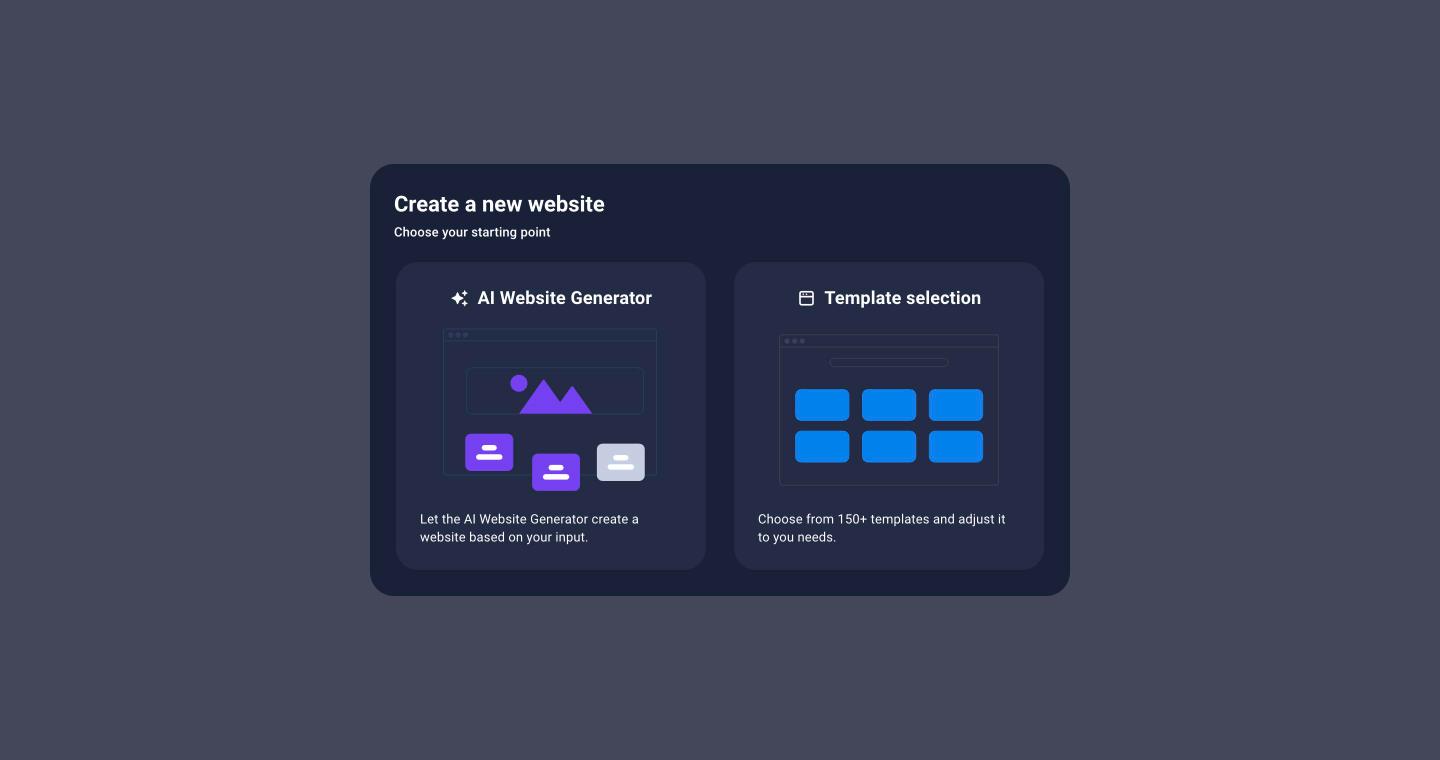
Option 1: the AI Website Generator
- Click AI Website Generator.
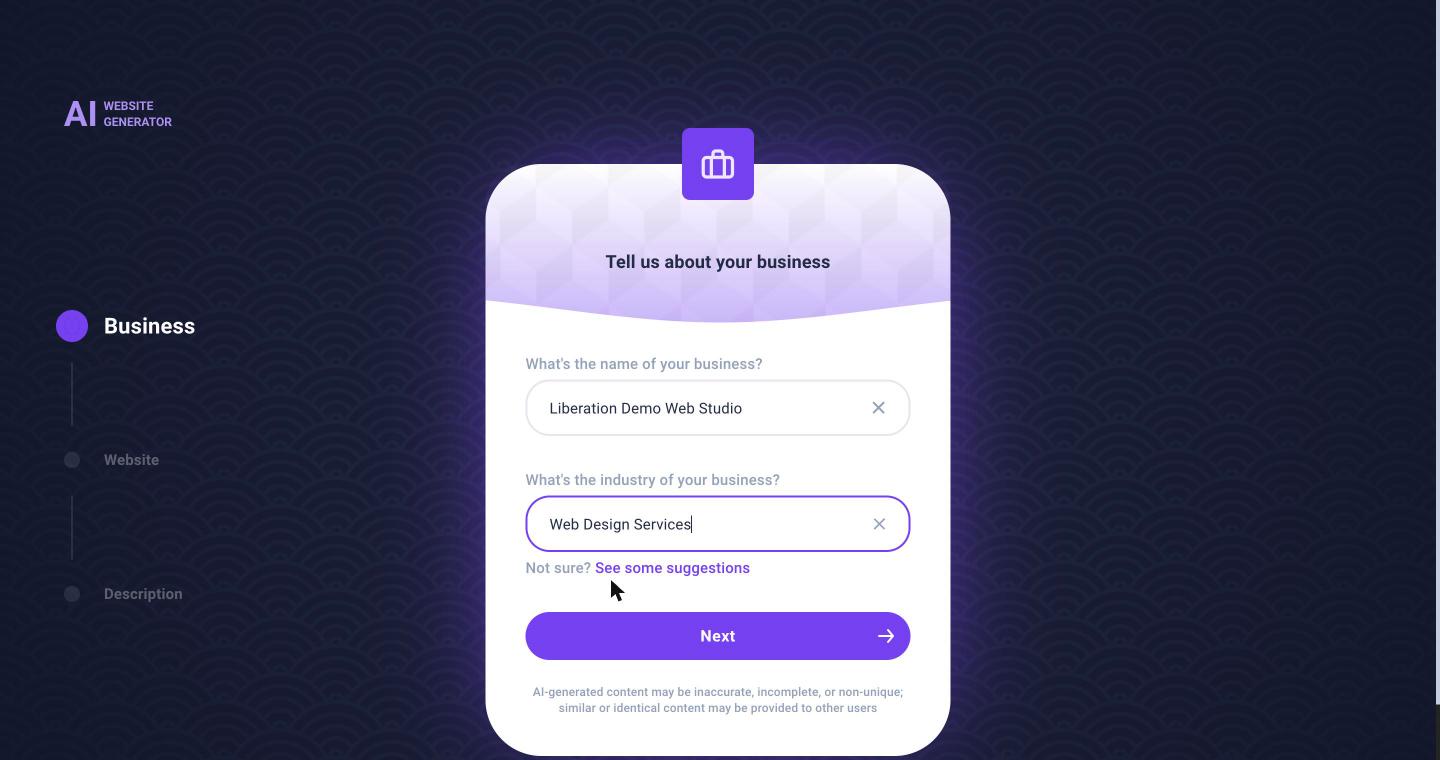
- Enter your business name and choose or type your industry, then click Next.
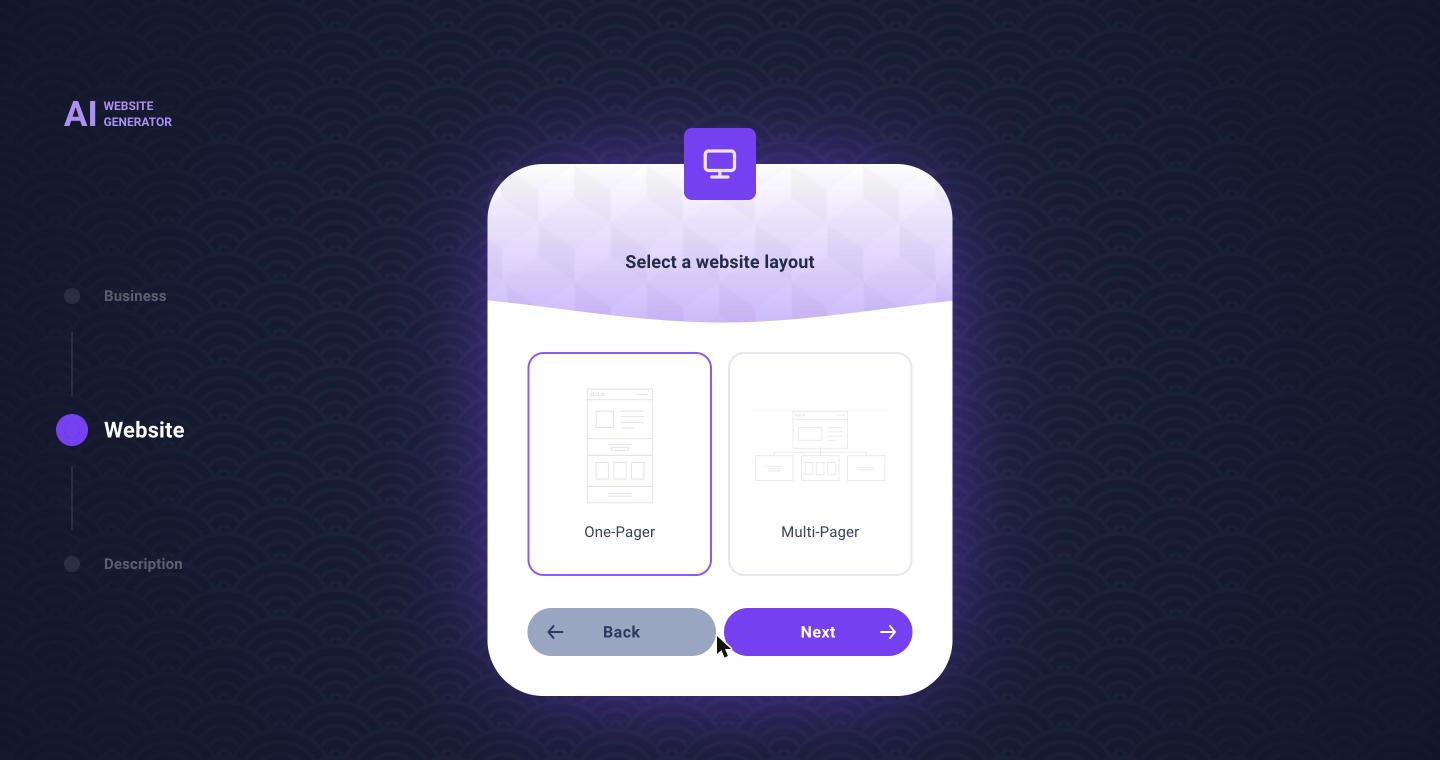
- Choose One-Pager (everything on one scrolling page) or Multi-Pager (separate pages such as Services and Contact).
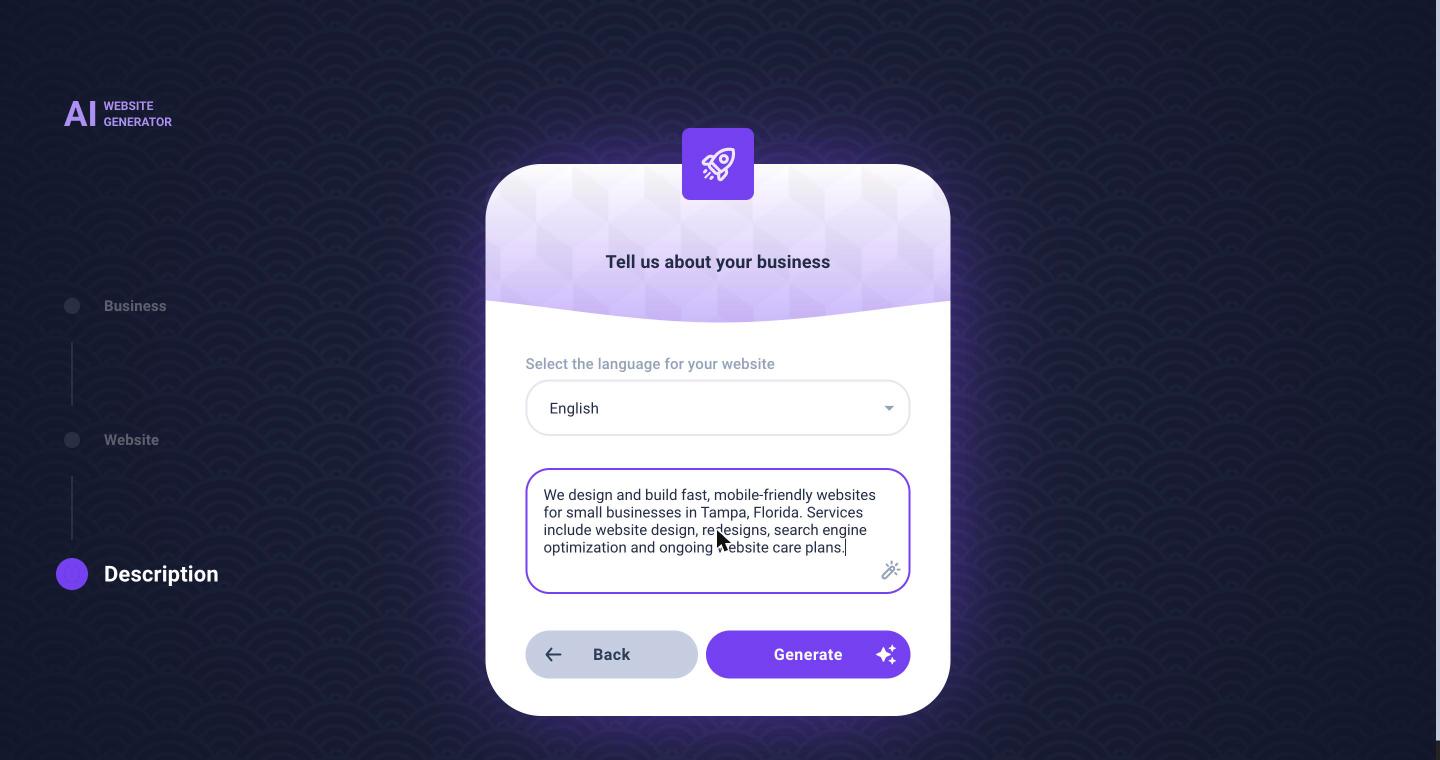
- Choose the language and describe your business in a few sentences: what you do, where, and for whom. Click the wand icon if you'd like help writing it. Then click Generate.
After a minute or so your draft site appears with a panel on the right where you finish the setup:
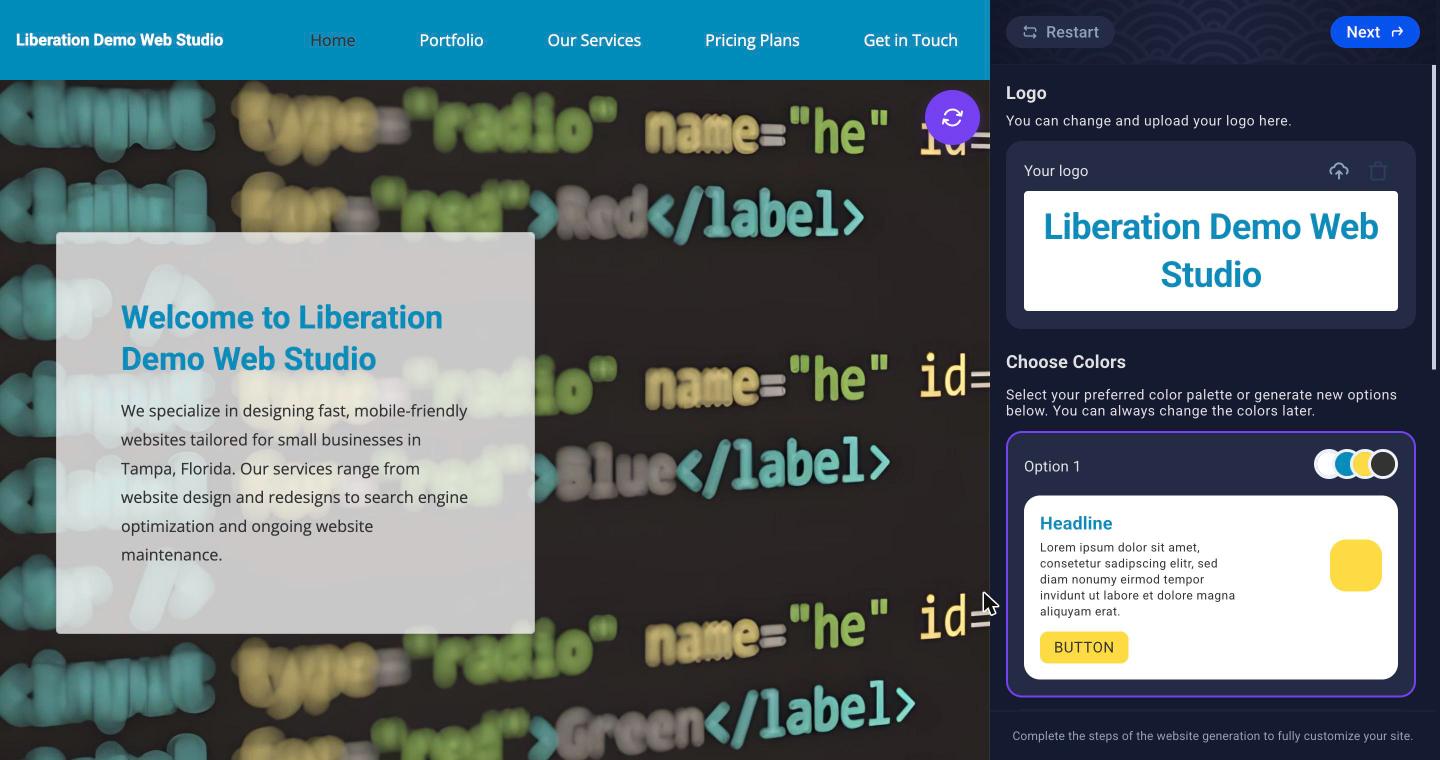
- Logo: upload your logo, or keep the text logo for now.
- Choose Colors: pick a color palette, or generate more options. Click Next.
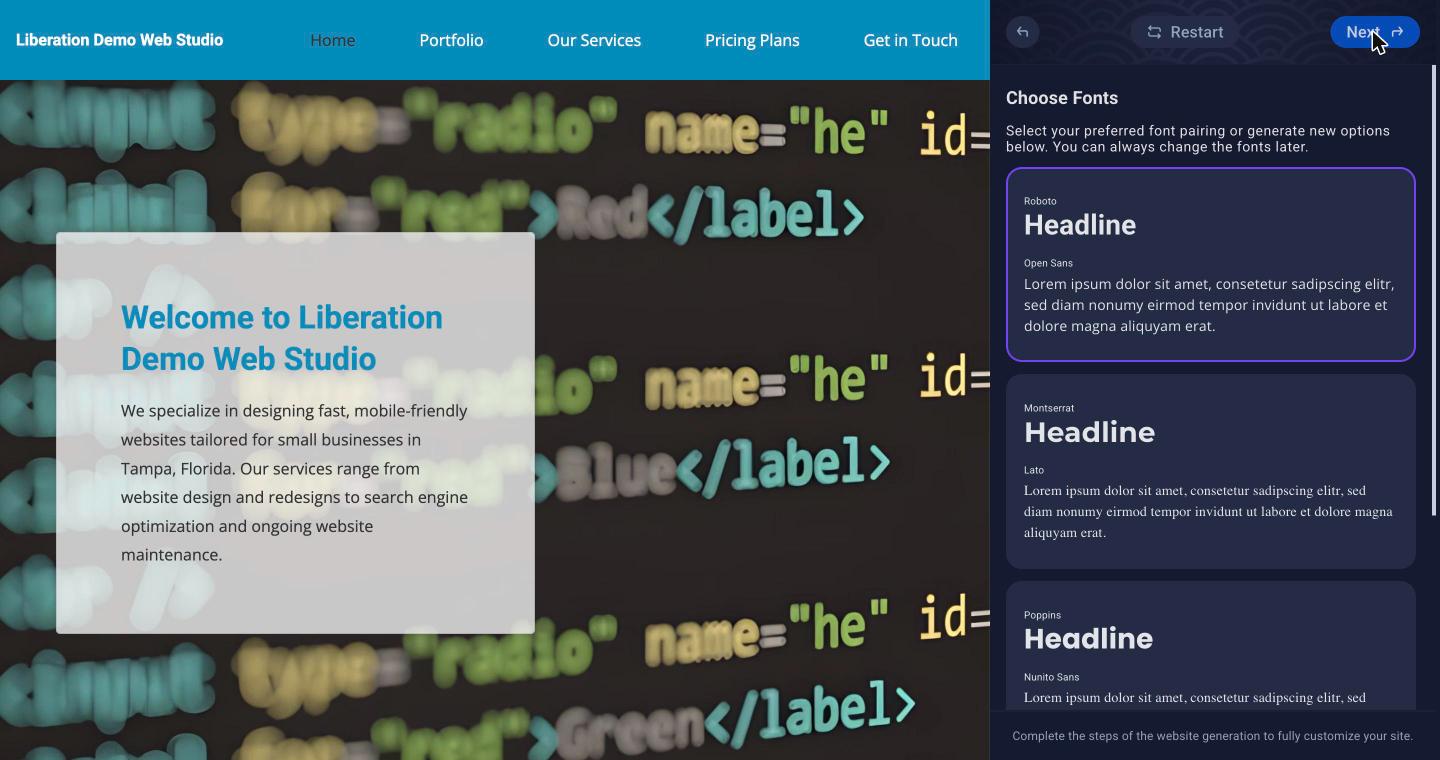
- Choose Fonts: pick a heading and text font pairing. Click Next.
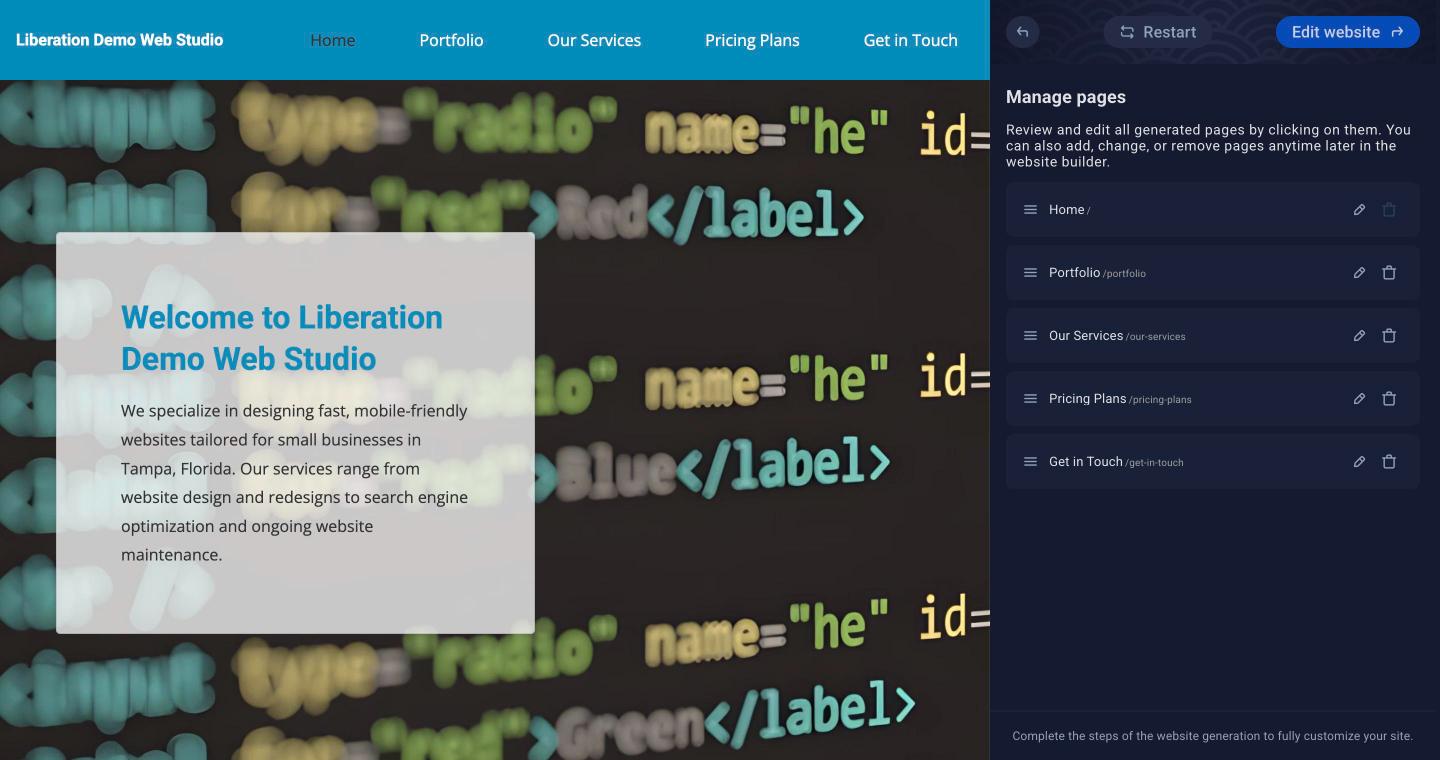
- Manage pages: rename, delete or drag pages into order. Then click Edit website to open the editor.
Important: AI-written text can be inaccurate. Read every page and correct names, addresses, prices and claims before you publish. In our test the generator put the wrong city in the site slogan.
Option 2: pick a template
- Click Template selection.
- Filter by type (Onepager, Multipager, Landingpage, Blog) or by industry, or browse New and Trending.
- Click Preview to look at a template, then Choose to use it.
Templates contain sample text and photos. Replace them with your own before publishing.
Tip: Before you try a different template or regenerate the site, save a backup so you can come back. See Backups.
Next: A Tour of the Editor.
