
A collection is a list of similar items that share one design, such as blog posts, team members, jobs, portfolio projects or products to show off. You add items in the Collection Manager, and the builder creates a page for each one.
1. Add a collection template to a page
The easiest way to start is ready-made: click Collections in the left sidebar and drag a template (Blog, Jobs, Product Gallery, Team, Portfolio, Real Estate) onto a page. This adds a listing plus a sample collection you can edit.
2. Or create a collection yourself
- Open More > Collection Manager and click Add collection.
- Name it, for example Blog, and press Enter.
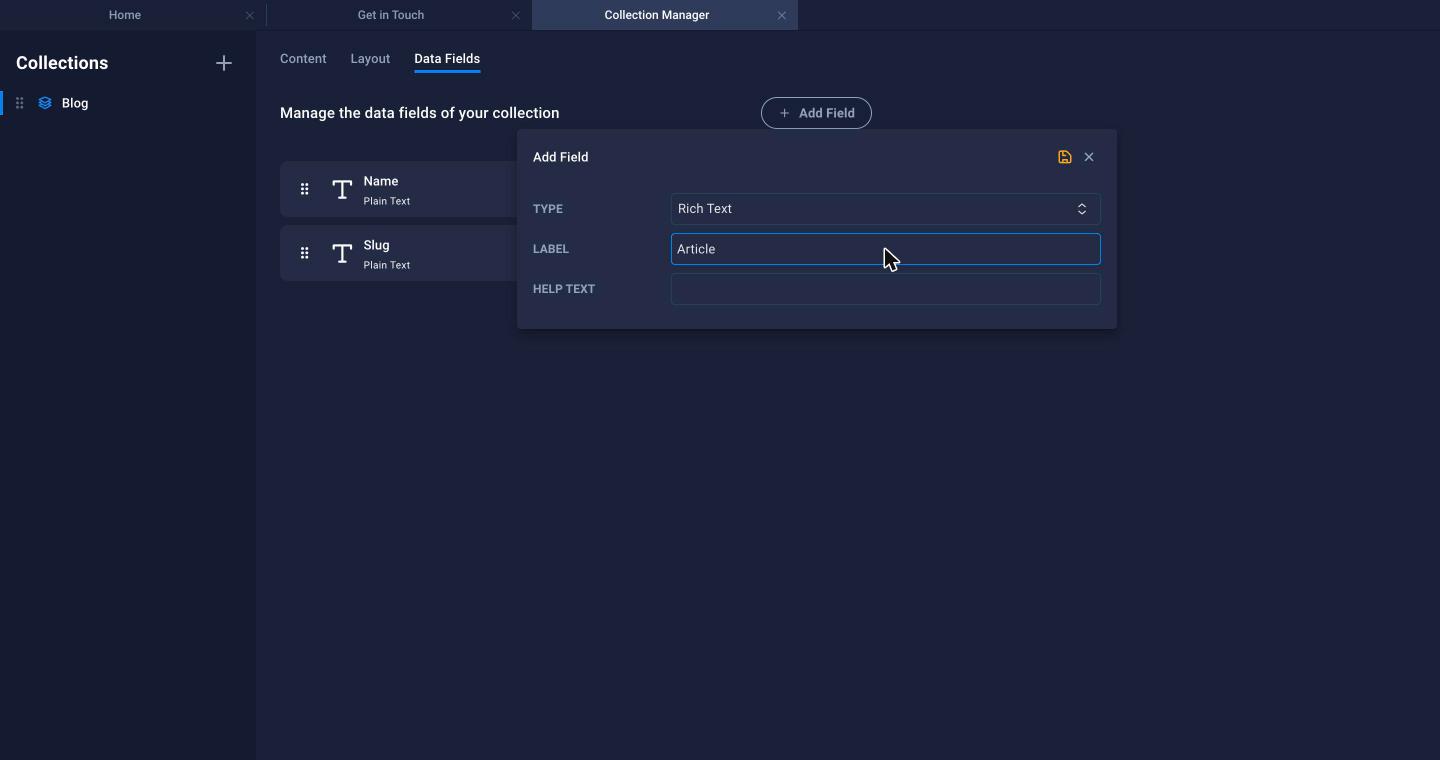
- On the Data Fields tab, click Add Field to add the fields each item needs. Types include Plain Text, Rich Text, Link, File, Multiple Files, Checkbox, Choice, Date and Number. A blog might have a Rich Text field for the article and a File field for the photo.
3. Add items
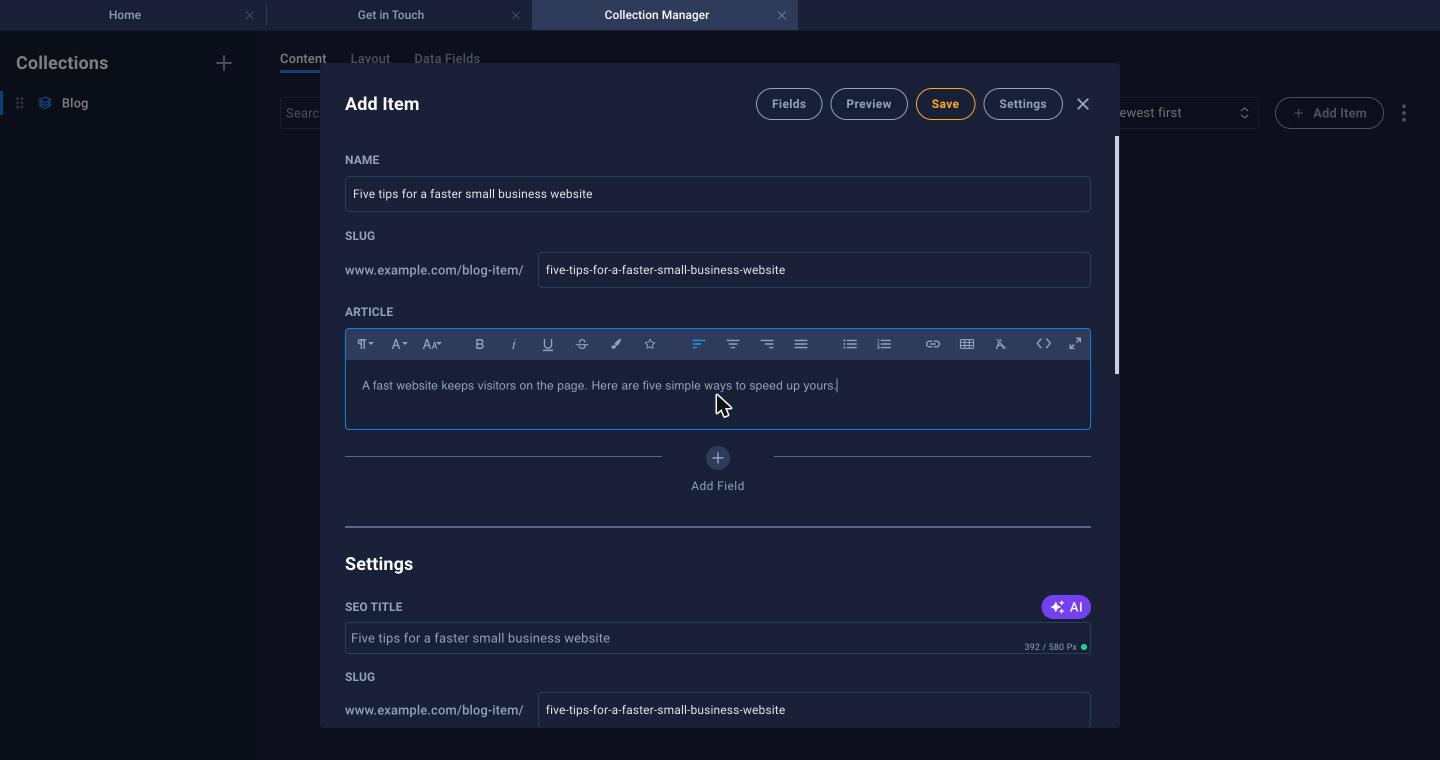
On the Content tab click Add Item, fill in the fields and click Save. Each item has its own Settings for its SEO title and URL.
4. Design the listing and the item page
On the Layout tab:
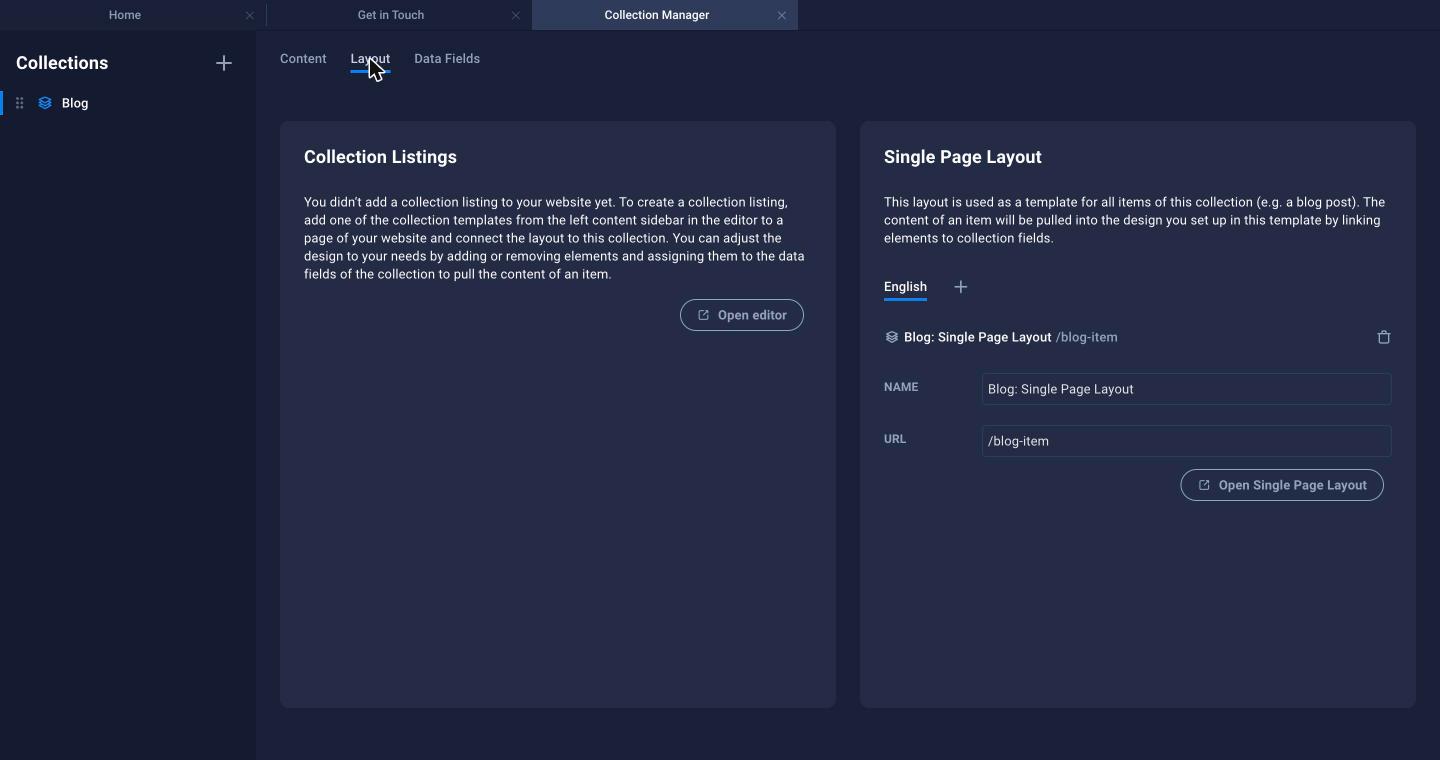
- Collection Listings are the lists on your pages (for example the latest posts on the home page). Add one from the Collections category in the editor.
- Single Page Layout is the template used for every item's own page. Click Open Single Page Layout to design it, and link its elements to your fields.
Remember to publish after adding or changing items. See Publish Your Website to Your Domain.
