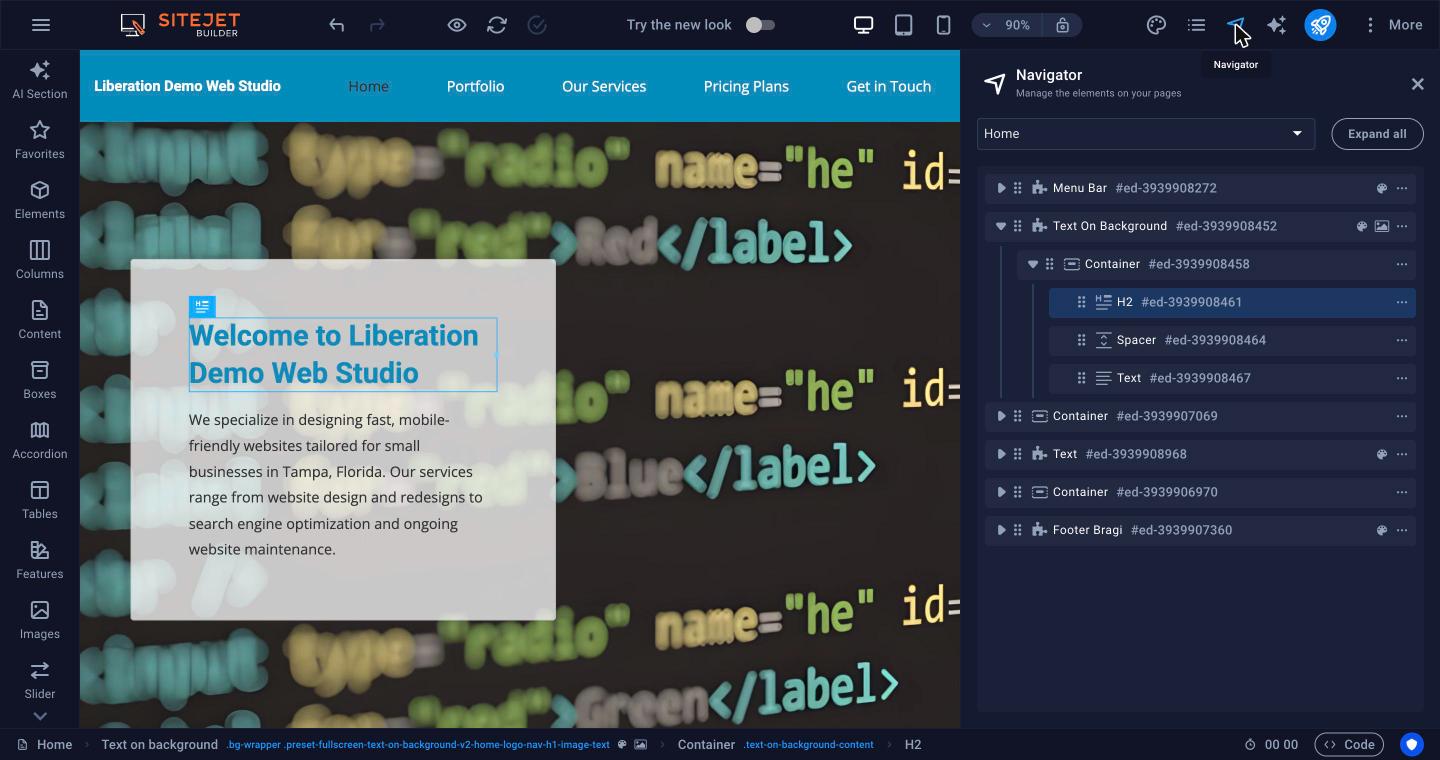
This is what you see when you open your site in Sitejet Builder. Click anything on the page to select it and edit it.
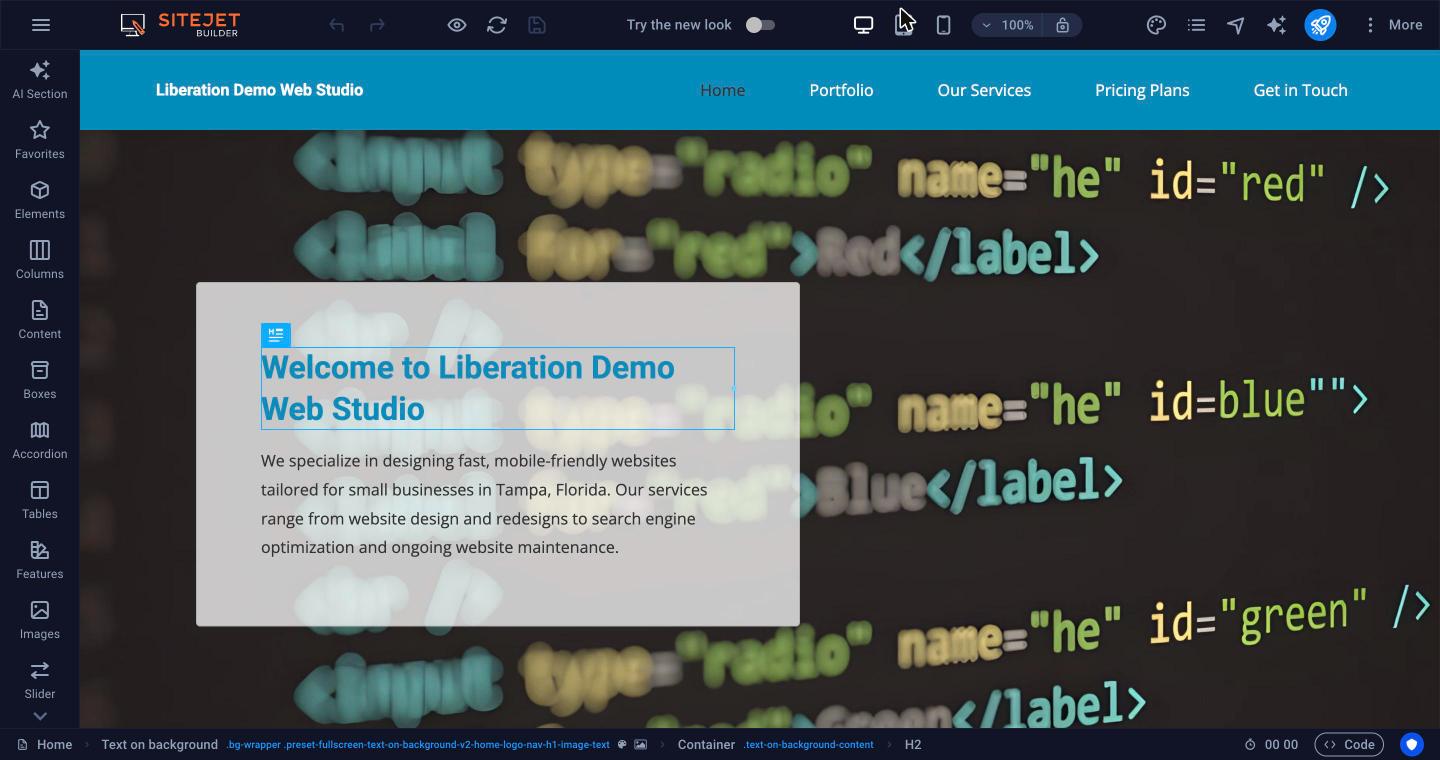
Left sidebar: add content
Each button opens a library of ready-made pieces you drag onto the page: AI Section, Favorites, Elements, Columns, Content, Boxes, Accordion, Tables, Features, Images, Slider, Header, Footer, Forms, Marketing and Collections. See Add and Edit Content.
Top bar, from left to right
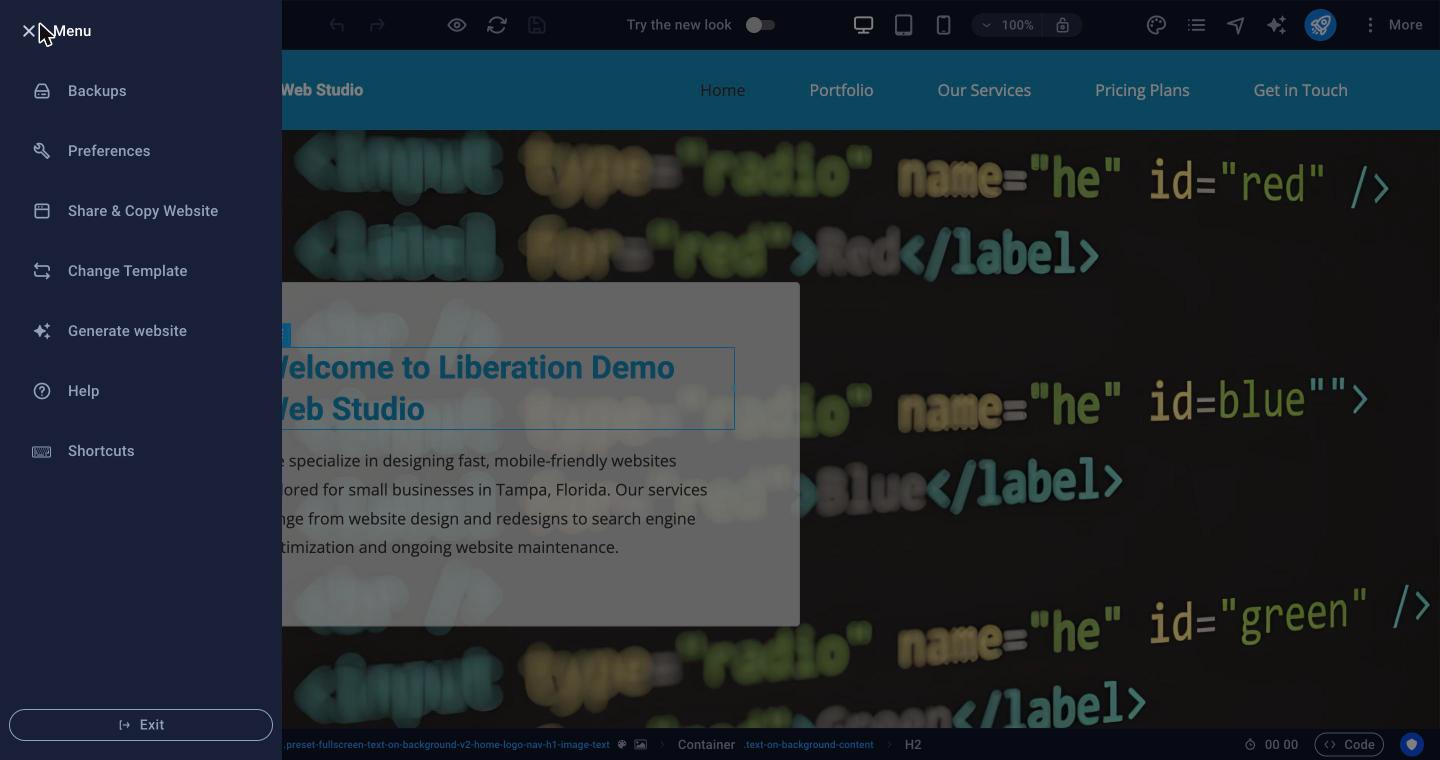
- ☰ Menu: Backups, Preferences, Share & Copy Website, Change Template, Generate website, Help, Shortcuts and Exit.
- Undo / Redo
- Preview (eye): see the page as visitors will, without the editing tools.
- Reload and Save. Changes are also saved automatically.
- Try the new look: switches the editor to its newer layout. Your website doesn't change.
- Desktop / Tablet / Smartphone: see Check Your Site on Mobile and Tablet.
- Zoom and lock
- Theme (palette): site-wide fonts, colors, buttons and layout. See Colors, Fonts, Logo and Theme.
- Pages: see Pages, Menus and Page Settings.
- Navigator: a tree of every section and element on the page.
- AI Writer (sparkle)
- Publish (rocket): see Publish Your Website to Your Domain.
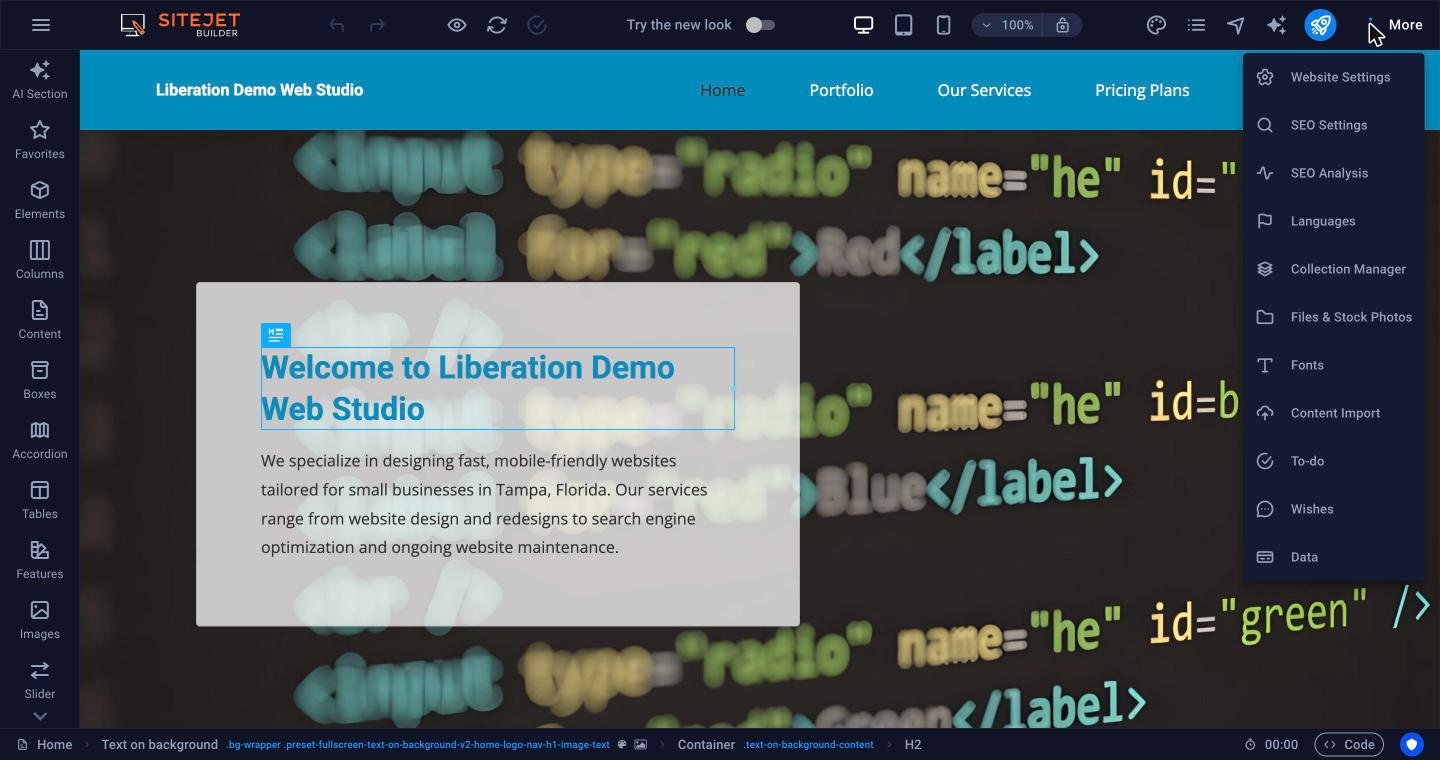
- More: Website Settings, SEO Settings, SEO Analysis, Languages, Collection Manager, Files & Stock Photos, Fonts, Content Import, To-do, Wishes and Data.
Navigator
The Navigator is handy when an element is hard to click, for example text on top of a background image. Click a row to select that element, drag rows to reorder them, or use … for more options.
Bottom bar
The bar at the bottom shows where the selected element sits (for example Container > H2). Click any part to select the element around it. The Code button opens the code editor: see Custom Code.
Website settings
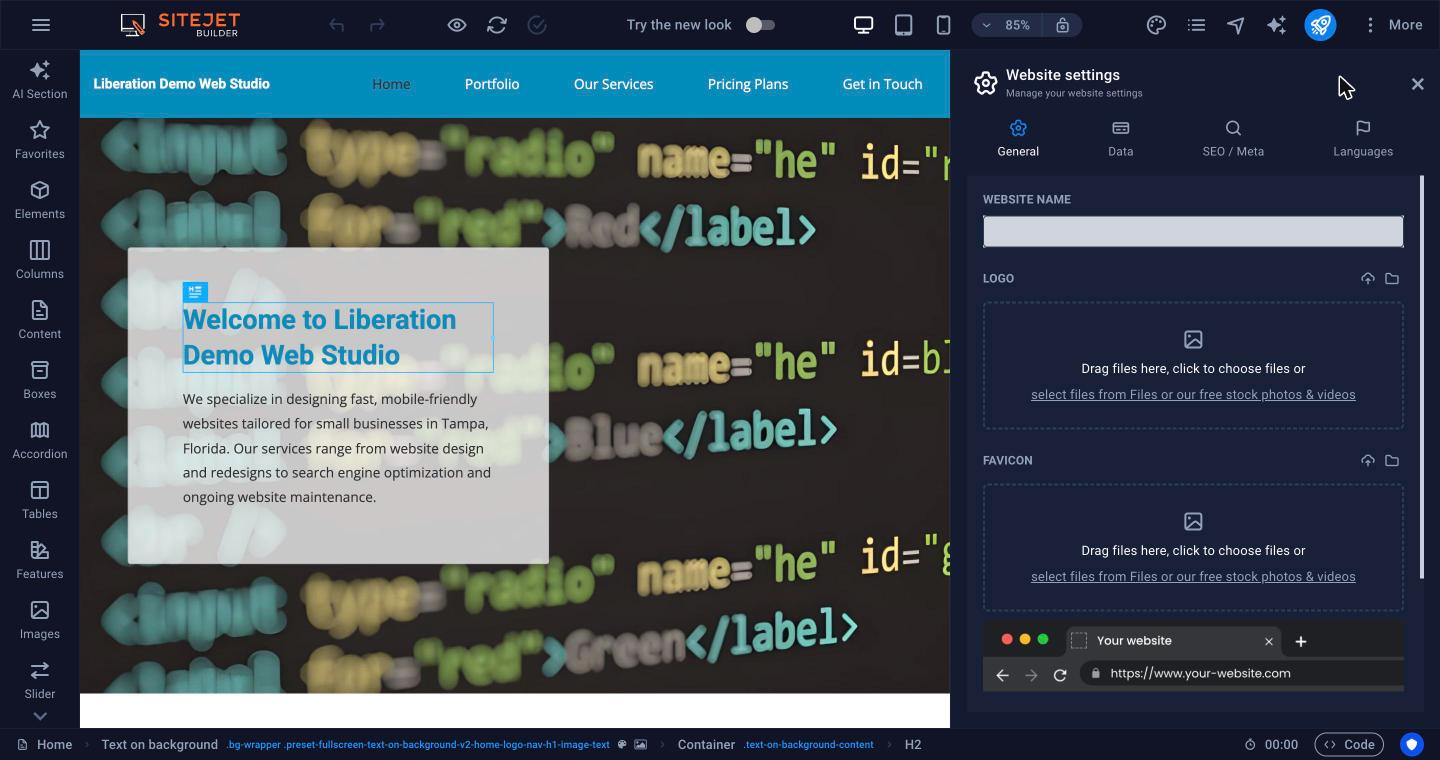
Under More > Website Settings:
- General: website name, logo, favicon (the small icon in the browser tab) and the preview image shown when your site is shared on social media.
- Data: your company name, address, phone and email. Elements that use these details update everywhere when you change them here.
- SEO / Meta: see SEO Settings and SEO Analysis.
- Languages: see Build a Multilingual Website.