
File and Directory Restoration brings back a single file or folder from the server's backups, for example a page you deleted or overwrote by mistake. You don't need to restore your whole account.
- Log in to the Client Area, go to Services > My Services and open your hosting service.
- Click Log in to cPanel in the menu on the left.
- In cPanel, click File and Directory Restoration. You can also type its name into the Search Tools box at the top.
- Under Files and Directories, either leave Enter a path selected and type the path (for example
public_html/index.php), or choose Browse files and directories and click through to the item. - Click Show Backups.
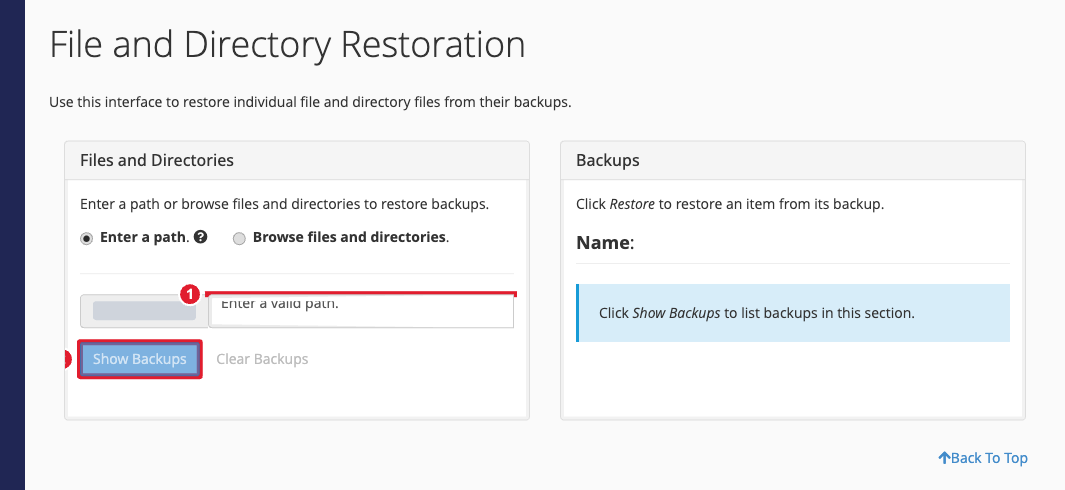
(1) Path to the file or folder (2) Show Backups
- The Backups panel lists the dates that have a copy of that item. Click Restore next to the date you want, then confirm.
Important: Restoring replaces the current version of the file or folder with the backup copy. If you might need the current version, download it or copy it to another name in File Manager first.
Tip: If no backups are listed, the item may be newer than the latest backup, or the path may be misspelled. To download or restore a full backup, see Back Up and Restore Your Website. If you still can't find what you need, open a support ticket.
